Compare commits
1 Commits
main
...
lovr-plays
| Author | SHA1 | Date | |
|---|---|---|---|

|
d0caade7ce |
@@ -8,10 +8,6 @@ IgnoreURLs:
|
|||||||
# For "Edit this page" and "Last modified by":
|
# For "Edit this page" and "Last modified by":
|
||||||
- "https://gitlab.com/lvra/lvra.gitlab.io/-/edit"
|
- "https://gitlab.com/lvra/lvra.gitlab.io/-/edit"
|
||||||
- "https://gitlab.com/lvra/lvra.gitlab.io/-/commit"
|
- "https://gitlab.com/lvra/lvra.gitlab.io/-/commit"
|
||||||
# Blocks bots:
|
|
||||||
- "https://www.pcgamingwiki.com/"
|
|
||||||
- "https://steamdb.info/"
|
|
||||||
- "https://www.npmjs.com/"
|
|
||||||
# IgnoreDirs:
|
# IgnoreDirs:
|
||||||
# - "lib"
|
# - "lib"
|
||||||
CacheExpires: "6h"
|
CacheExpires: "6h"
|
||||||
|
|||||||
@@ -12,16 +12,4 @@ Feel free to contribute to this wiki yourself if you find anything useful that y
|
|||||||
|
|
||||||
You can start with the [hardware table](/docs/hardware/).
|
You can start with the [hardware table](/docs/hardware/).
|
||||||
|
|
||||||
For wireless/android/standalone headsets visit the [WiVRn](/docs/fossvr/wivrn/) page for installation instructions.
|
After which you may want to take a look at the [Envision](/docs/fossvr/envision/) application for quick setup and compatibility with your PC Steam games.
|
||||||
|
|
||||||
For wired headsets similar to Valve Lighthouse/WMR/Oculus/Rift use [Envision](/docs/fossvr/envision/) application for quick setup and compatibility with your PC Steam games.
|
|
||||||
|
|
||||||
## Community
|
|
||||||
|
|
||||||
Join a community of thousands of Linux VR adventurers!
|
|
||||||
|
|
||||||
[More info here.](/docs/community/).
|
|
||||||
|
|
||||||
## Game Compatibility
|
|
||||||
|
|
||||||
Check [db.vronlinux.org](https://db.vronlinux.org/) for an up-to-date report about what VR titles run well on Linux!
|
|
||||||
@@ -7,25 +7,21 @@ weight: 250
|
|||||||
|
|
||||||
DIY eye tracking for any headset. Here are the steps to get the software working on linux.
|
DIY eye tracking for any headset. Here are the steps to get the software working on linux.
|
||||||
|
|
||||||
## Prerequisites
|
|
||||||
|
|
||||||
- tkinter `pacman -S tk`
|
|
||||||
- Python 3.11 available through the [AUR](https://aur.archlinux.org/packages/python311), build yourself! Otherwise tk will not work!
|
|
||||||
- Build after installing tkinter, otherwise it will not be included
|
|
||||||
- [poetry](https://python-poetry.org/docs/#installing-with-the-official-installer)
|
|
||||||
|
|
||||||
## EyeTrackApp
|
## EyeTrackApp
|
||||||
|
|
||||||
```bash
|
`git clone https://github.com/EyeTrackVR/EyeTrackVR.git`
|
||||||
git clone https://github.com/EyeTrackVR/EyeTrackVR.git
|
|
||||||
cd EyeTrackVR
|
|
||||||
poetry install --no-root
|
|
||||||
cd EyeTrackApp
|
|
||||||
poetry run pyinstaller eyetrackapp.spec
|
|
||||||
```
|
|
||||||
|
|
||||||
and bada bing bada boom you now should now have a fully functional eyetrack app in directory `dist`
|
`cd EyeTrackVR`
|
||||||
|
|
||||||
|
`git checkout v2.0-beta-feature-branch`
|
||||||
|
|
||||||
|
`poetry install --no-root`
|
||||||
|
|
||||||
|
`cd EyeTrackApp`
|
||||||
|
|
||||||
|
and bada bing bada boom you now should now have a fully functional eyetrack app when you run:
|
||||||
|
|
||||||
|
`poetry run python3 eyetrackapp.py`
|
||||||
|
|
||||||
## VRChat Native Eyetracking
|
## VRChat Native Eyetracking
|
||||||
|
|
||||||
|
|||||||
@@ -1,69 +0,0 @@
|
|||||||
---
|
|
||||||
title: Fedora Atomic (Bazzite)
|
|
||||||
---
|
|
||||||
|
|
||||||
# Fedora Atomic
|
|
||||||
|
|
||||||
This documentation applies to both Fedora's Atomic images (Silverblue, Kinoite, etc.), as well as Universal Blue images (Bazzite, Bluefin, etc.)
|
|
||||||
|
|
||||||
# AtomicXR
|
|
||||||
|
|
||||||
The recommended way to set up Fedora Atomic for VR is with [AtomicXR](https://tangled.sh/@matrixfurry.com/atomic-xr). See the [README](https://tangled.sh/@matrixfurry.com/atomic-xr/blob/main/README.md) for the most up-to date usage instructions.
|
|
||||||
|
|
||||||
## Installation & Setup
|
|
||||||
{{% hint info %}}
|
|
||||||
You'll need to install [Homebrew](https://brew.sh/) to use AtomicXR. See [this page](https://docs.brew.sh/Homebrew-on-Linux#install) for installation instructions.
|
|
||||||
If you're using a Universal Blue image (Bazzite, Bluefin, etc.), it's already installed for you.
|
|
||||||
{{% /hint %}}
|
|
||||||
|
|
||||||
1. Add the AtomicXR Homebrew tap:
|
|
||||||
```sh
|
|
||||||
brew tap matrixfurry.com/atomicxr https://tangled.sh/@matrixfurry.com/homebrew-atomicxr
|
|
||||||
```
|
|
||||||
2. Install the AtomicXR CLI (`axr`):
|
|
||||||
```sh
|
|
||||||
brew install atomicxr-cli
|
|
||||||
```
|
|
||||||
|
|
||||||
## [Envision](/docs/fossvr/envision/)
|
|
||||||
|
|
||||||
### Installation
|
|
||||||
|
|
||||||
After installing the AtomicXR CLI, you can use `axr envision install` to install Envision.
|
|
||||||
|
|
||||||
### Building profiles
|
|
||||||
{{% hint note %}}
|
|
||||||
It's bad practice to install development packages on your base system, to improve system stabilty and performance.
|
|
||||||
AtomicXR will instead set up a container with all your build depencencies installed.
|
|
||||||
Launching Envision in build mode will start it inside of that container.
|
|
||||||
{{% /hint %}}
|
|
||||||
|
|
||||||
To build profiles, right click Envision in your application menu and click "Launch in Build Mode".
|
|
||||||
|
|
||||||
## Overlays & Applications
|
|
||||||
|
|
||||||
### Install
|
|
||||||
- [WlxOverlay-S](/docs/fossvr/wlxoverlay-s/): `brew install wlx-overlay-s`
|
|
||||||
- [WayVR Dashboard](/docs/fossvr/wlxoverlay-s/#wayvr-dashboard): `brew install --cask wayvr-dashboard`
|
|
||||||
- [Monado Tracking Origin Calibrator](/docs/fossvr/motoc/): `brew install motoc`
|
|
||||||
- [OSC Avatar Manager](https://github.com/galister/oscavmgr): `brew install oscavmgr vrc-advert`
|
|
||||||
|
|
||||||
### OscAvMgr
|
|
||||||
OscAvMgr [requires VrcAdvert to handle OscQuery](https://github.com/galister/oscavmgr?tab=readme-ov-file#setting-up-to-use-with-vrchat).
|
|
||||||
|
|
||||||
A command is included to launch OscAvMgr and VrcAdvert together for you (use `openxr` for WiVRn):
|
|
||||||
```sh
|
|
||||||
axr oscavmgr start <babble|openxr|alvr>
|
|
||||||
```
|
|
||||||
|
|
||||||
## Troubleshooting
|
|
||||||
|
|
||||||
See [this section](https://tangled.sh/@matrixfurry.com/atomic-xr#troubleshooting) in the README for the most up-to-date troubleshooting steps.
|
|
||||||
|
|
||||||
### Envision Plugin download failed
|
|
||||||
|
|
||||||
Plugins should be installed from the [AtomicXR Homebrew Tap](https://tangled.sh/@matrixfurry.com/homebrew-atomicxr) instead of Envision. Envision doesn't provide a way to download plugins via a command (yet).
|
|
||||||
|
|
||||||
## Support
|
|
||||||
|
|
||||||
You can open an issue on [Tangled](https://tangled.sh/@matrixfurry.com/atomic-xr/issues), ask questions in [this post](https://discord.com/channels/1065291958328758352/1389409336580767775) on the LVRA Discord, or reach out to [the maintainer](https://woosh.link/matrixfurry.com) directly.
|
|
||||||
@@ -9,16 +9,3 @@ title: OpenSUSE Tumbleweed
|
|||||||
- The set of [Monado Vulkan Layers](/docs/hardware/) is provided by a [community package](https://build.opensuse.org/package/show/home:Etch-9:xr/monado-vulkan-layers-git).
|
- The set of [Monado Vulkan Layers](/docs/hardware/) is provided by a [community package](https://build.opensuse.org/package/show/home:Etch-9:xr/monado-vulkan-layers-git).
|
||||||
|
|
||||||
Any other package in hardware:xr is really outdated and should not be used. Additional information on third-party repositories can be found here: [Additional package repositories (opensuse.org)](https://en.opensuse.org/Additional_package_repositories)
|
Any other package in hardware:xr is really outdated and should not be used. Additional information on third-party repositories can be found here: [Additional package repositories (opensuse.org)](https://en.opensuse.org/Additional_package_repositories)
|
||||||
|
|
||||||
## SteamVR
|
|
||||||
|
|
||||||
SteamVR may give you a "SteamVR setup is incomplete" error on OpenSUSE Tumbleweed.
|
|
||||||
This happens because SteamVR needs to run the `setcap`/`getcap` programs, but can't find them.
|
|
||||||
|
|
||||||
To fix it, run these commands:
|
|
||||||
|
|
||||||
```sh
|
|
||||||
sudo zypper install libcap-progs
|
|
||||||
sudo ln -s /sbin/getcap /usr/bin/
|
|
||||||
sudo ln -s /sbin/setcap /usr/bin/
|
|
||||||
```
|
|
||||||
@@ -1,31 +0,0 @@
|
|||||||
---
|
|
||||||
title: Void Linux
|
|
||||||
---
|
|
||||||
|
|
||||||
# Void Linux
|
|
||||||
|
|
||||||
## Envision
|
|
||||||
|
|
||||||
The [official Appimage](https://gitlab.com/gabmus/envision#download-envision)
|
|
||||||
is the easiest way to get Envision working on Void Linux.
|
|
||||||
|
|
||||||
Just make sure you have all necessary dependencies installed for building your
|
|
||||||
desired profile. For Monado, all of the dependencies can be found in the Void
|
|
||||||
repositories - see the following section [Building Monado](#building-monado)
|
|
||||||
for the full list.
|
|
||||||
|
|
||||||
Envision may warn you about other missing dependencies. They can usually be
|
|
||||||
found in the Void repositories; you may also need `-devel` for some packages,
|
|
||||||
for example: `libbsd-devel`
|
|
||||||
|
|
||||||
## Building Monado
|
|
||||||
|
|
||||||
Monado may appear to build fine but if you are missing some dependencies only
|
|
||||||
the null compositor will work. To make a successful build make sure you have
|
|
||||||
the following dependencies installed:
|
|
||||||
|
|
||||||
```bash
|
|
||||||
sudo xbps-install pkg-config python3 wayland-devel glslang vulkan-loader-devel libglvnd-devel eigen libusb-devel eudev-libudev-devel v4l-utils-devel libxcb-devel wayland-devel libX11-devel hidapi-devel libopencv-devel libjpeg-turbo-devel libbluetooth-devel SDL2-devel cJSON-devel gstreamer1-devel gst-plugins-base1-devel libbsd-devel openxr-devel
|
|
||||||
```
|
|
||||||
|
|
||||||
There is a [void-packages PR](https://github.com/void-linux/void-packages/pull/53279) with templates for xrgears, Monado and libsurvive that you can use, however it is easier and recommended to just use Envision to build everything for you.
|
|
||||||
@@ -6,59 +6,6 @@ title: NixOS
|
|||||||
|
|
||||||
General documentation about VR is provided on the [NixOS Wiki](https://wiki.nixos.org/wiki/VR).
|
General documentation about VR is provided on the [NixOS Wiki](https://wiki.nixos.org/wiki/VR).
|
||||||
|
|
||||||
## Recommendations
|
|
||||||
The recommended way to set up NixOS for VR is by using [services.monado](https://search.nixos.org/options?channel=unstable&query=services.monado) or [services.wivrn](https://search.nixos.org/options?channel=unstable&query=services.wivrn).
|
|
||||||
|
|
||||||
You may also want to install [opencomposite](https://search.nixos.org/packages?channel=unstable&query=opencomposite) (or xrizer, currently only available in [nixpkgs-xr](https://github.com/nix-community/nixpkgs-xr)) and [wlx-overlay-s](https://search.nixos.org/packages?channel=unstable&query=wlx-overlay-s).
|
|
||||||
|
|
||||||
For OpenComposite or XRizer, you may want to configure `~/.config/openvr/openvrpaths.vrpath` to point to your OpenComposite or XRizer installation. See below for an example using [home-manager](https://github.com/nix-community/home-manager).
|
|
||||||
|
|
||||||
```nix
|
|
||||||
xdg.configFile."openvr/openvrpaths.vrpath".text = ''
|
|
||||||
{
|
|
||||||
"config" :
|
|
||||||
[
|
|
||||||
"~/.local/share/Steam/config"
|
|
||||||
],
|
|
||||||
"external_drivers" : null,
|
|
||||||
"jsonid" : "vrpathreg",
|
|
||||||
"log" :
|
|
||||||
[
|
|
||||||
"~/.local/share/Steam/logs"
|
|
||||||
],
|
|
||||||
"runtime" :
|
|
||||||
[
|
|
||||||
"${pkgs.opencomposite}/lib/opencomposite"
|
|
||||||
],
|
|
||||||
"version" : 1
|
|
||||||
}
|
|
||||||
'';
|
|
||||||
```
|
|
||||||
|
|
||||||
If you need to run the latest possible version of any of these pieces of software for whatever reason, above what is packaged in NixOS, you may want to check out Community Overlays at the bottom of this article.
|
|
||||||
|
|
||||||
If you need to run a branch of Monado or WiVRn, you can use `.overrideAttrs`, see below for an example of doing this for Coreforge's Monado Pimax fork.
|
|
||||||
|
|
||||||
```nix
|
|
||||||
monado = {
|
|
||||||
enable = true;
|
|
||||||
defaultRuntime = true;
|
|
||||||
highPriority = true;
|
|
||||||
|
|
||||||
package = (pkgs.monado.overrideAttrs {
|
|
||||||
pname = "monado-pimax"; # optional but helps distinguishing between packages
|
|
||||||
|
|
||||||
src = pkgs.fetchFromGitLab {
|
|
||||||
domain = "gitlab.freedesktop.org";
|
|
||||||
owner = "Coreforge";
|
|
||||||
repo = "monado";
|
|
||||||
rev = "f858ee5dd8ca7696bd9219e8278f2671df56fe6e";
|
|
||||||
hash = "sha256-Si56yvG+oSfyUaPAlF1FgB7WJo8td1xuVxYnkJvbu4o=";
|
|
||||||
};
|
|
||||||
});
|
|
||||||
};
|
|
||||||
```
|
|
||||||
|
|
||||||
## Monado
|
## Monado
|
||||||
Monado is supported natively on NixOS using the [services.monado](https://search.nixos.org/options?channel=unstable&query=services.monado) since 24.05.
|
Monado is supported natively on NixOS using the [services.monado](https://search.nixos.org/options?channel=unstable&query=services.monado) since 24.05.
|
||||||
|
|
||||||
@@ -77,35 +24,19 @@ As WiVRn is built around Monado, most, if not all, settings for Monado are also
|
|||||||
|
|
||||||
You can find WiVRn on the official [NixOS wiki](https://wiki.nixos.org/wiki/VR#WiVRn).
|
You can find WiVRn on the official [NixOS wiki](https://wiki.nixos.org/wiki/VR#WiVRn).
|
||||||
|
|
||||||
### Steam Games
|
### VRChat
|
||||||
To get Steam games working with monado on NixOS, use the `env PRESSURE_VESSEL_FILESYSTEMS_RW=$XDG_RUNTIME_DIR/monado_comp_ipc %command%` launch options on steam and, if prompted, choose the SteamVR launch option.
|
To get VRChat working with monado on nix, use the `env PRESSURE_VESSEL_FILESYSTEMS_RW=$XDG_RUNTIME_DIR/monado_comp_ipc %command%` launch options on steam and click play with the "Launch VRChat in Steam VR" mode. It should open it on your desktop for preview and display it through monado.
|
||||||
|
|
||||||
## OpenXR apps
|
|
||||||
All OpenXR apps should work out of the box, assuming you have a default runtime set.
|
|
||||||
|
|
||||||
To set a default OpenXR runtime, you can either use `services.monado.defaultRuntime` (the same option is present for WiVRn) or create/modify `~/.config/openxr/1/active_runtime.json`.
|
|
||||||
|
|
||||||
## SteamVR
|
## SteamVR
|
||||||
SteamVR works like it does on other distros for the most part. Unfortunately, if it doesn't work out of the box, troubleshooting it on NixOS can be close to impossible due to NixOS's structure and SteamVR's proprietary nature.
|
SteamVR works like it does on other distros for the most part. Unfotrunately, if it doesn't work out of the box, troubleshooting it on NixOS can be close to impossible due to NixOS's structure and SteamVR's proprietary nature.
|
||||||
|
|
||||||
[Asynchronous reprojection does not work](https://github.com/NixOS/nixpkgs/issues/217119) without a [kernel patch](https://github.com/Frogging-Family/community-patches/blob/a6a468420c0df18d51342ac6864ecd3f99f7011e/linux61-tkg/cap_sys_nice_begone.mypatch). However, this patch is only applicable for AMD GPUs. There is no way to get SteamVR asynchronous reprojection working on Nvidia.
|
[Asynchronous reprojection does not work](https://github.com/NixOS/nixpkgs/issues/217119) without a kernel patch.
|
||||||
|
|
||||||
[setcap doesn't work](https://github.com/NixOS/nixpkgs/issues/42117#issuecomment-996731579) but can be done manually.
|
[setcap doesn't work](https://github.com/NixOS/nixpkgs/issues/42117#issuecomment-996731579) but can be done manually.
|
||||||
|
|
||||||
## Envision
|
## Envision
|
||||||
[Envision](../../fossvr/envision/) has been packaged in [nixos 24.11](https://github.com/NixOS/nixpkgs/blob/nixos-24.11/pkgs/by-name/en/envision/package.nix) but is still in early development and is not recommended. It may also mess with your `monado.service` setup in unexpected ways.
|
[Envision](../../fossvr/envision/) has been packaged in [nixos unstable](https://search.nixos.org/packages?channel=unstable&from=0&size=50&sort=relevance&type=packages&query=+envision) but is still in early development and is not recommended. It may also mess with your `monado.service` setup in unexpected ways.
|
||||||
|
|
||||||
Notably, if you try to use Envision on NixOS, by default, binaries will be dynamically linked, not statically linked, which will cause many issues with VR apps. Also, if you try to use Envision with a dedicated PCVR headset (ie, Monado with an Index, Pimax, etc), asynchronous reprojection will not work without an AMD-only kernel patch, for the same reason as SteamVR.
|
|
||||||
|
|
||||||
### Removing Envision
|
|
||||||
In case you did not follow the above advice, and attempted to use Envision on NixOS, you may want to undo the changes it has made to your home folder, so `services.monado`, `services.wivrn`, `opencomposite` and/or `xrizer` may work correctly.
|
|
||||||
|
|
||||||
You will want to delete or modify `~/.config/openxr/1/active_runtime.json`. Note that this is an override for `/etc/xdg/openxr/1/active_runtime.json`, so if you are using `services.monado.defaultRuntime = true` (or the WiVRn equivalent) then you can safely delete this file. Otherwise, you'll want to point it to your Monado installation, which will be somewhere in `/nix/store`.
|
|
||||||
|
|
||||||
You will also want to modify `~/.config/openvr/openvrpaths.vrpath`. Remove any runtimes that point to Envision's compiled binaries.
|
|
||||||
|
|
||||||
I recommend using [home-manager](https://github.com/nix-community/home-manager) to automate writing these config files, as these paths will change regularly, due to the nature of NixOS.
|
|
||||||
|
|
||||||
## Community Overlays
|
## Community Overlays
|
||||||
[Nixpkgs-xr](https://github.com/nix-community/nixpkgs-xr) provides overlays for the exisiting nixpkgs. If the mainline packages are broken for you (whether it be compiling or in function) for any reason, adding this, as described in the readme, might help. It also provides XR-related packages considerably before they are available in NixOS.
|
[Nixpkgs-xr](https://github.com/nix-community/nixpkgs-xr) provides overlays for the exisiting nixpkgs. If the mainline packages are broken for you (whether it be compiling or in function) for any reason, adding this, as described in the readme, might help.
|
||||||
|
|
||||||
|
|||||||
@@ -12,7 +12,7 @@ If you want an alternative to SteamVR, there are a few options you can use, depe
|
|||||||
|
|
||||||
In either case, here are some related projects you might want to check out:
|
In either case, here are some related projects you might want to check out:
|
||||||
|
|
||||||
- [xrizer](/docs/fossvr/xrizer/) and [OpenComposite](/docs/fossvr/opencomposite/) allow you to run OpenVR games
|
- [OpenComposite](/docs/fossvr/opencomposite/) allows you to run OpenVR games
|
||||||
- [Envision](/docs/fossvr/envision/) is a GUI to setup and run either Monado or WiVRn
|
- [Envision](/docs/fossvr/envision/) is a GUI to setup and run either Monado or WiVRn
|
||||||
- [Stardust XR](/docs/fossvr/stardust/) is an XR environment to run 2D and (eventually) 3D apps
|
- [Stardust XR](/docs/fossvr/stardust/) is an XR environment to run 2D and (eventually) 3D apps
|
||||||
- [WlxOverlay-S](/docs/fossvr/wlxoverlay-s/) is an overlay to access your desktop from VR + playspace mover
|
- [WlxOverlay-S](/docs/fossvr/wlxoverlay-s/) is an overlay to access your desktop from VR + playspace mover
|
||||||
|
|||||||
@@ -1,6 +1,6 @@
|
|||||||
---
|
---
|
||||||
title: DEMoCap - Drag[en]gine Motion Capture
|
title: DEMoCap - Drag[en]gine Motion Capture
|
||||||
weight: 1100
|
weight: 100
|
||||||
---
|
---
|
||||||
|
|
||||||
# DEMoCap - Drag[en]gine Motion Capture
|
# DEMoCap - Drag[en]gine Motion Capture
|
||||||
|
|||||||
@@ -1,5 +1,5 @@
|
|||||||
---
|
---
|
||||||
weight: 100
|
weight: 49
|
||||||
title: Envision
|
title: Envision
|
||||||
---
|
---
|
||||||
|
|
||||||
@@ -13,14 +13,12 @@ title: Envision
|
|||||||
|
|
||||||
Envision is a graphical app that acts as an orchestrator to get a full [Monado](/docs/fossvr/monado/) or [WiVRn](/docs/fossvr/wivrn/) setup up and running with a few clicks.
|
Envision is a graphical app that acts as an orchestrator to get a full [Monado](/docs/fossvr/monado/) or [WiVRn](/docs/fossvr/wivrn/) setup up and running with a few clicks.
|
||||||
|
|
||||||
{{% hint danger %}}
|
|
||||||
**Do not** use Envision for WiVRn directly unless you absolutely need it to access experimental patches. See [WiVRn](/docs/fossvr/wivrn/) as WiVRn has it's own GUI much more suited to itself than Envision and may be installed via Flatpak, AUR, or Fedora repos.
|
|
||||||
{{% /hint %}}
|
|
||||||
|
|
||||||
Envision attempts to construct a working runtime with both a native OpenXR and an OpenVR API, provided by [OpenComposite](/docs/fossvr/opencomposite/), for client aplications to utilize. Please note the OpenVR implementation is incomplete and contains only what's necessary to run most games for compatibility. If you plan to implement software, utilize the OpenXR API, specification [here](https://registry.khronos.org/OpenXR/specs/1.0/html/xrspec.html).
|
Envision attempts to construct a working runtime with both a native OpenXR and an OpenVR API, provided by [OpenComposite](/docs/fossvr/opencomposite/), for client aplications to utilize. Please note the OpenVR implementation is incomplete and contains only what's necessary to run most games for compatibility. If you plan to implement software, utilize the OpenXR API, specification [here](https://registry.khronos.org/OpenXR/specs/1.0/html/xrspec.html).
|
||||||
|
|
||||||
{{% hint danger %}}
|
{{% hint danger %}}
|
||||||
We recommend **against** using Envision if your distro is NixOS. See [our NixOS page](/docs/distros/nixos/#envision) for more info.
|
**Warning**
|
||||||
|
|
||||||
|
Envision is still considered alpha-quality and highly experimental.
|
||||||
{{% /hint %}}
|
{{% /hint %}}
|
||||||
|
|
||||||
You can download the latest AppImage snapshot from [GitLab Pipelines](https://gitlab.com/gabmus/envision/-/pipelines?ref=main&status=success).
|
You can download the latest AppImage snapshot from [GitLab Pipelines](https://gitlab.com/gabmus/envision/-/pipelines?ref=main&status=success).
|
||||||
@@ -73,46 +71,6 @@ For example, if you installed WlxOverlay-S from AUR or built it from source, you
|
|||||||
|
|
||||||
Now starting the profile will also start your custom or AUR version of WlxOverlay-S.
|
Now starting the profile will also start your custom or AUR version of WlxOverlay-S.
|
||||||
|
|
||||||
### Plugin troubleshooting
|
|
||||||
|
|
||||||
On some systems, a built-in plugin may not launch. This can happen for a number of reasons, but one in particular is so obtuse that it's worth a mention:
|
|
||||||
|
|
||||||
Please *uninstall* AppImageLauncher. It intercepts the normal AppImage starting behavior in a dirty way that we can't predict.
|
|
||||||
|
|
||||||
You can tell if you are affected if, when you run the WlxOverlay-S AppImage in terminal (whether in plugin form in `~/.local/share/envision/plugins`, or downloaded directly from GitHub), you only get the output `execv error: No such file or directory`.
|
|
||||||
|
|
||||||
## Steam Flatpak
|
|
||||||
|
|
||||||
To use Envision with the Flatpak version of Steam, you'll need to add the following filesystem overrides to Steam using an application like Flatseal:
|
|
||||||
- `xdg-data/envision:ro`
|
|
||||||
- `xdg-run/monado_comp_ipc`
|
|
||||||
- `xdg-config/openxr:ro`
|
|
||||||
- `xdg-config/openvr:ro`
|
|
||||||
|
|
||||||
Alternatively, you can use the following command:
|
|
||||||
```shell
|
|
||||||
flatpak override --filesystem="xdg-data/envision:ro" --filesystem="xdg-run/monado_comp_ipc" --filesystem="xdg-config/openxr:ro" --filesystem="xdg-config/openvr:ro" com.valvesoftware.Steam
|
|
||||||
```
|
|
||||||
|
|
||||||
## Known issues
|
|
||||||
|
|
||||||
### The `SteamLinuxRuntime_sniper-arm64` issue
|
|
||||||
|
|
||||||
If Envision crashes with this in terminal/logs:
|
|
||||||
|
|
||||||
```
|
|
||||||
thread 'main' panicked at src/util/file_utils.rs:165:9:
|
|
||||||
Failed to copy /home/USERNAME/.local/share/Steam/steamapps/common/SteamLinuxRuntime_sniper/_v2-entry-point to /home/USERNAME/.local/share/envision/backups/_v2-entry-point.bak: No such file or directory (os error 2)
|
|
||||||
```
|
|
||||||
|
|
||||||
This is because [Valve suddenly renamed a folder](https://steamdb.info/app/1628350/history/?changeid=30126564), and it hasn't been reflected in Envision yet. Anyone who has installed or moved the runtime since 18 July 2025 will run into this, even if they are not using ARM64. For now, please symlink it:
|
|
||||||
|
|
||||||
```bash
|
|
||||||
ln -s ~/.steam/steam/steamapps/common/SteamLinuxRuntime_sniper-arm64 ~/.steam/steam/steamapps/common/SteamLinuxRuntime_sniper
|
|
||||||
# or if it's located on a different drive e.g. /mnt/steam
|
|
||||||
ln -s /mnt/steam/steamapps/common/SteamLinuxRuntime_sniper-arm64 /mnt/steam/steamapps/common/SteamLinuxRuntime_sniper
|
|
||||||
```
|
|
||||||
|
|
||||||
## Experimental feature settings
|
## Experimental feature settings
|
||||||
|
|
||||||
The following resources can be entered into your Envision profile repo and branch settings to enable early access to code before it's fully upstream in Monado itself. To enable these feature sets, simply clone your profile, edit it with these settings, then build.
|
The following resources can be entered into your Envision profile repo and branch settings to enable early access to code before it's fully upstream in Monado itself. To enable these feature sets, simply clone your profile, edit it with these settings, then build.
|
||||||
@@ -151,9 +109,3 @@ The Oculus Rift CV1 is supported on the OpenHMD profile of Envision.
|
|||||||
Start the profile with your headset placed on the floor in clear view of all bases to generate this file as your calibrated playspace origin first run and delete it to reset the configuration.
|
Start the profile with your headset placed on the floor in clear view of all bases to generate this file as your calibrated playspace origin first run and delete it to reset the configuration.
|
||||||
|
|
||||||
A calibration of base stations will be saved to disk at `~/.config/openhmd/rift-room-config.json`.
|
A calibration of base stations will be saved to disk at `~/.config/openhmd/rift-room-config.json`.
|
||||||
|
|
||||||
### Fix View
|
|
||||||
|
|
||||||
In Steam OpenVR games, the eye's are not calibrated properly, and result in double vision or cross eye effect.
|
|
||||||
|
|
||||||
You can add "OXR_PARALLEL_VIEWS=1 %command%" to the launch options to fix this.
|
|
||||||
|
|||||||
@@ -5,8 +5,6 @@ title: WMR Controller Tracking on Arch
|
|||||||
|
|
||||||
# Envision Installation on Arch with Controller Tracking
|
# Envision Installation on Arch with Controller Tracking
|
||||||
|
|
||||||
## Install Envision-XR with Paru on Arch
|
|
||||||
|
|
||||||
## Recommendations:
|
## Recommendations:
|
||||||
- **Paru** as the Arch AUR helper
|
- **Paru** as the Arch AUR helper
|
||||||
- **KDE** as the desktop environment for better compatibility with SteamVR (may not be necessary)
|
- **KDE** as the desktop environment for better compatibility with SteamVR (may not be necessary)
|
||||||
@@ -20,15 +18,31 @@ cd paru
|
|||||||
makepkg -si
|
makepkg -si
|
||||||
```
|
```
|
||||||
|
|
||||||
### Install Envision-XR from AUR using Paru:
|
## Monado Vulkan Layers
|
||||||
|
These are only needed if you have an NVIDIA Card and a Nvidia Driver before 565.77.01.
|
||||||
|
|
||||||
|
[Monado Vulkan Layers AUR](https://aur.archlinux.org/packages/monado-vulkan-layers-git)
|
||||||
|
### Paru Installation
|
||||||
|
```bash
|
||||||
|
paru -S monado-vulkan-layers-git
|
||||||
|
```
|
||||||
|
### Normal Installation with compiling manually
|
||||||
|
```bash
|
||||||
|
git clone https://aur.archlinux.org/monado-vulkan-layers-git.git
|
||||||
|
cd monado-vulkan-layers-git
|
||||||
|
makepkg -i
|
||||||
|
```
|
||||||
|
- -> Install dependencies and, if needed, run `makepkg -i` again.
|
||||||
|
|
||||||
|
## Envision-XR with Paru
|
||||||
[Envision-XR AUR](https://aur.archlinux.org/packages/envision-xr-git)
|
[Envision-XR AUR](https://aur.archlinux.org/packages/envision-xr-git)
|
||||||
```bash
|
```bash
|
||||||
paru -S envision-xr-git
|
paru -S envision-xr-git
|
||||||
```
|
```
|
||||||
|
|
||||||
## Envision Configuration <small>(Non-Arch users follow from here!)</small>
|
|
||||||
|
|
||||||
- Select profile: **WMR default**.
|
### Envision Setup
|
||||||
|
- Select **WMR default**.
|
||||||
|
|
||||||

|

|
||||||
- Duplicate and adjust settings:
|
- Duplicate and adjust settings:
|
||||||
@@ -53,36 +67,3 @@ paru -S envision-xr-git
|
|||||||
- Leave Monado open.
|
- Leave Monado open.
|
||||||
- Start the new game.
|
- Start the new game.
|
||||||
- Always turn on the controllers **before** starting Envision.
|
- Always turn on the controllers **before** starting Envision.
|
||||||
|
|
||||||
- Update controller firmware while running Windows. It's necessary for controllers to work in Linux, updating them from Linux is currently impossible.
|
|
||||||
- Make sure that you **don't factory-reset the controllers** (performed by long-pressing the pairing button when controllers are off). This action restores the factory firmware version.
|
|
||||||
- If monado fails to start with the following error, you likely need to update the firmware in Mixed Reality Portal:
|
|
||||||
```
|
|
||||||
WARN [wmr_controller_send_fw_cmd] Controller fw read timed out after 250 ms
|
|
||||||
ERROR [wmr_bt_controller_create] WMR Controller (Bluetooth): Failed to create controller
|
|
||||||
ERROR [wmr_create_bt_controller] Failed to create WMR controller (Bluetooth)
|
|
||||||
```
|
|
||||||
|
|
||||||
### Troubleshooting
|
|
||||||
|
|
||||||
#### NVIDIA: No allowlisted displays found!
|
|
||||||
|
|
||||||
1. See the logs:
|
|
||||||
|
|
||||||
```
|
|
||||||
== Current Allowlist (8) ==
|
|
||||||
Sony SIE HMD *08
|
|
||||||
HTC Corporation HTC-VIVE
|
|
||||||
HTC Corporation VIVE Pro
|
|
||||||
Oculus VR Inc. Rift
|
|
||||||
Valve Corporation Index HMD
|
|
||||||
Seiko/Epson SEC144A
|
|
||||||
HPN
|
|
||||||
PNP
|
|
||||||
== Found Displays (2) ==
|
|
||||||
SAMSUNG (HDMI-0)
|
|
||||||
HP Inc. (DP-2)
|
|
||||||
```
|
|
||||||
2. Identify which entry under Found Displays is your HMD.
|
|
||||||
3. Add the following env var to the Envision profile, with the correct name for your HMD:
|
|
||||||
`XRT_COMPOSITOR_FORCE_NVIDIA_DISPLAY="HP Inc."`
|
|
||||||
@@ -1,5 +1,5 @@
|
|||||||
---
|
---
|
||||||
weight: 900
|
weight: 53
|
||||||
title: Valve Index Camera Passthrough
|
title: Valve Index Camera Passthrough
|
||||||
---
|
---
|
||||||
|
|
||||||
|
|||||||
@@ -1,5 +1,5 @@
|
|||||||
---
|
---
|
||||||
weight: 800
|
weight: 100
|
||||||
title: LÖVR
|
title: LÖVR
|
||||||
---
|
---
|
||||||
|
|
||||||
|
|||||||
@@ -3,14 +3,40 @@ weight: 200
|
|||||||
title: LÖVR Playspace
|
title: LÖVR Playspace
|
||||||
---
|
---
|
||||||
|
|
||||||
# lovr-playspace
|
# LÖVR Playspace
|
||||||
|
|
||||||
- [LÖVR Playspace repository](https://github.com/SpookySkeletons/lovr-playspace)
|
- [LÖVR Playspace repository](https://github.com/SpookySkeletons/lovr-playspace)
|
||||||
|
|
||||||
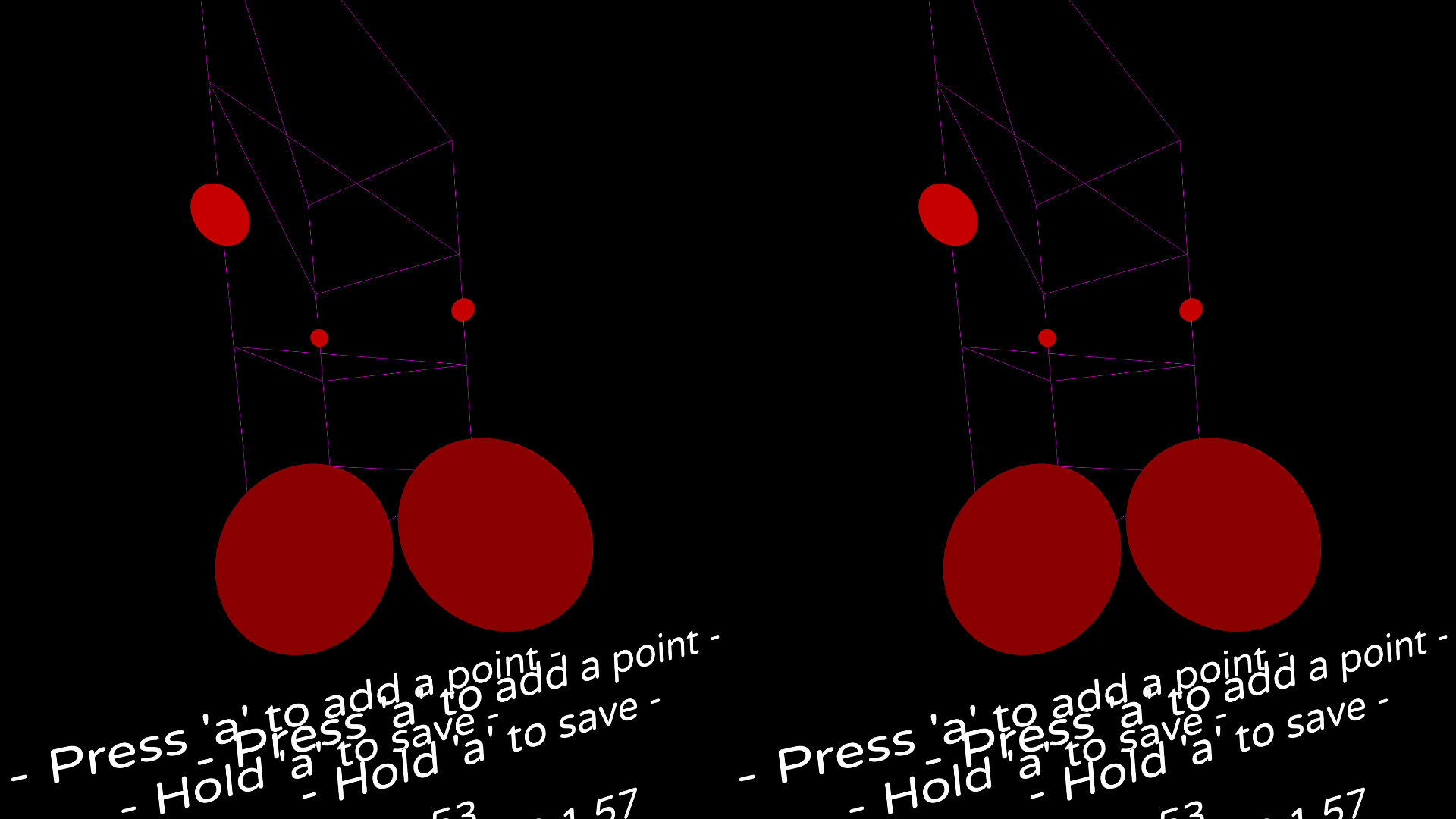
> Room boundary overlay for OpenXR, made with LÖVR.
|
> **LÖVR Playspace** is a room boundary overlay for OpenXR, made with **LÖVR**.
|
||||||
|
|
||||||
Avoid bumping into walls! Acquire a LÖVR appimage and execute it while providing an argument to the lovr-playspace directory location to utilize.
|
Avoid bumping into walls! LÖVR Playspace works on any runtime that implements EXTX_OVERLAY. Currently this is limited to Monado-based runtimes.
|
||||||
|
|
||||||
lovr-playspace works on any runtime that implements EXTX_OVERLAY. Currently this is limited to Monado-based runtimes.
|
## Installation
|
||||||
|
|
||||||
|
1. Download the latest [LÖVR Playspace ZIP from GitHub](https://github.com/SpookySkeletons/lovr-playspace/archive/refs/heads/main.zip) and extract it to wherever (e.g. `~/lovr-playspace-main`)
|
||||||
|
2. Download the latest [LÖVR AppImage from GitHub releases](https://github.com/bjornbytes/lovr/releases) and place it into the same directory you created above (e.g. `~/lovr-playspace-main/lovr-v0.18.0-x86_64.AppImage`).
|
||||||
|
<!--
|
||||||
|
-- we should be seeing a new release of LOVR stable soon, so I'm omitting this:
|
||||||
|
- Due to a bugfix in LÖVR that hasn't made it to a stable release yet at the time of writing, download the nightly [LÖVR AppImage ZIP](https://nightly.link/bjornbytes/lovr/workflows/build/dev/lovr.appimage.zip).
|
||||||
|
-->
|
||||||
|
3. Make sure Monado is running (via [Envision](/docs/fossvr/envision/), or whatever)
|
||||||
|
4. Run this
|
||||||
|
```
|
||||||
|
cd ~/lovr-playspace-main/
|
||||||
|
chmod +x ./lovr-v0.18.0-x86_64.AppImage
|
||||||
|
./lovr-v0.18.0-x86_64.AppImage .
|
||||||
|
```
|
||||||
|
|
||||||
|
## Configuration
|
||||||
|
|
||||||
|
Config is stored in several files within the `config/` folder. See the [LÖVR Playspace README](https://github.com/SpookySkeletons/lovr-playspace) for details.
|
||||||
|
|
||||||
|
## Known Issues
|
||||||
|
|
||||||
|
Patches welcome.
|
||||||
|
|
||||||
|
- [#2: Barely visible when using WlxOverlay-S skybox](https://github.com/SpookySkeletons/lovr-playspace/issues/2)
|
||||||
|
|
||||||
|
## Screenshot
|
||||||
|
|
||||||
|

|
||||||
|
|||||||
@@ -1,5 +1,5 @@
|
|||||||
---
|
---
|
||||||
weight: 200
|
weight: 50
|
||||||
title: Monado
|
title: Monado
|
||||||
---
|
---
|
||||||
|
|
||||||
@@ -8,7 +8,7 @@ title: Monado
|
|||||||
- [Monado home page](https://monado.freedesktop.org/)
|
- [Monado home page](https://monado.freedesktop.org/)
|
||||||
- [Monado GitLab repository](https://gitlab.freedesktop.org/monado/monado)
|
- [Monado GitLab repository](https://gitlab.freedesktop.org/monado/monado)
|
||||||
|
|
||||||

|

|
||||||
|
|
||||||
> Monado is an open source XR runtime delivering immersive experiences such as VR and AR on mobile, PC/desktop, and other devices. Monado aims to be a complete and conformant implementation of the OpenXR API made by Khronos. The project is currently being developed for GNU/Linux and aims to support other operating systems such as Windows in the near future.
|
> Monado is an open source XR runtime delivering immersive experiences such as VR and AR on mobile, PC/desktop, and other devices. Monado aims to be a complete and conformant implementation of the OpenXR API made by Khronos. The project is currently being developed for GNU/Linux and aims to support other operating systems such as Windows in the near future.
|
||||||
|
|
||||||
@@ -31,52 +31,8 @@ To use Monado as the OpenXR runtime with Steam, or if you're planning to use the
|
|||||||
|
|
||||||
In order to use the SteamVR lighthouse driver in Monado, you just need to set the environment variable `STEAMVR_LH_ENABLE=true`.
|
In order to use the SteamVR lighthouse driver in Monado, you just need to set the environment variable `STEAMVR_LH_ENABLE=true`.
|
||||||
|
|
||||||
You may want to disable SteamVR automatically starting whenever you turn on your controllers, because this will interfere with trying to use them with Monado.
|
|
||||||
To do this:
|
|
||||||
1. Launch SteamVR at least once, to create the `<steam install directory>/config/steamvr.vrsettings` file
|
|
||||||
- `<steam install directory>` is probably `~/.steam/steam` or `~/.local/share/Steam`
|
|
||||||
2. Add the following section to the end of the file, before the last closing brace:
|
|
||||||
|
|
||||||
"power" : {
|
|
||||||
"autoLaunchSteamVROnButtonPress" : false
|
|
||||||
}
|
|
||||||
- This is a JSON file, so be sure that you add a comma to the end of the previous close brace.
|
|
||||||
3. Launch SteamVR again to apply the config.
|
|
||||||
|
|
||||||
OpenComposite is REQUIRED to operate Monado in conjunction with Steam games. Proton requires a functional OpenVR API to utilize OpenXR at all and Proton itself is required for VR to function as normal wine does not carry any of the needed patches nor does "protonified" wine something like Lutris would provide.
|
OpenComposite is REQUIRED to operate Monado in conjunction with Steam games. Proton requires a functional OpenVR API to utilize OpenXR at all and Proton itself is required for VR to function as normal wine does not carry any of the needed patches nor does "protonified" wine something like Lutris would provide.
|
||||||
|
|
||||||
### Fix View
|
|
||||||
|
|
||||||
In Steam OpenVR games, the eye's are not calibrated properly, and result in double vision or cross eye effect.
|
|
||||||
|
|
||||||
You can add "OXR_PARALLEL_VIEWS=1 %command%" to the launch options to fix this.
|
|
||||||
|
|
||||||
## Envision
|
## Envision
|
||||||
|
|
||||||
[Envision](/docs/fossvr/envision/) provides a fairly low-barrier setup and development of both Monado and OpenComposite on most any modern distro.
|
[Envision](/docs/fossvr/envision/) provides a fairly low-barrier setup and development of both Monado and OpenComposite on most any modern distro.
|
||||||
|
|
||||||
# Troubleshooting
|
|
||||||
|
|
||||||
|
|
||||||
## [NVIDIA-specific] "NVIDIA: No allowlisted displays found!"
|
|
||||||
|
|
||||||
This may be caused by a few different issues:
|
|
||||||
- NVIDIA driver misnaming the display: If you see a display simply named "NVIDIA" in the output, the NVIDIA driver may be using a fallback name.
|
|
||||||
This can be worked around by setting the environment variable `XRT_COMPOSITOR_FORCE_NVIDIA_DISPLAY="NVIDIA"` in your Envision profile or otherwise passed to Monado.
|
|
||||||
- HMD display completely missing from the list: Try unplugging and replugging the power adapter.
|
|
||||||
|
|
||||||
## [NVIDIA-Specific] "I'm getting screen tearing inside of my wired VR headset!"
|
|
||||||
This is caused by having a monitor with VRR enabled, while using a Nvidia GPU. Turning it off in KDE Plasma's display settings will not fix it. You need to add the kernel parameter `nvidia-modeset.conceal_vrr_caps=1` to your boot loader.
|
|
||||||
|
|
||||||
ArchWiki has a guide on [how to add kernel parameters](https://wiki.archlinux.org/title/Kernel_parameters#Boot_loader_configuration) in general, but here's an example if you boot with GRUB.
|
|
||||||
|
|
||||||
1. Open your terminal and type `sudo nano /etc/default/grub`
|
|
||||||
1. Add `nvidia-modeset.conceal_vrr_caps=1` inside the parameters of `GRUB_CMDLINE_LINUX_DEFAULT=`
|
|
||||||
1. Close nano after saving the changes to the text file
|
|
||||||
1. Update your grub config by typing `sudo grub-mkconfig -o /boot/grub/grub.cfg`
|
|
||||||
1. Restart your PC
|
|
||||||
|
|
||||||
|
|
||||||
## "vkAcquireXlibDisplayEXT: VK_ERROR_UNKNOWN (0x000058b7a0764a80)"
|
|
||||||
Try unplugging and replugging the power adapter. If the issue still occurs and you are on a Wayland session, try setting the environment variable `XRT_COMPOSITOR_FORCE_WAYLAND_DIRECT=1`.
|
|
||||||
|
|
||||||
|
|||||||
@@ -1,27 +0,0 @@
|
|||||||
---
|
|
||||||
weight: 200
|
|
||||||
title: FlipVR controllers
|
|
||||||
---
|
|
||||||
|
|
||||||
# Using FlipVR with the Monado OpenXR Runtime
|
|
||||||
|
|
||||||
This is currently the only way to use these controllers in [Resonite](/docs/resonite/) as of 2025-08-22
|
|
||||||
|
|
||||||
From the [ShiftAll Discord](https://discord.com/invite/Z9Tp7tUzmb) ([link to post](https://discord.com/channels/1093765691582185482/1262995177845293076/1408272236703387688)):
|
|
||||||
> ℹ️ _I expect you are using [Envision](https://gitlab.com/gabmus/envision) to setup Monado and OpenComposite/xrizer. If you aren't, you'll have to manually compile and setup Monado yourself._
|
|
||||||
>
|
|
||||||
> 1. Create a new "Lighthouse Driver" profile in Envision.
|
|
||||||
> 2. Change the "XR Service Repo" to `https://gitlab.freedesktop.org/PointerOffset/monado`
|
|
||||||
> 3. Change the "XR Service Branch" to `steamvr_lh-flipvr`
|
|
||||||
> 4. Build the profile.
|
|
||||||
> 5. Install the "Shiftall Controller Driver" from Steam if you haven't already: https://store.steampowered.com/app/3036810/Shiftall_Controller_Driver/
|
|
||||||
> 6. Copy the contents of the "Shiftall Controller Drivers" folder to SteamVR's driver folder. The directory _must_ be named `shiftall`.
|
|
||||||
>
|
|
||||||
> For the last step, if everything is in the default locations, this command should get it copied:
|
|
||||||
> ```
|
|
||||||
> cp -r ~/.local/share/Steam/steamapps/common/Shiftall\ Controller\ Drivers ~/.local/share/Steam/steamapps/common/SteamVR/drivers/shiftall
|
|
||||||
> ```
|
|
||||||
>
|
|
||||||
> If everything went correctly, you should now have working FlipVR controllers through Monado. **If you're using this to run Resonite on Linux, you'll need to use _xrizer_ for your "OpenVR Compatibility" module.**
|
|
||||||
>
|
|
||||||
> If you try it, please let me know if it works and how it feels! I might need to adjust the controller offsets and I'd like to make it so you don't need to copy the Shiftall driver files. Hoping to try and get this merged into Monado sometime in the near-future though. Thank you if you give it a shot!
|
|
||||||
@@ -1,52 +0,0 @@
|
|||||||
---
|
|
||||||
weight: 200
|
|
||||||
title: Pimax
|
|
||||||
---
|
|
||||||
|
|
||||||
# Pimax P2 HMDs
|
|
||||||
At the moment, only headsets from the P2 series (the 5k and 8k headsets with various suffixes) are supported. The Crystal, Crystal light, and Crystal super use different protocols that have not been reverse engineered yet.
|
|
||||||
|
|
||||||
# Setup
|
|
||||||
## Kernel patches
|
|
||||||
For the most convenient use, a few kernel patches are required. One to mark the display as non-desktop (can also be manually done without a patch on Xorg), and one to ignore the EDID checksum errors a lot of these headsets feature (alternatively, overriding the edid with a fixed version also works).
|
|
||||||
- [non-desktop](https://gist.githubusercontent.com/TayouVR/60e3ee5f95375827a66a8898bea02bec/raw/c85135c8d8821ebb2fa85629d837a41de57e12ef/pimax.patch)
|
|
||||||
- [EDID](https://gist.githubusercontent.com/Coreforge/59ed3548427c999273ec012002461eab/raw/f70df3afd5cccbfc6fb34ef805db41d00dbf4770/ps0002-drm-edid-fix-checksum-errors-in-Pimax-HMD-EDIDs.patch)
|
|
||||||
|
|
||||||
## udev rules
|
|
||||||
To allow monado to access to the Pimax HID device, a udev rule is required.
|
|
||||||
```
|
|
||||||
SUBSYSTEM=="usb", ATTR{idVendor}=="0483", ATTR{idProduct}=="0101", MODE="0660", TAG+="uaccess", TAG+="udev-acl"
|
|
||||||
KERNEL=="hidraw*", ATTRS{idVendor}=="0483", ATTRS{idProduct}=="0101", MODE="0660", TAG+="uaccess", TAG+="udev-acl"
|
|
||||||
```
|
|
||||||
|
|
||||||
## Distortion meshes
|
|
||||||
Since calculating the lens distortion isn't implemented yet, precalculated distortion meshes which have been exported from pimax's runtime are used instead.
|
|
||||||
The meshes are available here:
|
|
||||||
- https://gitlab.freedesktop.org/othello7/pimax-distortion/
|
|
||||||
|
|
||||||
The tools to dump meshes yourself are available here (requires a windows install that can drive the headset):
|
|
||||||
- https://github.com/Coreforge/pimax-utils
|
|
||||||
|
|
||||||
## Monado
|
|
||||||
Use monado from the branch `pimax` from the repository `https://gitlab.freedesktop.org/Coreforge/monado/`.
|
|
||||||
Make sure to use the lighthouse driver `steamvr_lh`, other lighthouse drivers are currently not supported with the pimax driver.
|
|
||||||
|
|
||||||
At this point, you should have a working headset.
|
|
||||||
|
|
||||||
### Configuration options
|
|
||||||
The headset should work without changing any of these options, but they may improve the experience or stability (e.g. if the headset only works on the first launch of monado after powering the headset), or might be needed for less standard setups.
|
|
||||||
|
|
||||||
| Name | default value | description |
|
|
||||||
|--------------------|---------------|------------------|
|
|
||||||
| `PIMAX_MESHES_PATH`| `~/.config/pimax/meshes` | The directory distortion meshes are loaded from |
|
|
||||||
| `PIMAX_MESH_NAME` | automatically determined | The file name the distortion meshes are loaded from |
|
|
||||||
| `PIMAX_CHECK_INIT` | 0 | If enabled, display unlock commands are only sent if the HMD hasn't been unlocked (displays enabled) yet |
|
|
||||||
| `PIMAX_REBOOT` | 0 | If enabled, reboots the HMD on startup, like PiTool does |
|
|
||||||
| `PIMAX_REBOOT_DELAY_MS` | 5000 | How long to wait after sending the reboot command |
|
|
||||||
| `PIMAX_HID_RETRY_COUNT` | 3 | How many times to retry opening the pimax HID device before giving up |
|
|
||||||
| `PIMAX_HID_RETRY_DELAY_MS` | 1000 | How long to wait between attempts |
|
|
||||||
| `PIMAX_OFFS_X_R` `PIMAX_OFFS_X_G` `PIMAX_OFFS_X_R` | 0.0 for all | Shifts one channel of the distortion mesh sideways by the given amount of pixels. This is an attempt at reducing the coloured edges especially visible on the 5K XR due to monado currently not supporting subpixel shading. |
|
|
||||||
| `PIMAX_IPD_V0` `PIMAX_IPD_V1` | 0.0 | Vertical offsets (in meters) added to the view poses, somewhat similar to the display offsets in PiTool |
|
|
||||||
| `PIMAX_IPD_H0` `PIMAX_IPD_H1` | 0.0 | Horizontal offsets (in meters) added to the view poses and IPD (for the distortion correction), somewhat similar to the display offsets in PiTool |
|
|
||||||
|
|
||||||
The display (or IPD in the option name) offsets can also be adjusted in the debug GUI, following the same procedure as for PiTool (values are **not** saved in the debug GUI).
|
|
||||||
@@ -1,5 +1,5 @@
|
|||||||
---
|
---
|
||||||
weight: 1000
|
weight: 50
|
||||||
title: Motoc
|
title: Motoc
|
||||||
---
|
---
|
||||||
|
|
||||||
|
|||||||
@@ -1,5 +1,5 @@
|
|||||||
---
|
---
|
||||||
weight: 500
|
weight: 800
|
||||||
title: OpenComposite
|
title: OpenComposite
|
||||||
---
|
---
|
||||||
|
|
||||||
@@ -17,21 +17,7 @@ OpenComposite is required for Steam Play games to work in VR regardless of API.
|
|||||||
|
|
||||||
Contributions to improve the OpenVR to OpenXR mapping are welcome.
|
Contributions to improve the OpenVR to OpenXR mapping are welcome.
|
||||||
|
|
||||||
## Forcing additional devices as trackers
|
## Rebinding Controls
|
||||||
|
|
||||||
OpenComposite has the environment variable `OPENCOMPOSITE_TRACKER_SERIALS` to allow using non-tracker devices as trackers in SteamVR games. The expected format is as follows: `serial1;serial2` where each 'serial' is a device serial like `LHR-00000000` or `WiVRn HMD`. You can set this on games by setting this launch option in Steam: `env OPENCOMPOSITE_TRACKER_SERIALS="LHR-00000001;LHR-00000002" %command%`.
|
|
||||||
|
|
||||||
To obtain info for lighthouse devices, you may look at the top of the Monado stdout when using steamvr_lh. For other types of devices there are multiple ways of obtaining device serials:
|
|
||||||
|
|
||||||
- OpenComposite log file
|
|
||||||
|
|
||||||
The OpenComposite log file at `~/.local/state/OpenComposite/logs/opencomposite.log` will log all seen devices when checking for trackers, so you can search for `Checking for generic trackers...` in the log file and look below for `Found usable xdev`.
|
|
||||||
|
|
||||||
- motoc
|
|
||||||
|
|
||||||
motoc has the `show` subcommand for viewing all device names, serials, and positions relative to the space origin.
|
|
||||||
|
|
||||||
## Rebinding controls
|
|
||||||
|
|
||||||
> Changing OpenVR bindings is currently a very manual process. This will change in the future.
|
> Changing OpenVR bindings is currently a very manual process. This will change in the future.
|
||||||
|
|
||||||
|
|||||||
@@ -1,6 +1,6 @@
|
|||||||
---
|
---
|
||||||
title: Stardust XR
|
title: Stardust XR
|
||||||
weight: 700
|
weight: 52
|
||||||
---
|
---
|
||||||
|
|
||||||
# Stardust XR
|
# Stardust XR
|
||||||
@@ -9,13 +9,19 @@ weight: 700
|
|||||||
- [Github Organization](https://github.com/StardustXR/)
|
- [Github Organization](https://github.com/StardustXR/)
|
||||||
|
|
||||||
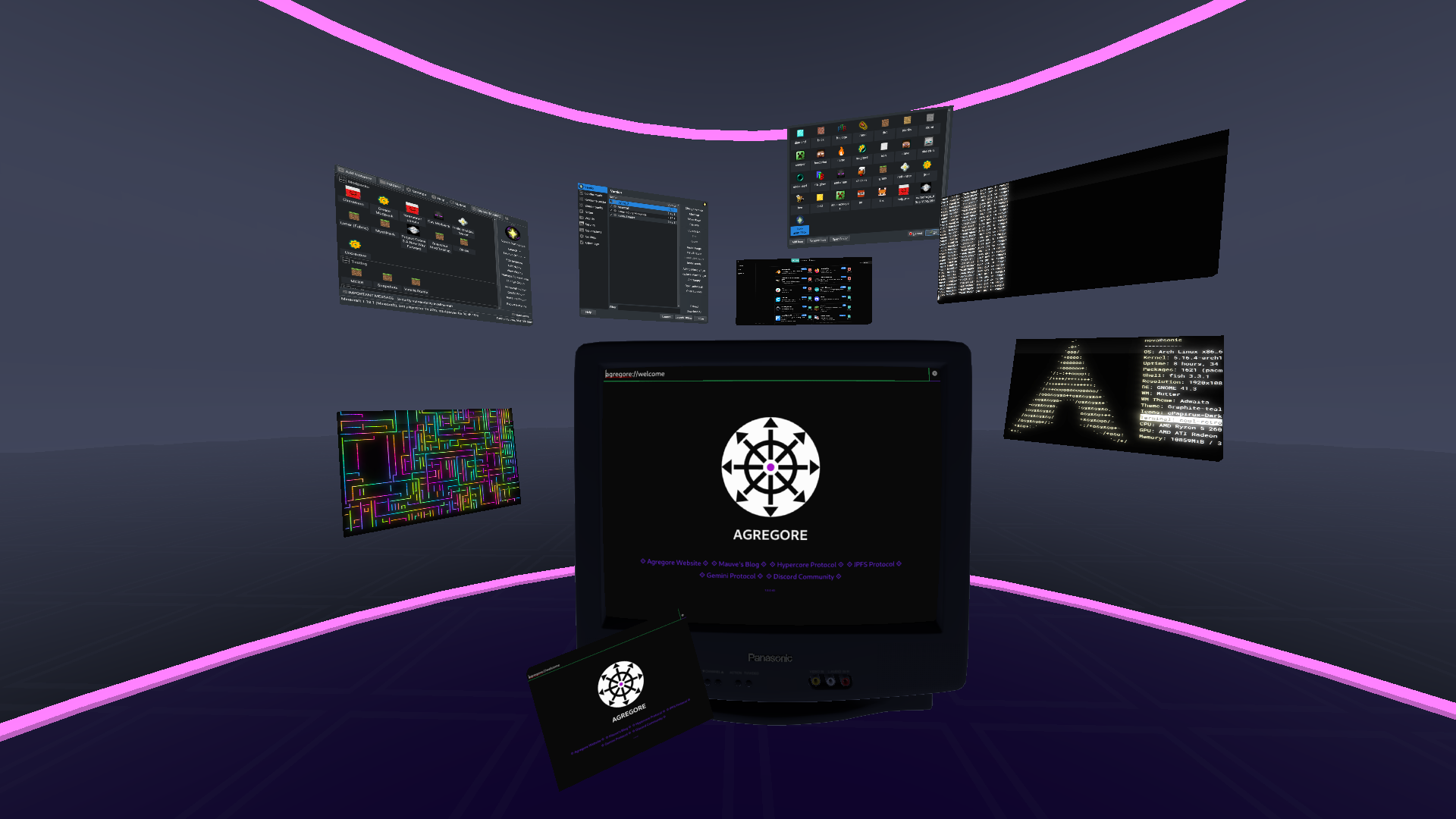
A system UI to make using all your 2D—and eventually OpenXR—apps together intuitive, accessible, and fun by using community-made virtual objects as interfaces.
|
A system UI to make using all your 2D—and eventually OpenXR—apps together intuitive, accessible, and fun by using community-made virtual objects as interfaces.
|
||||||
Stardust provides a 3D environment, where anything from 2D windows (including your existing apps!), to 3D apps built from objects, can exist together in physical space.
|
|
||||||
|
|
||||||
|

|
||||||
|
|
||||||
## Setup
|
## Setup
|
||||||
|
|
||||||
For full installation and setup instructions and a deeper dive into setting it up with various linux distributions, visit the [Stardust XR website](https://stardustxr.org/docs/get-started/manual).
|
First you need to install and run the server from https://github.com/StardustXR/server. Follow the README. If you have issues getting OpenXR to work, try running https://gitlab.freedesktop.org/monado/demos/xrgears first.
|
||||||
|
|
||||||
Here's a demo showing some off some of what Stardust XR is like:
|
After the server is running, you'll need to run some clients. Here's a demo showing some off:
|
||||||
<iframe width="560" height="315" src="https://www.youtube.com/embed/v2WblwbaLaA" frameBorder={0} allow="autoplay; encrypted-media" allowFullScreen style={{maxWidth: '100%', aspectRatio: '16/9'}} ></iframe>
|

|
||||||
|
|
||||||
|
Non-exhaustive list of clients:
|
||||||
|
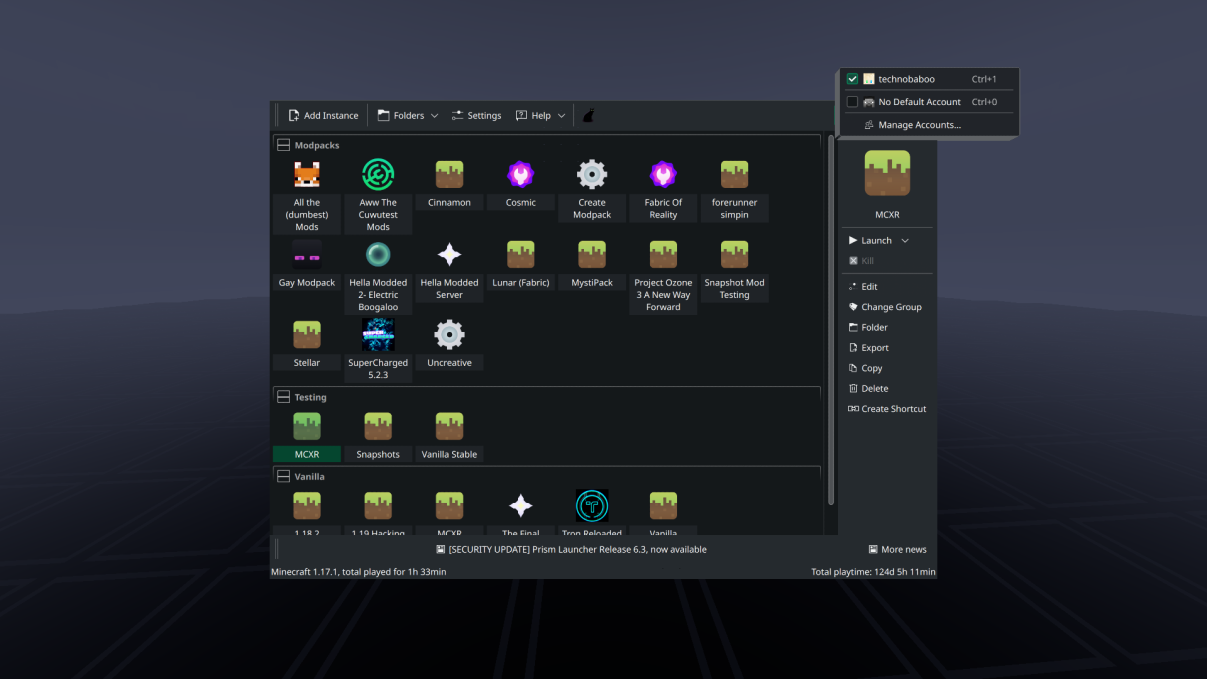
- [Flatland](https://github.com/StardustXR/flatland): A panel item UI (XR equivalent of a window manager) so you can interact with your apps using virtual touchscreens. To show Wayland apps, run them with the proper `WAYLAND_DISPLAY` environment variable, in the server's startup script, or use a stardust launcher such as gravity or protostar. Flatland works great in 3DoF or 6DoF with direct touch and pointer interaction.
|
||||||
|
|
||||||
|
- [Gravity](https://github.com/StardustXR/gravity): Command line tool to launch programs inside of stardust at a particular offset in space. This is nestable so you can run a script using gravity, and then gravity inside that script to make a whole composed setup out of thin air! It also ensures that everything launched through it will properly connect to the stardust server, such as wayland clients.
|
||||||
|
- [Protostar](https://github.com/StardustXR/protostar): Prototype app launcher library/examples. Grab app icons and drop them in space to launch apps where they're dropped.
|
||||||
|
- [Magnetar](https://github.com/StardustXR/magnetar): Workspaces in 3D. Any object inside the rings will move with them, so you can move a bunch of stuff out of the way temporarily when you don't need it.
|
||||||
@@ -1,5 +1,5 @@
|
|||||||
---
|
---
|
||||||
weight: 300
|
weight: 50
|
||||||
title: WiVRn
|
title: WiVRn
|
||||||
---
|
---
|
||||||
|
|
||||||
@@ -11,42 +11,13 @@ title: WiVRn
|
|||||||
|
|
||||||
> WiVRn wirelessly connects a standalone VR headset to a Linux computer. You can then play PCVR games on the headset while processing is done on the computer.
|
> WiVRn wirelessly connects a standalone VR headset to a Linux computer. You can then play PCVR games on the headset while processing is done on the computer.
|
||||||
|
|
||||||
WiVRn is based on [Monado](/docs/fossvr/monado/) and can be used with [xrizer](/docs/fossvr/xrizer/) or [OpenComposite](/docs/fossvr/opencomposite/) to support a majority of titles available for SteamVR. A wide range of standalone headsets are supported.
|
WiVRn is based on [Monado](/docs/fossvr/monado/) and can be used with [OpenComposite](/docs/fossvr/opencomposite/) to support a majority of titles available for SteamVR. A wide range of standalone headsets are supported.
|
||||||
|
|
||||||
## Installing WiVRn
|
## Installing WiVRn
|
||||||
|
|
||||||
We recommend using distribution packages when available (see below) or the [WiVRn Flatpak](https://flathub.org/apps/io.github.wivrn.wivrn) when one is unavailable.
|
We recommend using [Envision](/docs/fossvr/envision/) to install and launch WiVRn & OpenComposite. Envision will handle all configuration seamlessly and avoids many of the pitfalls of a manual setup.
|
||||||
|
|
||||||
### Arch Linux
|
Alternatively, you can use the [WiVRn Flatpak](https://flathub.org/apps/io.github.wivrn.wivrn) which includes OpenComposite as part of it. Processes in flatpak cannot take advantage of setcap, and so your performance may suffer when compared to Envision.
|
||||||
|
|
||||||
Packages are available on [AUR](https://wiki.archlinux.org/title/Arch_User_Repository), you will need the following packages:
|
|
||||||
|
|
||||||
* `wivrn-server` and `wivrn-dashboard` for base feature + GUI (latest release), or `wivrn-full-git` for development version
|
|
||||||
* `opencomposite-git` or `xrizer-git` for compatibility with OpenVR and proton
|
|
||||||
|
|
||||||
### Fedora
|
|
||||||
|
|
||||||
The `wivrn` package will automatically pull `wivrn-dashboard` and `opencomposite` as dependencies, it can be installed with `sudo dnf install wivrn`.
|
|
||||||
|
|
||||||
To make use of patented codecs for video encoding like H264/H265, you must [install the codecs from RPMFusion](https://rpmfusion.org/Howto/Multimedia).
|
|
||||||
|
|
||||||
### Gentoo Linux
|
|
||||||
|
|
||||||
Packages are available on [Guru](https://wiki.gentoo.org/wiki/Project:GURU), you will need `media-libs/wivrn` and `media-libs/opencomposite`.
|
|
||||||
|
|
||||||
### NixOS
|
|
||||||
|
|
||||||
See [`services.wivrn`](https://search.nixos.org/options?channel=24.11&size=50&sort=relevance&type=packages&query=services.wivrn).
|
|
||||||
|
|
||||||
### Flatpak (all distributions)
|
|
||||||
|
|
||||||
The [WiVRn Flatpak](https://flathub.org/apps/io.github.wivrn.wivrn) has the latest released version and can be installed with `flatpak install io.github.wivrn.wivrn` or via your software centre application.
|
|
||||||
|
|
||||||
For development releases, you can download the `wivrn-flatpak-x86_64` artifact from the GitHub [Build](https://github.com/WiVRn/WiVRn/actions/workflows/Build.yml?query=branch%3Amaster) action.
|
|
||||||
|
|
||||||
### Envision (guided build)
|
|
||||||
|
|
||||||
You can use [Envision](/docs/fossvr/envision/) to install and launch WiVRn & OpenComposite - this may be the easier route if you use SteamVR Lighthouse-tracked devices or SlimeVR trackers.
|
|
||||||
|
|
||||||
## General WiVRn Notes
|
## General WiVRn Notes
|
||||||
|
|
||||||
@@ -54,111 +25,43 @@ WiVRn uses Avahi for network discovery. Ensure it is running with the following
|
|||||||
```bash
|
```bash
|
||||||
systemctl enable --now avahi-daemon
|
systemctl enable --now avahi-daemon
|
||||||
```
|
```
|
||||||
If Avahi is not available, `--no-publish-service` bypasses it, and the IP address of the server must be entered into the client.
|
(If Avahi is not available, the IP address of the server must be entered into the client.)
|
||||||
|
|
||||||
If a firewall is installed, make sure ports 5353/UDP and 9757/UDP+TCP are open for Avahi and WiVRn respectively.
|
If a firewall is installed, make sure ports 5353/UDP and 9757/UDP+TCP are open for Avahi and WiVRn itself, respectively.
|
||||||
|
|
||||||
If using Nvidia proprietary drivers older than 565, install the [Monado Vulkan Layers](https://gitlab.freedesktop.org/monado/utilities/vulkan-layers), otherwise games will crash with a segmentation fault.
|
If using Nvidia proprietary drivers, have [Monado Vulkan Layers](https://gitlab.freedesktop.org/monado/utilities/vulkan-layers) installed, otherwise games will crash with a segmentation fault.
|
||||||
|
|
||||||
For audio in WiVRn, you will need to assign applications, or the system as a whole, to output audio to the virtual output "WiVRn" which is created upon connection between the server and the headset.
|
For audio in WiVRn, you will need to assign applications, or the system as a whole, to output audio to the virtual output "WiVRn" which is created upon connection between the server and the headset.
|
||||||
|
|
||||||
## Steam Flatpak
|
|
||||||
|
|
||||||
It is possible to use WiVRn Flatpak with Steam Flatpak, though Steam Flatpak isn't generally recommended for VR. If you are using Steam Flatpak, you just need to grant it access to the relevant paths:
|
|
||||||
|
|
||||||
```bash
|
|
||||||
flatpak override --user --filesystem=xdg-config/openxr:ro com.valvesoftware.Steam
|
|
||||||
flatpak override --user --filesystem=xdg-config/openvr:ro com.valvesoftware.Steam
|
|
||||||
flatpak override --user --filesystem=xdg-run/wivrn com.valvesoftware.Steam
|
|
||||||
flatpak override --user --filesystem=/var/lib/flatpak/app/io.github.wivrn.wivrn:ro com.valvesoftware.Steam
|
|
||||||
flatpak override --user --filesystem=~/.var/app/io.github.wivrn.wivrn:ro com.valvesoftware.Steam
|
|
||||||
```
|
|
||||||
|
|
||||||
As an added bonus to the above, this command will save you the effort of having to set launch options for every single VR game in your Steam library:
|
|
||||||
|
|
||||||
```bash
|
|
||||||
flatpak override --user --env=PRESSURE_VESSEL_FILESYSTEMS_RW=/run/user/1000/wivrn/comp_ipc:/var/lib/flatpak/app/io.github.wivrn.wivrn com.valvesoftware.Steam
|
|
||||||
```
|
|
||||||
|
|
||||||
## Wired WiVRn
|
## Wired WiVRn
|
||||||
|
|
||||||
You can use WiVRn with a cable instead of Wi-Fi. Use a 5Gbps cable & port at the very least.
|
Use WiVRn with a cable instead of Wifi. Use a 5Gbps cable & port at the very least.
|
||||||
|
|
||||||
- Install adb on your system - usually the package is named `android-tools` or something similar.
|
WiVRn version: 0.19+
|
||||||
- Connect the headset via USB.
|
|
||||||
- Run `adb devices` in your terminal.
|
|
||||||
- If you have never authorised USB debugging from this computer before, put the headset on shortly and select 'Always allow USB debugging from this computer'.
|
|
||||||
Then depending on your installation method, follow these steps:
|
|
||||||
|
|
||||||
Using the dashboard:
|
|
||||||
- The 'Connect via USB' button under the pairing toggle should have a list of devices - select any one to initiate a wired connection.
|
|
||||||
|
|
||||||
Using Envision:
|
Using Envision:
|
||||||
|
- Connect the headset via USB
|
||||||
- Click the `Start WiVRn Client (Wired)` button in Envision.
|
- Click the `Start WiVRn Client (Wired)` button in Envision.
|
||||||
|
- If it's not there, an Envision update might be necessary.
|
||||||
|
|
||||||
Manual steps: See the [README](https://github.com/WiVRn/WiVRn/blob/master/README.md?plain=1#L114).
|
Manual steps:
|
||||||
|
- Connect the headset via USB
|
||||||
## WiVRn + SlimeVR trackers
|
- If WiVRn is running on the headset, close it now.
|
||||||
|
- While in the system lobby of the headset, run the following `adb` commands on the PC:
|
||||||
To use SlimeVR trackers through WiVRn, you currently must use the `solarxr-patches` fork of WiVRn. Follow one of the **below options first**, then don't forget to come back and sideload the [solarxr-patches WiVRn APK](https://nightly.link/notpeelz/WiVRn/workflows/Build/solarxr-patches/apk-Standard-Release).
|
```bash
|
||||||
|
adb reverse tcp:9757 tcp:9757
|
||||||
### Option A: Build with Envision
|
adb shell am start -a android.intent.action.VIEW -d "wivrn+tcp://127.0.0.1" org.meumeu.wivrn
|
||||||
|
```
|
||||||
To use this fork within Envision, edit these fields in your profile:
|
|
||||||
- XR Service Repo: `https://github.com/notpeelz/WiVRn.git`
|
|
||||||
- XR Service Branch: `solarxr-patches`
|
|
||||||
- XR Service CMake Flags: Add `WIVRN_FEATURE_SOLARXR=ON`
|
|
||||||
|
|
||||||
Then save and clean build the profile.
|
|
||||||
|
|
||||||
### Option B: NixOS
|
|
||||||
|
|
||||||
Override the `wivrn` package from nixpkgs with something resembling the following, replacing `[COMMIT HASH HERE]` with the latest commit hash from https://github.com/notpeelz/WiVRn/commits/solarxr-patches and filling in the correct src hash. Do note you may need to adapt this depending on how you install WiVRn:
|
|
||||||
```nix
|
|
||||||
{ pkgs, lib, ... }:
|
|
||||||
|
|
||||||
{
|
|
||||||
services.wivrn = {
|
|
||||||
enable = true;
|
|
||||||
defaultRuntime = true;
|
|
||||||
package = pkgs.wivrn.overrideAttrs (old: rec {
|
|
||||||
version = "[COMMIT HASH HERE]";
|
|
||||||
src = lib.fetchFromGitHub {
|
|
||||||
owner = "notpeelz";
|
|
||||||
repo = "WiVRn";
|
|
||||||
rev = version;
|
|
||||||
# This will throw an error when evaluating and give you the correct hash - put that here
|
|
||||||
hash = "";
|
|
||||||
};
|
|
||||||
cmakeFlags = old.cmakeFlags ++ [
|
|
||||||
(lib.cmakeBool "WIVRN_FEATURE_SOLARXR" true)
|
|
||||||
];
|
|
||||||
});
|
|
||||||
};
|
|
||||||
}
|
|
||||||
```
|
|
||||||
|
|
||||||
## WiVRn + Lighthouse driver
|
## WiVRn + Lighthouse driver
|
||||||
|
|
||||||
This section covers using WiVRn 0.19 and newer with any Lighthouse-tracked device (such as Index/Vive controllers, Vive/Tundra trackers, etc.)
|
This section covers using WiVRn with any lighthouse-tracked device: Index/Vive controllers, Vive/Tundra trackers, etc.
|
||||||
|
|
||||||
You must have SteamVR installed (no need to run it).
|
WiVRn version: 0.19+
|
||||||
|
|
||||||
Upstream xrizer doesn't support FBT, so either **select OpenComposite as the OpenVR library** in WiVRn dashboard settings, or build the [experimental2 branch of xrizer](https://github.com/RinLovesYou/xrizer/tree/experimental2).
|
Have SteamVR installed (no need to run it).
|
||||||
|
|
||||||
### Option A: Use Distro-Native Packages
|
In Envision, set WiVRn Profile as such:
|
||||||
|
|
||||||
These packages come with lighthouse support enabled (Flatpak & Envision does NOT)
|
|
||||||
- Arch: Install `wivrn-dashboard wivrn-server` from AUR
|
|
||||||
- Fedora: Install `wivrn-dashboard` via DNF
|
|
||||||
- Gentoo: Emerge `wivrn` from Guru
|
|
||||||
|
|
||||||
Open the WiVRn dashboard and under advanced settings, tick `Enable SteamVR tracked devices support`, then stop/start the server.
|
|
||||||
|
|
||||||
Warning: distro-native packages are known to have issues with Flatpak Steam.
|
|
||||||
|
|
||||||
### Option B: Build using Envision
|
|
||||||
Set WiVRn Profile as such:
|
|
||||||
- XR Service CMake Flags:
|
- XR Service CMake Flags:
|
||||||
- `WIVRN_FEATURE_STEAMVR_LIGHTHOUSE=ON`
|
- `WIVRN_FEATURE_STEAMVR_LIGHTHOUSE=ON`
|
||||||
- Environment Variables:
|
- Environment Variables:
|
||||||
@@ -167,41 +70,20 @@ Set WiVRn Profile as such:
|
|||||||
|
|
||||||
Perform a **Clean Build** after changing the CMake flags!
|
Perform a **Clean Build** after changing the CMake flags!
|
||||||
|
|
||||||
### Option C: NixOS
|
If not using Envision, simply pass `-DWIVRN_FEATURE_STEAMVR_LIGHTHOUSE=ON` to cmake and export the env variables before starting `wivrn-server`.
|
||||||
Override the `wivrn` package and launch wivrn-server with the required environment variables:
|
|
||||||
```nix
|
|
||||||
{
|
|
||||||
services.wivrn = {
|
|
||||||
enable = true;
|
|
||||||
defaultRuntime = true;
|
|
||||||
package = pkgs.wivrn.overrideAttrs (old: {
|
|
||||||
cmakeFlags = old.cmakeFlags ++ [
|
|
||||||
(lib.cmakeBool "WIVRN_FEATURE_STEAMVR_LIGHTHOUSE" true)
|
|
||||||
];
|
|
||||||
});
|
|
||||||
monadoEnvironment = {
|
|
||||||
WIVRN_USE_STEAMVR_LH = "1";
|
|
||||||
LH_DISCOVER_WAIT_MS = "6000";
|
|
||||||
};
|
|
||||||
};
|
|
||||||
}
|
|
||||||
```
|
|
||||||
|
|
||||||
### Option D: Manual Build
|
[Motoc](/docs/fossvr/motoc/) will be used to calibrate the two tracking technologies to work together.
|
||||||
Simply pass `-DWIVRN_FEATURE_STEAMVR_LIGHTHOUSE=ON` to CMake and export the above environment variables before starting `wivrn-server`.
|
|
||||||
|
|
||||||
### Usage tips
|
Discovery happens only on first connection, so be sure to **have all lighthouse devices powered on and in line of sight of base stations before connecting the headset!**
|
||||||
|
|
||||||
Discovery happens only on first connection, so be sure to **have all Lighthouse devices powered on and in line-of-sight of your base stations before connecting the headset!** Once a device is discovered, you may power it off and on at-will.
|
Once a device is discovered, it may be powered off and then back on later.
|
||||||
|
|
||||||
You can use [Motoc](/docs/fossvr/motoc/) to calibrate the two tracking technologies to work together.
|
|
||||||
|
|
||||||
Once video appears in the headset, check `motoc monitor` to make sure your devices all show up.
|
Once video appears in the headset, check `motoc monitor` to make sure your devices all show up.
|
||||||
|
|
||||||
If one or more devices are missing, try:
|
If one or more devices are missing, try:
|
||||||
- Spread the devices out more; Lighthouse devices get discovered quicker if they're not piled up on each other. Simply strapping them on is good, too.
|
- Spread the devices out more; lighthouse devices get discovered quicker if they're not piled up on each other. Simply strapping them on is good, too.
|
||||||
- Increase `LH_DISCOVER_WAIT_MS`, though this delays the client on first connection.
|
- Increase `LH_DISCOVER_WAIT_MS`, though this delays the client on first connection.
|
||||||
|
|
||||||
To re-discover devices, restart WiVRn server.
|
To re-discover devices, restart WiVRn server.
|
||||||
|
|
||||||
At this point, your Lighthouse devices will be randomly floating about somewhere. To calibrate them, follow the guide in the [Motoc README](https://github.com/galister/motoc/blob/main/README.md).
|
At this point, your lighthouse devices will be randomly floating about somewhere. To calibrate them, follow the guide in the [Motoc README](https://github.com/galister/motoc/blob/main/README.md).
|
||||||
|
|||||||
@@ -1,5 +1,5 @@
|
|||||||
---
|
---
|
||||||
weight: 600
|
weight: 51
|
||||||
title: WlxOverlay-S
|
title: WlxOverlay-S
|
||||||
---
|
---
|
||||||
|
|
||||||
@@ -21,12 +21,6 @@ WayVR acts as a bridge between Wayland applications and WlxOverlay-S panels, all
|
|||||||
|
|
||||||
Read more about setup/usage in the [WayVR README](https://github.com/galister/wlx-overlay-s/tree/main/contrib/wayvr).
|
Read more about setup/usage in the [WayVR README](https://github.com/galister/wlx-overlay-s/tree/main/contrib/wayvr).
|
||||||
|
|
||||||
## WayVR-Dashboard
|
|
||||||
|
|
||||||
WayVR Dashboard is a work-in-progress overlay application (in the form of a WlxOverlay-S plugin) for launching various applications and games directly into a VR desktop environment.
|
|
||||||
|
|
||||||
For more details, read the [WayVR-Dashboard README](https://github.com/olekolek1000/wayvr-dashboard/).
|
|
||||||
|
|
||||||
## Support
|
## Support
|
||||||
|
|
||||||
Reach out in the `wlxoverlay` room in Discord or Matrix.
|
Reach out in the `wlxoverlay` room in Discord or Matrix.
|
||||||
@@ -1,102 +0,0 @@
|
|||||||
---
|
|
||||||
title: WMR Lighthouse (No SteamVR)
|
|
||||||
weight: 2000
|
|
||||||
---
|
|
||||||
# WMR Lighthouse (No SteamVR)
|
|
||||||
|
|
||||||
This describes a WMR Lighthouse setup using the `steamvr_lh` driver.
|
|
||||||
|
|
||||||
It's different from [WMR Lighthouse](/docs/steamvr/wmr-lighthouse/)
|
|
||||||
|
|
||||||
This doesn't use steamvr to re-map the head from some lighthouse tracking device.
|
|
||||||
Instead it does this natively in monado, so SteamVR is only necessary for the proprietary `steamvr_lh` driver.
|
|
||||||
|
|
||||||
For now this is a hacky approach requiring a Monado fork, as Monado's builders don't support the functionality yet:
|
|
||||||
|
|
||||||
* https://gitlab.freedesktop.org/monado/monado/-/issues/459
|
|
||||||
* https://gitlab.freedesktop.org/monado/monado/-/issues/288
|
|
||||||
|
|
||||||
This is made for WMR based headsets and has been tested with a Reverb G2 & Vive1 (Vive1 used only for it's 2 watchman dongles needed for the lighthouse controllers).
|
|
||||||
|
|
||||||
You can easily adapt this for other headsets in a hacky way, until these issues are closed.
|
|
||||||
|
|
||||||
Tested working on Arch Linux with NVIDIA RTX 2060S.
|
|
||||||
|
|
||||||
## Setup:
|
|
||||||
Setup your lighthouse system on SteamVR Windows. The Linux SteamVR version does not work well. On windows: Update everything, pair everything & setup your room boundaries.
|
|
||||||
|
|
||||||
Linux Setup:
|
|
||||||
* install Steam
|
|
||||||
* Download SteamVR on Steam (try non beta version first)
|
|
||||||
* Configurations from Windows copied over
|
|
||||||
|
|
||||||
### How To Copy Your Windows Steam Configurations To Linux
|
|
||||||
* mount your windows drive (e.g. at `/mnt`)
|
|
||||||
* `cp -r "/mnt/Program Files (x86)/Steam/config" ~/.steam/steam/`
|
|
||||||
|
|
||||||
### Linux Only Setup
|
|
||||||
It may be possible to use SteamVR on Linux to setup your room boundaries, pair and update everything. This is untested, but try at least.
|
|
||||||
You may need playspace moving via Wlx to fine tune the floor if you don't have a Windows install.
|
|
||||||
|
|
||||||
## Build
|
|
||||||
|
|
||||||
### Manually
|
|
||||||
Use this fork of Monado
|
|
||||||
|
|
||||||
`git clone https://gitlab.freedesktop.org/Zuzka/monado`
|
|
||||||
|
|
||||||
(if it's too old for you, try to merge upstream into it and fix it)
|
|
||||||
|
|
||||||
Ensure you have all required dependencies installed beforehand (Envision or Monado docs might help)
|
|
||||||
|
|
||||||
* `cmake -G Ninja -B build -DCMAKE_INSTALL_PREFIX=/usr -DXRT_BUILD_DRIVER_SURVIVE=0 -DXRT_BUILD_DRIVER_VIVE=0 -DXRT_BUILD_DRIVER_STEAMVR_LIGHTHOUSE=1`
|
|
||||||
* `sudo ninja -C build install`
|
|
||||||
|
|
||||||
Set following environment variable in your e.g. bash_profile:
|
|
||||||
|
|
||||||
`export LH_DEVICE_SERIAL="{YourSerial}"`
|
|
||||||
|
|
||||||
Replace `{YourSerial}` with [your actual serial](#how-to-find-your-serial)
|
|
||||||
|
|
||||||
### Envision
|
|
||||||
In Envision, set Profile as such:
|
|
||||||
|
|
||||||
XR Service Repo:
|
|
||||||
```
|
|
||||||
https://gitlab.freedesktop.org/Zuzka/monado.git
|
|
||||||
```
|
|
||||||
|
|
||||||
XR Service CMake Flags:
|
|
||||||
```
|
|
||||||
XRT_BUILD_DRIVER_SURVIVE=0
|
|
||||||
XRT_BUILD_DRIVER_VIVE=0
|
|
||||||
XRT_BUILD_DRIVER_STEAMVR_LIGHTHOUSE=1
|
|
||||||
```
|
|
||||||
Environment Variables:
|
|
||||||
```
|
|
||||||
LH_DEVICE_SERIAL="{YourSerial}"
|
|
||||||
```
|
|
||||||
|
|
||||||
Replace `{YourSerial}` with [your actual serial](#how-to-find-your-serial)
|
|
||||||
|
|
||||||
Perform a Clean Build after changing the CMake flags!
|
|
||||||
|
|
||||||
## How To Find Your Serial
|
|
||||||
You can find out the actual tracking device serial by:
|
|
||||||
|
|
||||||
1. At monado startup look if you see anything starting with `LHR-` e.g. `LHR-FC2E9BC3`. Try a bunch to find the tracker attached to your headset.
|
|
||||||
2. running this command and trying a bunch: `ls ~/.steam/steam/config/lighthouse/ | tr '[:lower:]' '[:upper:]'`
|
|
||||||
3. Running `motoc show` in a terminal
|
|
||||||
|
|
||||||
## Notes
|
|
||||||
* Turn on all your trackers & controllers and ensure the light is green, before starting monado.
|
|
||||||
* If you decide to use another lighthouse tracker mount, you'd need to figure the new tracker offset math in the Monado source code.
|
|
||||||
* If you use a Vive 1 as controller connection dongles *only connect power and USB*.
|
|
||||||
* Fork works fine without a Vive 1 for dongles, usb dongles work aswell.
|
|
||||||
|
|
||||||
## Useful Resources:
|
|
||||||
* https://monado.freedesktop.org/getting-started.html#installation-from-source
|
|
||||||
* https://monado.freedesktop.org/valve-index-setup.html
|
|
||||||
* check the commits on the fork for more info https://gitlab.freedesktop.org/Zuzka/monado
|
|
||||||
* vive tracker 3.0 3d printable mount
|
|
||||||
* model: https://www.printables.com/model/107654-hp-reverb-g2-vive-tracker-mount
|
|
||||||
@@ -1,5 +1,5 @@
|
|||||||
---
|
---
|
||||||
weight: 1200
|
weight: 900
|
||||||
title: xrBinder
|
title: xrBinder
|
||||||
---
|
---
|
||||||
|
|
||||||
|
|||||||
@@ -1,58 +0,0 @@
|
|||||||
---
|
|
||||||
weight: 400
|
|
||||||
title: xrizer
|
|
||||||
---
|
|
||||||
|
|
||||||
# xrizer
|
|
||||||
- [xrizer Git repository](https://github.com/Supreeeme/xrizer)
|
|
||||||
|
|
||||||
> xrizer is a reimplementation of OpenVR on top of OpenXR. This enables you to run OpenVR games through any OpenXR runtime without running SteamVR.
|
|
||||||
|
|
||||||
{{% hint warning %}}
|
|
||||||
**Application developers**: The OpenVR implementation is incomplete and contains only what's necessary to run most games for compatibility and may omit certain information - if you plan to implement software, utilize the [OpenXR API](https://registry.khronos.org/OpenXR/specs/1.0/html/xrspec.html).
|
|
||||||
{{% /hint %}}
|
|
||||||
|
|
||||||
## Using full body trackers
|
|
||||||
|
|
||||||
{{% hint warning %}}
|
|
||||||
**This branch is a work-in-progress!** Unexpected problems may occur while in use, if you encounter issues while using this fork you should not report it upstream unless reproducible on the `main` branch of xrizer.
|
|
||||||
|
|
||||||
If you would like a battle-tested solution, see [OpenComposite](/docs/fossvr/opencomposite/).
|
|
||||||
{{% /hint %}}
|
|
||||||
|
|
||||||
Currently xrizer does not support full body tracking, however there is a **work-in-progress** [fork by RinLovesYou, maintained by Mr-Zero88](https://github.com/Mr-Zero88-FBT/xrizer/tree/experimental2) with support while using Monado.
|
|
||||||
|
|
||||||
To use the above fork, follow these steps:
|
|
||||||
|
|
||||||
### Envision
|
|
||||||
- Click the three dots next to the profile selector and select 'Edit profile'
|
|
||||||
- If a popup asks if you would like to duplicate the profile, click yes.
|
|
||||||
- Scroll down to 'OpenVR Compatibility' and set the following fields:
|
|
||||||
- OpenVR Compatibility Repo: `https://github.com/Mr-Zero88-FBT/xrizer.git`
|
|
||||||
- OpenVR Compatibility Branch: `experimental2`
|
|
||||||
- Clean build your profile from the menu at the top right, or use the Ctrl+F5 keybind.
|
|
||||||
|
|
||||||
### NixOS
|
|
||||||
Apply an overlay over nixpkgs to override the xrizer src:
|
|
||||||
|
|
||||||
```nix
|
|
||||||
{
|
|
||||||
nixpkgs.overlays = [
|
|
||||||
(final: prev: {
|
|
||||||
xrizer = prev.xrizer.overrideAttrs {
|
|
||||||
src = final.fetchFromGitHub {
|
|
||||||
owner = "Mr-Zero88-FBT";
|
|
||||||
repo = "xrizer";
|
|
||||||
# IMPORTANT: Fill the below field with the latest commit hash from https://github.com/Mr-Zero88-FBT/xrizer/commits/experimental2 (click the Copy full SHA button on the right side)
|
|
||||||
rev = "";
|
|
||||||
# IMPORTANT: Replace the below field with the correct hash, the error when building with this empty will give you the expected hash.
|
|
||||||
hash = "";
|
|
||||||
};
|
|
||||||
};
|
|
||||||
})
|
|
||||||
];
|
|
||||||
}
|
|
||||||
```
|
|
||||||
|
|
||||||
## Rebinding controls
|
|
||||||
The process is mostly the same as [OpenComposite](/docs/fossvr/opencomposite/#rebinding-controls), but replace the `OpenComposite` directory name with `xrizer`.
|
|
||||||
@@ -1,12 +0,0 @@
|
|||||||
---
|
|
||||||
title: More VR Games
|
|
||||||
weight: 60
|
|
||||||
---
|
|
||||||
|
|
||||||
# Linux VR Adventure Database
|
|
||||||
|
|
||||||
- [Website](https://db.vronlinux.org/)
|
|
||||||
|
|
||||||
- [Git repository](https://github.com/Respuit/VRDB)
|
|
||||||
|
|
||||||
Here, you can find or report information about various VR games running on Linux. This website is a community-driven effort to provide an open database that helps users determine which games are compatible with Linux and potentially discover solutions or workarounds for specific issues.
|
|
||||||
@@ -1,28 +0,0 @@
|
|||||||
---
|
|
||||||
title: Assetto Corsa
|
|
||||||
weight: 50
|
|
||||||
---
|
|
||||||
|
|
||||||
# Assetto Corsa
|
|
||||||
|
|
||||||
[Assetto Corsa](https://store.steampowered.com/app/244210/Assetto_Corsa/) runs with [Proton](https://www.protondb.com/app/244210).
|
|
||||||
|
|
||||||
## Content Manager
|
|
||||||
|
|
||||||
The most commonly used method to load custom content is [Content Manager](https://assettocorsa.club/content-manager.html).
|
|
||||||
|
|
||||||
Download the executable and place it in `~/.steam/steam/steamapps/common/assettocorsa/` as `Content Manager Safe.exe`.
|
|
||||||
|
|
||||||
In Steam, create the following launch-option:
|
|
||||||
```
|
|
||||||
'~/.steam/steam/steamapps/common/Proton - Experimental/proton' waitforexitandrun '~/.steam/steam/steamapps/common/assettocorsa/Content Manager Safe.exe'; echo %command%
|
|
||||||
```
|
|
||||||
Optionally replace `~/.steam/steam/steamapps/common/Proton - Experimental/proton` with the path to another Proton executable.
|
|
||||||
|
|
||||||
### Content
|
|
||||||
|
|
||||||
All custom content is located in `~/.steam/steam/steamapps/common/assettocorsa/content/`.
|
|
||||||
|
|
||||||
#### Settings/Further Reading
|
|
||||||
|
|
||||||
[raptyyy's AC VR Guide](https://raptyyy.github.io/vr-guide/#/README)
|
|
||||||
@@ -1,13 +0,0 @@
|
|||||||
---
|
|
||||||
title: Beat Saber
|
|
||||||
weight: 50
|
|
||||||
---
|
|
||||||
|
|
||||||
# Beat Saber
|
|
||||||
|
|
||||||
[Beat Saber](https://store.steampowered.com/app/620980/Beat_Saber/) runs under Proton without issue.
|
|
||||||
|
|
||||||
## Modding
|
|
||||||
|
|
||||||
[BSManager](https://github.com/Zagrios/bs-manager) is a one-stop modding solution for Beat Saber modding under linux. [Installation instructions](https://github.com/Zagrios/bs-manager/wiki/install-bsmanager-on-linux)
|
|
||||||
|
|
||||||
@@ -1,122 +0,0 @@
|
|||||||
---
|
|
||||||
title: Euro Truck Simulator 2 & American Truck Simulator
|
|
||||||
weight: 50
|
|
||||||
---
|
|
||||||
|
|
||||||
# Euro Truck Simulator 2 & American Truck Simulator
|
|
||||||
|
|
||||||
[Euro Truck Simulator 2](https://store.steampowered.com/app/227300/Euro_Truck_Simulator_2/) & [American Truck Simulator](https://store.steampowered.com/app/270880/American_Truck_Simulator/) run fine on their native version. However, the VR experimental branch (oculus branch) is Windows only.
|
|
||||||
As such, you will need to run them in Proton
|
|
||||||
|
|
||||||
In Steam, go into your game properties, and switch to the `oculus - Oculus+OpenVR+OpenXR` beta.
|
|
||||||
*If necessary, you can use `oculus_previous` or previous `oculus` branches to use an older version of the game for modding compatibility.*
|
|
||||||
|
|
||||||
Then, create the following launch option:
|
|
||||||
```
|
|
||||||
-openxr
|
|
||||||
```
|
|
||||||
|
|
||||||
## Keybindings
|
|
||||||
|
|
||||||
Once in the main menu, you will notice the game starting as it was before and no output in your VR headset. **Press F11 to switch to the VR view**. This actually switches the rendering of the menu from the desktop one to the VR one.
|
|
||||||
|
|
||||||
To reset your head position, **press F12 to reset your head to the center**.
|
|
||||||
|
|
||||||
## Settings
|
|
||||||
These commands can be modified in the game configuration file to adjust some specific settings
|
|
||||||
|
|
||||||
In Euro Truck Simulator 2, it is in
|
|
||||||
|
|
||||||
`<Steam-folder>\userdata\<user-id>\227300\remote\profiles\<user-id>\config.cfg`
|
|
||||||
|
|
||||||
In American Truck Simulator, it is in:
|
|
||||||
|
|
||||||
`<Steam-folder>\userdata\<user-id>\270880\remote\profiles\<user-id>\config.cfg`
|
|
||||||
|
|
||||||
|Commands|Description|
|
|
||||||
|-------|---------:|
|
|
||||||
r_manual_stereo_buffer_scale|Manually force the game rendering size past the 200% the game allows. Useful for supersampling. Render multiplied by the inputted value
|
|
||||||
r_manual_stereo_ui_mipmap |Manually deactivate the UI texture mipmaps. 0 to disable
|
|
||||||
r_manual_stereo_ui_lod_bias |Manually adjust the UI mipmaps. Values lower than zero increase sharpness. Alternative to disabling the mipmaps entirely
|
|
||||||
r_manual_stereo_mirror_mode|Choose the desktop mirror mode of the VR view. 1 is the default and shows right and left eye views. 0 Disable the desktop mirror mode. 2 zoom in the center of the eye area. 3 display the content of the left eye. **For streaming/recording the content of your game, I would suggest you use o_oculus_mirror_mode to 1 instead**.
|
|
||||||
r_manual_stereo_in_menu| Activate or deactivate the 3D menu. 1 is the VR menu.
|
|
||||||
r_manual_stereo_ui_fov| Manually control the 3D parameters of the plane on which the UI is shown. This one controls the view of all corners.
|
|
||||||
r_manual_stereo_ui_dist| This one controls the distance of the UI
|
|
||||||
r_manual_stereo_ui_x|This one controls the UI position on the X axis
|
|
||||||
r_manual_stereo_ui_y|This one controls the UI position on the Y axis
|
|
||||||
r_manual_stereo_ui_yaw|This one controls the UI yaw angle
|
|
||||||
r_manual_stereo_ui_pitch|This one controls the UI pitch angle
|
|
||||||
r_manual_stereo_ui_static_fov| Manually adjust the view of the static loading screen in 3D mode
|
|
||||||
r_manual_stereo_ui_radius| Adjust the curve of the UI view. At 0, the default, it is a pure planar view. Otherwise, the value represents a radius of the cylinder the view is displayed on
|
|
||||||
g_hmd_no_artifical_movement|Disable the window lookout animation when moving your head to 85 degrees. In the game, moving your view towards the window allows you to look manually behind the truck, in the dead corner
|
|
||||||
g_hmd_reduced_cabin_movement|Allow you to deactivate or decrease the applied cabin movement reduction in VR mode.
|
|
||||||
r_ipd_scale|Manually adjust your VR headset IPD scale
|
|
||||||
r_hmd_water_pixels_per_deg|Adjust the water reflection size in game. The game multiplies your VR headset FOV with this value
|
|
||||||
r_hmd_draw_controllers|Draw VR controllers if connected in-game. Note that the game doesn't natively support VR controllers. It is only useful for visualization, like where your steering wheel or desk is in-game
|
|
||||||
t_ignore_hmd_timing|Manually adjust the VR headset frame timing
|
|
||||||
o_openxr_force_symmetrical_fov|Switch from the default asymmetrical FOV to a symmetrical FOV for compatibility purposes
|
|
||||||
o_openxr_max_hor_fov_override|Reduce the maximum value of FOV in the horizontal direction
|
|
||||||
o_openxr_max_vert_fov_override|Reduce the maximum value of FOV in the vertical direction
|
|
||||||
o_openxr_left_left_override|Reduce the maximum render view of the left eye,left side view.
|
|
||||||
o_openxr_left_right_override|Reduce the maximum render view of the left eye, right side view.
|
|
||||||
o_openxr_left_top_override|Reduce the maximum render view of the left eye, top side view.
|
|
||||||
o_openxr_left_bottom_override|Reduce the maximum render view of the left eye, bottom view.
|
|
||||||
o_openxr_right_left_override|Reduce the maximum render view of the right eye,left side view.
|
|
||||||
o_openxr_right_right_override|Reduce the maximum render view of the right eye, right side view.
|
|
||||||
o_openxr_right_top_override|Reduce the maximum render view of the right eye, top side view.
|
|
||||||
o_openxr_right_bottom_override|Reduce the maximum render view of the right eye, bottom view.
|
|
||||||
o_openxr_threaded_submit|Disable the game second thread rendering of finished rendered frames
|
|
||||||
o_openxr_acquire_after_begin|Adjust the amount of time by which rendering can overlap into the next frame
|
|
||||||
o_openxr_async_wait|Experimental async rendering of the next frame
|
|
||||||
o_openxr_one_period_ahead|Modify the game timing calculation to show new frames to use time extrapolated by one refresh period ahead.
|
|
||||||
### Multiplayer
|
|
||||||
|
|
||||||
Convoy mode does work with the oculus branch and in VR. The main drawback is that it isn't backward compatible with the other game branches. As such, other players will have to also switch to the same `oculus` branch to connect to you.
|
|
||||||
Thankfully, desktop users can safely switch to the oculus branch and play as usual, as the game starts in desktop mode by default and only switches to VR mode via **F11**.
|
|
||||||
|
|
||||||
### Modding
|
|
||||||
|
|
||||||
The popular TruckersMP multiplayer mod [doesn't yet allow users to use the experimental VR mode on their servers](https://forum.truckersmp.com/index.php?/topic/111098-vr-support/).
|
|
||||||
However, most mods installed from the workshop or locally, in the Proton Prefix Documents folder, should work fine.
|
|
||||||
Some suggested VR mods would be an edited VR advisor that positions the advisor at a better angle in-game. Made by FatesOfNorns
|
|
||||||
|
|
||||||
[ETS2](https://steamcommunity.com/sharedfiles/filedetails/?id=2877653830)
|
|
||||||
|
|
||||||
[ATS](https://steamcommunity.com/sharedfiles/filedetails/?id=2562138763)
|
|
||||||
|
|
||||||
And on the opposite, for those wanting to play with the advisor UI, this mod helps users doing quick jobs by adding a portable GPS to all quick job trucks that don't have it (and would require the advisor GPS for smooth navigation). Made by Duke Leto
|
|
||||||
|
|
||||||
[ETS2](https://steamcommunity.com/sharedfiles/filedetails/?id=2780470092)
|
|
||||||
|
|
||||||
[ATS](https://steamcommunity.com/sharedfiles/filedetails/?id=2790522630)
|
|
||||||
|
|
||||||
### Notes
|
|
||||||
|
|
||||||
The games do have VR support officially added to official builds since version 1.55. However, they don't contain all the latest advancements of the oculus branch for virtual reality compatibility.
|
|
||||||
|
|
||||||
> Starting with 1.55 it is possible to enable VR support also in the normal builds however there are a few extra caveats to that:
|
|
||||||
>
|
|
||||||
Only OpenXR is supported in those builds.
|
|
||||||
When the build is not part of a experimental* or oculus* branch on Steam, you will need to specify additional command line parameter -experimental_vr to enable VR support.
|
|
||||||
The VR features in the normal build are likely to lag behind the VR build. VR improvements happening after release of the normal build will be frequently only included in the VR build until the next major update.
|
|
||||||
It is possible that some VR changes will be initially too big hacks/too experimental to include in the normal build so they will be only available in the VR build until they can be integrated properly.
|
|
||||||
|
|
||||||
To use it, on the stable version of the game :
|
|
||||||
|
|
||||||
In Steam, in the game properties, switch the compatibility layer to your preferred version of Proton.
|
|
||||||
|
|
||||||
This will force Steam to download and run the Windows version of the game, instead of the native Linux version.
|
|
||||||
|
|
||||||
Then, create the following launch option:
|
|
||||||
```
|
|
||||||
-openxr
|
|
||||||
```
|
|
||||||
|
|
||||||
#### Settings/Further Reading
|
|
||||||
[Official SCS Thread about the Virtual Reality experimental support](forum.scssoft.com/viewtopic.php?t=330624)
|
|
||||||
|
|
||||||
[American Truck Simulator Virtual Reality thread](https://steamcommunity.com/app/270880/discussions/0/1480982971179620062/)
|
|
||||||
|
|
||||||
[Euro Truck Simulator 2 Virtual Reality thread](https://steamcommunity.com/app/227300/discussions/0/648814844007204502/)
|
|
||||||
|
|
||||||
[ETS2/ATS VR guide](https://steamcommunity.com/sharedfiles/filedetails/?id=1193990367)
|
|
||||||
@@ -1,34 +0,0 @@
|
|||||||
---
|
|
||||||
title: Outer Wilds VR Mod
|
|
||||||
weight: 50
|
|
||||||
---
|
|
||||||
|
|
||||||
# Outer Wilds
|
|
||||||
|
|
||||||
[Outer Wilds](https://store.steampowered.com/app/753640/Outer_Wilds/) is a flat screen game by design. However, there is a VR mod available to bring greater immersion into the gameplay.
|
|
||||||
|
|
||||||
To play Outer Wilds in VR, you need to install [NomaiVR](https://github.com/Raicuparta/nomai-vr).
|
|
||||||
|
|
||||||
It is recommended to use the [Outer Wilds Mod Manager](https://outerwildsmods.com/mod-manager/) to install NomaiVR along with any additional mods you choose.
|
|
||||||
|
|
||||||
[XRizer](/docs/fossvr/xrizer/) is the preferred choice for this game if you do not want to use [SteamVR](/docs/steamvr/).
|
|
||||||
|
|
||||||
## Performance
|
|
||||||
|
|
||||||
Since Outer Wilds was not designed or optimized to be a VR game, performance will be degraded. Expect low framerates in most scenes.
|
|
||||||
|
|
||||||
Prepending `OXR_VIEWPORT_SCALE_PERCENTAGE=60` to the game's launch options can greatly benefit frametimes at the cost of resolution, experiment with the percentage amount to find a balance that suits your needs.
|
|
||||||
|
|
||||||
## Bugs
|
|
||||||
|
|
||||||
While in VR, if you have mods that add extra items in the main menu, they will be rotated at an odd angle as well as any UIs.
|
|
||||||
|
|
||||||
### Immediate crash with Proton 9+
|
|
||||||
|
|
||||||
Currently, Proton 9 and above has an issue ([#8409](https://github.com/ValveSoftware/Proton/issues/8409)) causing NomaiVR to instantly crash on startup, only rendering the game window for a split second.\
|
|
||||||
The workaround is to just use Proton 8.
|
|
||||||
|
|
||||||
### Default Quest/Pico 4 controller bindings only partially work with XRizer
|
|
||||||
|
|
||||||
When playing the game with XRizer and you use Quest or Pico 4 Controllers, it is recommended to use [this custom bindings file](https://github.com/user-attachments/files/19900420/oculustouch.json) ([more info here](https://github.com/Raicuparta/nomai-vr/issues/558#issue-3018649448)).
|
|
||||||
Simply create a directory called `xrizer` inside of the Outer Wilds game folder and place the bindings file in `xrizer`. This will override the default bindings and should provide a better gameplay experience.
|
|
||||||
@@ -5,39 +5,34 @@ title: VR Gear & GPUs
|
|||||||
|
|
||||||
# Hardware
|
# Hardware
|
||||||
|
|
||||||
{{% hint warning %}}
|
|
||||||
**NVIDIA WIRED VR ISSUES**: Nvidia proprietary drivers currently have a number of critical issues with DRM lease causing substantial presentation latency for wired VR headsets, or making DRM lease impossible, resulting in discomfort or breakage. Wireless VR through WiVRn is entirely unaffected only direct display type wired headsets. Users with Nvidia GPUs should consider the **Nvidia Wired VR Workaround** footnotes of the GPU table below or switch to AMD for the best experience. For details and to report your experience, see [this forum thread](https://forums.developer.nvidia.com/t/substantial-drm-lease-presentation-latency-resulting-in-unusable-vr-hmd-experience/332386) and [this issue as well](https://forums.developer.nvidia.com/t/nvidia-proprietary-non-open-modules-completely-unable-to-acquire-a-drm-lease-on-any-display-server-all-known-nvidia-drivers-any-hardware/341244).
|
|
||||||
{{% /hint %}}
|
|
||||||
|
|
||||||
## GPU support matrix
|
## GPU support matrix
|
||||||
|
|
||||||
| Manufacturer/ Hardware | Driver | VR Support | Reprojection Support | Hybrid Graphics Support | Notes |
|
| Manufacturer | Driver | VR Support | Reprojection Support | Hybrid Graphics Support | Notes |
|
||||||
|--------------|---------------------------|----------------|--------------------------------|-------------------------------|----------------------------------------------------------------------------------------------|
|
|--------------|---------------------------|----------------|--------------------------------|-------------------------------|----------------------------------------------------------------------------------------------|
|
||||||
| Nvidia >= 16XX Series GPU | Nvidia (Open Module) | ✅ Acceptable | ⚠️ Partial | ✅ Supported | Requires driver version 565+. [Critical DRM lease issue](https://forums.developer.nvidia.com/t/substantial-drm-lease-presentation-latency-resulting-in-unusable-vr-hmd-experience/332386) causes uncomfortable latency in wired VR, requires runtime mitigation found below support table. Best used with wireless solutions (WiVRn). Works for wired VR. |
|
| Nvidia | Nvidia (Closed Source) | Excellent | Excellent | Supported | Requires an implicit [vulkan-layer](https://gitlab.freedesktop.org/monado/utilities/vulkan-layers) to not segfault: [*AUR*](https://aur.archlinux.org/packages/monado-vulkan-layers-git)・[*Fedora*](https://packages.fedoraproject.org/pkgs/monado-vulkan-layers/monado-vulkan-layers/)・[*Ubuntu*](https://gitlab.freedesktop.org/monado/utilities/vulkan-layers/-/jobs/55337949/artifacts/file/incoming/monado-vulkan-layers_0.9.0.29.git.ae43cdc-1~20240221ubuntu2204_amd64.deb)・[*Debian*](https://gitlab.freedesktop.org/monado/utilities/vulkan-layers/-/jobs/55337947/artifacts/file/incoming/monado-vulkan-layers_0.9.0.29.git.ae43cdc-1~20240221bpo11_amd64.deb) |
|
||||||
| Nvidia <= 10XX Series GPU | Nvidia (Closed Source Module) | ✅ Acceptable | ⚠️ Partial | ✅ Supported | Requires driver version 565+. [No Valve Index support.](https://forums.developer.nvidia.com/t/nvidia-proprietary-non-open-modules-completely-unable-to-acquire-a-drm-lease-on-any-display-server-all-known-nvidia-drivers-any-hardware/341244) |
|
| Nvidia | Nouveau (Open Source) | Functional | Functional | Supported | Lacks DisplayPort audio. |
|
||||||
| Nvidia/ Any | Nouveau (Open Source) | ⚠️ Limited | ❌ Not Viable | ✅ Supported | Cannot reproject due to lack of realtime compute shader support needed by Monado. Lacks DisplayPort audio. Not recommended for VR. |
|
| Intel | i915 (Open Source) | Functional | Unknown | Supported | Relatively old, most likely poor support for newer GPUs.
|
||||||
| AMD RDNA generation GPU | RADV (Open Source) | ✅ Excellent | ✅ Robust (RDNA+) | ✅ Supported | Recommended for wired VR. |
|
| Intel | Intel/Xe (Open Source) | No wired HMDs | N/A / Unable to drive wired. | Supported | Lacks direct mode implementation in driver, unable to drive wired HMDs. |
|
||||||
| AMD GCN generation GPU | RADV (Open Source) | ✅ Excellent | ⚠️ Limited | ✅ Supported | Not recommended for wired VR. Pre-RDNA GPUs have functional but less robust reprojection. |
|
| AMD | RADV (Open Source) | Excellent | Robust (RDNA+) | Supported | RDNA generation and up supported with compute tunneling for reprojection. Lower than RDNA are not robust. |
|
||||||
| AMD/ Any | AMDVLK (Open Source) | ❌ Not Viable | ❌ Not Viable | ❌ N/A | RADV preferred in all circumstances. Unable to drive wired HMDs. Do not use. Do not seek support. |
|
| AMD | AMDVLK (Open Source) | Use RADV | Use RADV | N/A | RADV preferred in all circumstances, unable to drive wired HMDs. Do not use. Do not seek support. |
|
||||||
| AMD/ Any | AMDGPU PRO (Closed Source)| ❌ Not Viable | ❌ Not Viable | ❌ N/A | RADV preferred in all circumstances. Unable to drive wired HMDs. Do not use. Do not seek support. |
|
| AMD | AMDGPU PRO (Closed Source)| Use RADV | Use RADV | N/A | RADV preferred in all circumstances, unable to drive wired HMDs. Do not use. Do not seek support. |
|
||||||
| Intel/ Any | i915 (Open Source) | ⚡ Functional | ✅ Robust (Limited testing) | ✅ Supported | Relatively old driver. SteamVR/ALVR doesn't start. WiVRn tested working. Graphical glitches in some games. |
|
|
||||||
| Intel/ Any | Intel/Xe (Open Source) | ❌ No wired HMDs | ✅ Robust (Limited testing) | ✅ Supported | Lacks direct mode implementation in driver, unable to drive wired HMDs. WiVRn tested working. Graphical glitches in some games. |
|
|
||||||
|
|
||||||
**Notes:**
|
**Notes:**
|
||||||
- **Nvidia Wired VR Workaround**: Wired users should certainly set `XRT_COMPOSITOR_USE_PRESENT_WAIT` to 1 which changes the swapchain to explicit sync behavior and `U_PACING_COMP_TIME_FRACTION_PERCENT` to 90, representing 90% of the time it takes to render a frame can significantly reduce the latency effect with Nvidia GPUs. There are notable frametime issues in the driver still which may result in stutter but this should vastly improve the experience.
|
- **VR Support**: Indicates how well supported the necessary Vulkan API components are.
|
||||||
- For Nvidia proprietary drivers *older* than 565, (please try to update!), the [vulkan-layers](https://gitlab.freedesktop.org/monado/utilities/vulkan-layers) must be installed in order to not crash: [*AUR*](https://aur.archlinux.org/packages/monado-vulkan-layers-git)・[*Fedora*](https://packages.fedoraproject.org/pkgs/monado-vulkan-layers/monado-vulkan-layers/)
|
- **Reprojection Support**: Describes the support and quality of reprojection features for VR. Poor support indicates that the driver is not able to properly handle Vulkan realtime shaders and it will present as visual stutter. Non-robust solutions will suffer stutter under very high GPU load.
|
||||||
- Wired HMDs on Intel Arc GPUs: Only DisplayPort-based HMDs work, only with i915 driver. Tested: A580, A770 with HP Reverb G2 (OK), Acer AH101 (FAIL).
|
- **PRIME/ Hybrid GPU Support**: Compatibility with systems using multiple GPUs for render offload. Monado and all clients must be run on a single select GPU due to memory tiling requirements.
|
||||||
- Direct Display Mode doesn't work with HDMI-based HMDs.
|
- For Nvidia proprietary drivers, the [vulkan-layer](https://gitlab.freedesktop.org/monado/utilities/vulkan-layers) **must** be installed in order to not crash.
|
||||||
- Xe driver currently doesn't support Direct Display Mode at all.
|
- AMD GPUs lower than RDNA generation have functional but less robust reprojection capabilities, expected to be similar to Intel.
|
||||||
- Audio over DisplayPort is known to temporarily cut out whenever new audio sources spring up on PipeWire [without a fix to add ALSA headroom](https://wiki.archlinux.org/title/PipeWire#Audio_cutting_out_when_multiple_streams_start_playing).
|
- Audio over displayport is known to temporarily cut out when new audio sources spring up on pipewire [without a fix to add alsa headroom](https://wiki.archlinux.org/title/PipeWire#Audio_cutting_out_when_multiple_streams_start_playing)
|
||||||
- This fix's default values adds a lot of audio latency to the entire system. If you're someone who is sensitive to audio latency, you can try changing period-size=64 and headroom=512. If audio continues to cut off, double these values.
|
- X11 configurations are discouraged but workable, please upgrade your system to Wayland if at all possible.
|
||||||
- Also, this fix will change the latency of _all_ audio output devices. To tweak the audio output latency of your HMD _only_, which is usually sufficient to prevent cutouts, use `pactl list sinks` to identify the Sink Name that your HMD is currently connected to, and edit the headroom fix file by changing the `node.name`.
|
|
||||||
- For example: `node.name = "alsa_output.pci-0000_03_00.1.hdmi-stereo-extra2"` (not a typo, it's still connected via DisplayPort)
|
|
||||||
|
|
||||||
|
|
||||||
## XR Devices
|
## XR Devices
|
||||||
|
|
||||||
A non-comprehensive table of various VR/XR devices and the drivers that support them. Note that wired headset experiences with Nvidia GPUs will be affected by the [DRM lease presentation latency issue](https://forums.developer.nvidia.com/t/substantial-drm-lease-presentation-latency-resulting-in-unusable-vr-hmd-experience/332386).
|
A non-comprehensive table of various VR/XR devices and the drivers that support them.
|
||||||
|
|
||||||
| Device | [SteamVR](/docs/steamvr/) | [Monado](/docs/fossvr/monado/) | [WiVRn](/docs/fossvr/wivrn/) |
|
| Device | [SteamVR](/docs/steamvr/) | [Monado](/docs/fossvr/monado/) | [WiVRn](/docs/fossvr/wivrn/) |
|
||||||
|----------------------|:-------------------------------------:|:------------------------------:|:----------------------------:|
|
|----------------------|:-------------------------------------:|:------------------------------:|:----------------------------:|
|
||||||
@@ -45,23 +40,22 @@ A non-comprehensive table of various VR/XR devices and the drivers that support
|
|||||||
| Valve Index | ✅ | ✅ | 🚧 (WiVRn PC-PC stream) |
|
| Valve Index | ✅ | ✅ | 🚧 (WiVRn PC-PC stream) |
|
||||||
| HTC Vive | ✅ | ✅ | 🚧 (WiVRn PC-PC stream) |
|
| HTC Vive | ✅ | ✅ | 🚧 (WiVRn PC-PC stream) |
|
||||||
| HTC Vive Pro | ✅ | ✅ | 🚧 (WiVRn PC-PC stream) |
|
| HTC Vive Pro | ✅ | ✅ | 🚧 (WiVRn PC-PC stream) |
|
||||||
| HTC Vive Pro Eye | ✅ | ✅ | 🚧 (WiVRn PC-PC stream) |
|
| HTC Vive Pro Eye | ✅ (No eyechip) | ✅ (No eyechip) | 🚧 (WiVRn PC-PC stream) |
|
||||||
| HTC Vive Pro 2 | ✅ (custom [driver and patches](https://github.com/CertainLach/VivePro2-Linux-Driver)) | ✅ (With two kernel patches [1](https://github.com/CertainLach/VivePro2-Linux-Driver/blob/master/kernel-patches/0002-drm-edid-parse-DRM-VESA-dsc-bpp-target.patch) [2](https://github.com/CertainLach/VivePro2-Linux-Driver/blob/master/kernel-patches/0003-drm-amd-use-fixed-dsc-bits-per-pixel-from-edid.patch), AMD GPUs or Nvidia driver 580+ open kernel modules.) | -- |
|
| HTC Vive Pro 2 | ✅ (custom [driver and patches](https://github.com/CertainLach/VivePro2-Linux-Driver)) | ✅ (With two kernel patches [1](https://github.com/CertainLach/VivePro2-Linux-Driver/blob/master/kernel-patches/0002-drm-edid-parse-DRM-VESA-dsc-bpp-target.patch) [2](https://github.com/CertainLach/VivePro2-Linux-Driver/blob/master/kernel-patches/0003-drm-amd-use-fixed-dsc-bits-per-pixel-from-edid.patch), AMD GPUs only.) | -- |
|
||||||
| Bigscreen Beyond | ✅ (with kernel patch for [<= 6.14](https://gist.github.com/galister/08cddf10ac18929647d5fb6308df3e4b/raw/0f6417b6cb069f19d6c28b730499c07de06ec413/combined-bsb-6-10.patch) or with two patches for >= 6.15 [1](bigscreen-beyond-kernel-6.17-1.patch) [2](bigscreen-beyond-kernel-6.17-2.patch), AMD GPUs or Nvidia driver 580+ open kernel modules.) | ✅ (with kernel patch for [<= 6.14](https://gist.github.com/galister/08cddf10ac18929647d5fb6308df3e4b/raw/0f6417b6cb069f19d6c28b730499c07de06ec413/combined-bsb-6-10.patch) or with two patches for >= 6.15 [1](bigscreen-beyond-kernel-6.17-1.patch) [2](bigscreen-beyond-kernel-6.17-2.patch), AMD GPUs or Nvidia driver 580+ open kernel modules.) | -- |
|
| Bigscreen Beyond | ✅ (with [kernel patch](https://gist.github.com/galister/08cddf10ac18929647d5fb6308df3e4b/raw/0f6417b6cb069f19d6c28b730499c07de06ec413/combined-bsb-6-10.patch), AMD GPUs only.) | ✅ (with [kernel patch](https://gist.github.com/galister/08cddf10ac18929647d5fb6308df3e4b/raw/0f6417b6cb069f19d6c28b730499c07de06ec413/combined-bsb-6-10.patch), AMD GPUs only.) | -- |
|
||||||
| Bigscreen Beyond 2/e | ✅ (with kernel patch for [<= 6.14](https://gist.github.com/galister/08cddf10ac18929647d5fb6308df3e4b/raw/0f6417b6cb069f19d6c28b730499c07de06ec413/combined-bsb-6-10.patch) or with two patches for >= 6.15 [1](bigscreen-beyond-kernel-6.17-1.patch) [2](bigscreen-beyond-kernel-6.17-2.patch), AMD GPUs or Nvidia driver 580+ open kernel modules.) | ✅ (with kernel patch for [<= 6.14](https://gist.github.com/galister/08cddf10ac18929647d5fb6308df3e4b/raw/0f6417b6cb069f19d6c28b730499c07de06ec413/combined-bsb-6-10.patch) or with two patches for >= 6.15 [1](bigscreen-beyond-kernel-6.17-1.patch) [2](bigscreen-beyond-kernel-6.17-2.patch), AMD GPUs or Nvidia driver 580+ open kernel modules.) | -- |
|
| Somnium VR1 | ? | ? | ? |
|
||||||
| Somnium VR1 | ⚠️ Rumored successful internal test by Somnium. | ⚠️ Rumored successful internal test by Somnium. | ⚠️🚧 (WiVRn PC-PC stream) |
|
|
||||||
| VRgineers XTAL | ? | ? | ? |
|
| VRgineers XTAL | ? | ? | ? |
|
||||||
| StarVR One | ? | ? | ? |
|
| StarVR One | ? | ? | ? |
|
||||||
| Varjo VR-1 | ? | ? | ? |
|
| Varjo VR-1 | ? | ? | ? |
|
||||||
| Varjo VR-2 | ? | ? | ? |
|
| Varjo VR-2 | ? | ? | ? |
|
||||||
| Varjo VR-3 | ? | ? | ? |
|
| Varjo VR-3 | ? | ? | ? |
|
||||||
| Pimax 4K | ❌ (Planned) | 🚧 (WIP, with [kernel patches](https://gist.githubusercontent.com/TayouVR/60e3ee5f95375827a66a8898bea02bec/raw/c85135c8d8821ebb2fa85629d837a41de57e12ef/pimax.patch), Nvidia requires patching EDID.) | 🚧 (WiVRn PC-PC stream) |
|
| Pimax 4K | ❌ (Planned) | 🚧 (WIP, with [kernel patches](https://gist.githubusercontent.com/TayouVR/60e3ee5f95375827a66a8898bea02bec/raw/c85135c8d8821ebb2fa85629d837a41de57e12ef/pimax.patch)) | 🚧 (WiVRn PC-PC stream) |
|
||||||
| Pimax 5K Plus | ❌ (Planned) | ✅ (WIP, with [kernel patches](https://gist.githubusercontent.com/TayouVR/60e3ee5f95375827a66a8898bea02bec/raw/c85135c8d8821ebb2fa85629d837a41de57e12ef/pimax.patch), Nvidia requires patching EDID.) | 🚧 (WiVRn PC-PC stream) |
|
| Pimax 5K Plus | ❌ (Planned) | ✅ (WIP, with [kernel patches](https://gist.githubusercontent.com/TayouVR/60e3ee5f95375827a66a8898bea02bec/raw/c85135c8d8821ebb2fa85629d837a41de57e12ef/pimax.patch)) | 🚧 (WiVRn PC-PC stream) |
|
||||||
| Pimax 5K XR | ❌ (Planned) | ✅ (WIP, with [kernel patches](https://gist.githubusercontent.com/TayouVR/60e3ee5f95375827a66a8898bea02bec/raw/c85135c8d8821ebb2fa85629d837a41de57e12ef/pimax.patch), Nvidia requires patching EDID.) | 🚧 (WiVRn PC-PC stream) |
|
| Pimax 5K XR | ❌ (Planned) | ✅ (WIP, with [kernel patches](https://gist.githubusercontent.com/TayouVR/60e3ee5f95375827a66a8898bea02bec/raw/c85135c8d8821ebb2fa85629d837a41de57e12ef/pimax.patch)) | 🚧 (WiVRn PC-PC stream) |
|
||||||
| Pimax 5K SUPER | ❌ (Planned) | ✅ (WIP, with [kernel patches](https://gist.githubusercontent.com/TayouVR/60e3ee5f95375827a66a8898bea02bec/raw/c85135c8d8821ebb2fa85629d837a41de57e12ef/pimax.patch), Nvidia requires patching EDID.) | 🚧 (WiVRn PC-PC stream) |
|
| Pimax 5K SUPER | ❌ (Planned) | ✅ (WIP, with [kernel patches](https://gist.githubusercontent.com/TayouVR/60e3ee5f95375827a66a8898bea02bec/raw/c85135c8d8821ebb2fa85629d837a41de57e12ef/pimax.patch)) | 🚧 (WiVRn PC-PC stream) |
|
||||||
| Pimax 8K | ❌ (Planned) | ✅ (WIP, with [kernel patches](https://gist.githubusercontent.com/TayouVR/60e3ee5f95375827a66a8898bea02bec/raw/c85135c8d8821ebb2fa85629d837a41de57e12ef/pimax.patch), Nvidia requires patching EDID.) | 🚧 (WiVRn PC-PC stream) |
|
| Pimax 8K | ❌ (Planned) | ✅ (WIP, with [kernel patches](https://gist.githubusercontent.com/TayouVR/60e3ee5f95375827a66a8898bea02bec/raw/c85135c8d8821ebb2fa85629d837a41de57e12ef/pimax.patch)) | 🚧 (WiVRn PC-PC stream) |
|
||||||
| Pimax Vision 8K X | ❌ (Planned) | ✅ (WIP, with [kernel patches](https://gist.githubusercontent.com/TayouVR/60e3ee5f95375827a66a8898bea02bec/raw/c85135c8d8821ebb2fa85629d837a41de57e12ef/pimax.patch).) | 🚧 (WiVRn PC-PC stream) |
|
| Pimax Vision 8K X | ❌ (Planned) | ✅ (WIP, with [kernel patches](https://gist.githubusercontent.com/TayouVR/60e3ee5f95375827a66a8898bea02bec/raw/c85135c8d8821ebb2fa85629d837a41de57e12ef/pimax.patch)) | 🚧 (WiVRn PC-PC stream) |
|
||||||
| Pimax Vision 8K PLUS | ❌ (Planned) | ✅ (WIP, with [kernel patches](https://gist.githubusercontent.com/TayouVR/60e3ee5f95375827a66a8898bea02bec/raw/c85135c8d8821ebb2fa85629d837a41de57e12ef/pimax.patch), Nvidia requires patching EDID.) | 🚧 (WiVRn PC-PC stream) |
|
| Pimax Vision 8K PLUS | ❌ (Planned) | ✅ (WIP, with [kernel patches](https://gist.githubusercontent.com/TayouVR/60e3ee5f95375827a66a8898bea02bec/raw/c85135c8d8821ebb2fa85629d837a41de57e12ef/pimax.patch)) | 🚧 (WiVRn PC-PC stream) |
|
||||||
| Lenovo Explorer | ✅ (Monado SteamVR plugin) | ✅ (experimental 6dof controllers) | 🚧 (WiVRn PC-PC stream) |
|
| Lenovo Explorer | ✅ (Monado SteamVR plugin) | ✅ (experimental 6dof controllers) | 🚧 (WiVRn PC-PC stream) |
|
||||||
| Acer AH101 | ✅ (Monado SteamVR plugin) | ✅ (experimental 6dof controllers) | 🚧 (WiVRn PC-PC stream) |
|
| Acer AH101 | ✅ (Monado SteamVR plugin) | ✅ (experimental 6dof controllers) | 🚧 (WiVRn PC-PC stream) |
|
||||||
| Dell Visor | ✅ (Monado SteamVR plugin) | ✅ (experimental 6dof controllers) | 🚧 (WiVRn PC-PC stream) |
|
| Dell Visor | ✅ (Monado SteamVR plugin) | ✅ (experimental 6dof controllers) | 🚧 (WiVRn PC-PC stream) |
|
||||||
@@ -69,7 +63,7 @@ A non-comprehensive table of various VR/XR devices and the drivers that support
|
|||||||
| Samsung Odyssey | ✅ (Monado SteamVR plugin) | ✅ (experimental 6dof controllers) | 🚧 (WiVRn PC-PC stream) |
|
| Samsung Odyssey | ✅ (Monado SteamVR plugin) | ✅ (experimental 6dof controllers) | 🚧 (WiVRn PC-PC stream) |
|
||||||
| Asus HC102 | ✅ (Monado SteamVR plugin) | ✅ (experimental 6dof controllers) | 🚧 (WiVRn PC-PC stream) |
|
| Asus HC102 | ✅ (Monado SteamVR plugin) | ✅ (experimental 6dof controllers) | 🚧 (WiVRn PC-PC stream) |
|
||||||
| Samsung Odyssey+ | ✅ (Monado SteamVR plugin) | ✅ (experimental 6dof controllers) | 🚧 (WiVRn PC-PC stream) |
|
| Samsung Odyssey+ | ✅ (Monado SteamVR plugin) | ✅ (experimental 6dof controllers) | 🚧 (WiVRn PC-PC stream) |
|
||||||
| HP Reverb | ✅ (Monado SteamVR plugin, 60Hz only mode on Nvidia) | ✅ (experimental 6dof controllers, 60Hz only mode on Nvidia) | 🚧 (WiVRn PC-PC stream) |
|
| HP Reverb | ✅ (Monado SteamVR plugin) | ✅ (experimental 6dof controllers) | 🚧 (WiVRn PC-PC stream) |
|
||||||
| Acer OJO 500 | ✅ (Monado SteamVR plugin) | ✅ (experimental 6dof controllers) | 🚧 (WiVRn PC-PC stream) |
|
| Acer OJO 500 | ✅ (Monado SteamVR plugin) | ✅ (experimental 6dof controllers) | 🚧 (WiVRn PC-PC stream) |
|
||||||
| HP Reverb G2 | ✅ (Monado SteamVR plugin) | ✅ (experimental 6dof controllers) | 🚧 (WiVRn PC-PC stream) |
|
| HP Reverb G2 | ✅ (Monado SteamVR plugin) | ✅ (experimental 6dof controllers) | 🚧 (WiVRn PC-PC stream) |
|
||||||
| Oculus Rift CV1 | ✅ (OpenHMD SteamVR plugin) | ✅ (OpenHMD plugin based support) | 🚧 (WiVRn PC-PC stream) |
|
| Oculus Rift CV1 | ✅ (OpenHMD SteamVR plugin) | ✅ (OpenHMD plugin based support) | 🚧 (WiVRn PC-PC stream) |
|
||||||
@@ -80,51 +74,41 @@ A non-comprehensive table of various VR/XR devices and the drivers that support
|
|||||||
| Quest Pro | ✅ (via [ALVR](/docs/steamvr/alvr/)) | -- | ✅ |
|
| Quest Pro | ✅ (via [ALVR](/docs/steamvr/alvr/)) | -- | ✅ |
|
||||||
| Quest 3 | ✅ (via [ALVR](/docs/steamvr/alvr/)) | -- | ✅ |
|
| Quest 3 | ✅ (via [ALVR](/docs/steamvr/alvr/)) | -- | ✅ |
|
||||||
| Pico 4 | ✅ (via [ALVR](/docs/steamvr/alvr/)) | -- | ✅ |
|
| Pico 4 | ✅ (via [ALVR](/docs/steamvr/alvr/)) | -- | ✅ |
|
||||||
| Pico Neo 3 | ✅ (via [ALVR](/docs/steamvr/alvr/)) | -- | ✅ |
|
| Pico Neo 3 | ✅ (via [ALVR](/docs/steamvr/alvr/)) | -- | ❌ (Broken XR SDK) |
|
||||||
| HTC Vive Focus 3 | ✅ (via [ALVR](/docs/steamvr/alvr/)) | -- | ✅ |
|
| HTC Vive Focus 3 | ✅ (via [ALVR](/docs/steamvr/alvr/)) | -- | ✅ |
|
||||||
| HTC Vive XR Elite | ✅ (via [ALVR](/docs/steamvr/alvr/)) | -- | ✅ |
|
| HTC Vive XR Elite | ✅ (via [ALVR](/docs/steamvr/alvr/)) | -- | ✅ |
|
||||||
| Lynx R1 | ✅ (via [ALVR](/docs/steamvr/alvr/)) | -- | ✅ |
|
| Lynx R1 | ✅ (via [ALVR](/docs/steamvr/alvr/)) | -- | ✅ |
|
||||||
| Apple Vision Pro | ✅ (via [ALVR](/docs/steamvr/alvr/)) | -- | ❌ |
|
| Apple Vision Pro | ✅ (via [ALVR](/docs/steamvr/alvr/)) | -- | 🚧 (WIP client) |
|
||||||
| **Trackers** | | | |
|
| **Trackers** | | | |
|
||||||
| Vive/Tundra trackers | ✅ (native or spacecal) | ✅ (native or motoc) | ✅ (motoc) |
|
| Vive/Tundra trackers | ✅ (native or spacecal) | ✅ (native or motoc) | ✅ (motoc) |
|
||||||
| SlimeVR trackers | ✅ | ✅ (OSC + experimental driver) | ✅ |
|
| SlimeVR trackers | ✅ | ✅ (OSC + experimental driver) | ✅ |
|
||||||
| Project Babble | ✅ ([OscAvMgr](https://github.com/galister/oscavmgr) or [VRCFT.Avalonia](https://github.com/dfgHiatus/VRCFaceTracking.Avalonia)) | ✅ ([OscAvMgr](https://github.com/galister/oscavmgr) or [VRCFT.Avalonia](https://github.com/dfgHiatus/VRCFaceTracking.Avalonia)) | ✅ ([OscAvMgr](https://github.com/galister/oscavmgr) or [VRCFT.Avalonia](https://github.com/dfgHiatus/VRCFaceTracking.Avalonia)) |
|
| Project Babble | ✅ (oscavmgr) | ✅ (oscavmgr) | ✅ (oscavmgr) |
|
||||||
| Eyetrack VR | ✅ ([OscAvMgr](https://github.com/galister/oscavmgr) or [VRCFT.Avalonia](https://github.com/dfgHiatus/VRCFaceTracking.Avalonia)) | ✅ ([OscAvMgr](https://github.com/galister/oscavmgr) or [VRCFT.Avalonia](https://github.com/dfgHiatus/VRCFaceTracking.Avalonia)) | ✅ ([OscAvMgr](https://github.com/galister/oscavmgr) or [VRCFT.Avalonia](https://github.com/dfgHiatus/VRCFaceTracking.Avalonia)) |
|
| Eyetrack VR | ✅ (oscavmgr) | ✅ (oscavmgr) | ✅ (oscavmgr) |
|
||||||
| Mercury Handtrack | ❌ | ✅ (no steamvr_lh driver support) | ❌ |
|
| Mercury Handtrack | 🚧 (Monado SteamVR plugin, win only) | ✅ (survive driver only) | ❌ |
|
||||||
| Ultraleap v1 | ? | ✅ (with `openxr-layer-ultraleap`) | ? |
|
| Ultraleap v1 | ? | ✅ (with `openxr-layer-ultraleap`) | ? |
|
||||||
| Lucid VR Gloves | ? | ✅ (survive driver only) | ❌ |
|
| Lucid VR Gloves | ? | ✅ (survive driver only) | ❌ |
|
||||||
| Kinect FBT | ✅ | ✅ (experimental) | 🚧 |
|
| Kinect FBT | ✅ | ✅ (experimental) | 🚧 |
|
||||||
| Standable FBT | ❌ | ❌ | ❌ |
|
| Standable FBT | ❌ | ❌ | ❌ |
|
||||||
| Razer Hydra | ✅ (Monado SteamVR plugin) | ✅ | ❌ |
|
|
||||||
|
|
||||||
## Hardware note
|
## Hardware note
|
||||||
|
|
||||||
- **Nvidia GPU users**: Due to the DRM lease presentation latency issue, wired VR headsets will experience a delayed viewport effect on Nvidia GPUs. This affects all driver versions since 550. Consider these workarounds:
|
WiVRn PC XR to WiVRn PC client streaming remains mainly for debug use.
|
||||||
- Use WiVRn or ALVR with standalone headsets for wireless VR (recommended)
|
|
||||||
- Try setting `U_PACING_COMP_MIN_TIME_MS=10` as an environment variable to slightly reduce the effect
|
|
||||||
- Consider switching to AMD GPUs for the best wired VR experience
|
|
||||||
- Monitor the [bug report thread](https://forums.developer.nvidia.com/t/substantial-drm-lease-presentation-latency-resulting-in-unusable-vr-hmd-experience/332386) for updates
|
|
||||||
- **AMD GPU users**: If using WiVRn, make sure you are using the RADV Vulkan driver. A green and broken video stream in WiVRn is a telltale sign that you're using the incompatible AMDVLK driver. Remove AMDVLK and install RADV as AMDVLK is known to be difficult to opt out of as a driver when installed on system.
|
|
||||||
- WiVRn PC XR to WiVRn PC client streaming remains mainly for debug use.
|
|
||||||
- **Vive Pro** microphones should be set to use 44.1khz sample rates as feeding in 48khz raises the pitch of the audio.
|
|
||||||
- **Vive Pro** creates HDMI Output Source after startup of SteamVR/Monado/etc. Use it instead of Vive Pro USB Audio Source, since the audio might appear distorted.
|
|
||||||
- **Valve Index** audio output should be set to 48khz or no audio will output.
|
|
||||||
- **Valve Index** first presentation to system each fresh boot or first runtime plug in will yield no display, resulting in VR refusing to start. Replug the barrel connector that provides power to the HMD to reset it to make it available.
|
|
||||||
- **Valve Index** may also exhibit unexpected activity with its microphone. If the microphone doesn't transmit at all during regular VR use, consider changing the DisplayPort slot the headset is currently plugged into. Also, as a reminder, the Index mic only works if the headset is actively being used to display something.
|
|
||||||
- **Vive Pro Eye** HMD functional, eye tracking functionality with [ReVision](https://github.com/Blue-Doggo/ReVision)
|
|
||||||
- **Pimax** initialization code WIP. Distortion matrix dump work in progress.
|
|
||||||
- Eyetrack VR and Project Babble will both be implemented through [oscavmgr](https://github.com/galister/oscavmgr) to emit proper unified flexes over OSC.
|
|
||||||
- Tracking technologies can be mixed Monado/WiVRn by using [motoc](https://github.com/galister/motoc).
|
|
||||||
- **Beyond 2e users**: to use eyetracking on your headset please follow the guide in the [Bigscreen Beyond](/docs/other/bigscreen-beyond/#bigscreen-beyond-2e-eyetracking-via-baballonia-under-linux) page
|
|
||||||
### Desktop hangs on start of SteamVR or Monado
|
|
||||||
|
|
||||||
Symptoms:
|
Vive Pro microphones should be set to use 44.1khz sample rates as feeding in 48khz raises the pitch of the audio.
|
||||||
- When starting the SteamVR or Monado for the first time, the desktop freezes and after 15 seconds the SteamVR window is open but the Headset does not show a picture.
|
|
||||||
- Restarting SteamVR solves this.
|
|
||||||
- Unplugging the headset and plugging it back in solves this.
|
|
||||||
- `dmesg | grep amdgpu` prints a line containing `ERROR dc_stream_state is NULL for crtc '1'!` (or some other number).
|
|
||||||
|
|
||||||
This is a regression with the current RADV driver. A kernel patch is available [on this GitLab issue](https://gitlab.freedesktop.org/drm/amd/-/issues/1856#note_2836580). See the section on [how to apply a kernel patch](#applying-a-kernel-patch-for-vive-pro-2-bigscreen-beyond-pimax).
|
Vive Pro creates HDMI Output Source after startup of SteamVR/Monado/etc. Use it instead of Vive Pro USB Audio Source, since the audio might appear distorted.
|
||||||
|
|
||||||
|
Valve index audio output should be set to 48khz or no audio will output.
|
||||||
|
|
||||||
|
Vive Pro Eye HMD functional, eyechip WIP.
|
||||||
|
|
||||||
|
Pimax initialization code WIP. Distortion matrix dump work in progress.
|
||||||
|
|
||||||
|
Eyetrack VR and Project Babble will both be implemented through [oscavmgr](https://github.com/galister/oscavmgr) to emit proper unified flexes over OSC.
|
||||||
|
|
||||||
|
Tracking technologies can be mixed Monado/WiVRn by using [motoc](https://github.com/galister/motoc).
|
||||||
|
|
||||||
|
Having Ultraleap packages installed causes Monado to not compile.
|
||||||
|
|
||||||
## Applying a kernel patch (for Vive Pro 2, Bigscreen Beyond, Pimax)
|
## Applying a kernel patch (for Vive Pro 2, Bigscreen Beyond, Pimax)
|
||||||
|
|
||||||
@@ -156,9 +140,6 @@ source=(
|
|||||||
# replace 41 with your fedora version
|
# replace 41 with your fedora version
|
||||||
git switch f41
|
git switch f41
|
||||||
|
|
||||||
# install the build dependencies for the kernel, if you haven't already
|
|
||||||
sudo dnf builddep kernel.spec
|
|
||||||
|
|
||||||
# name this the 'bsb' build
|
# name this the 'bsb' build
|
||||||
sed -i 's/# define buildid .*/%define buildid .bsb/g' kernel.spec
|
sed -i 's/# define buildid .*/%define buildid .bsb/g' kernel.spec
|
||||||
```
|
```
|
||||||
|
|||||||
@@ -1,234 +0,0 @@
|
|||||||
From f8b7d3bad1225150c8909df309f8d10c365fdf3b Mon Sep 17 00:00:00 2001
|
|
||||||
From: Yaroslav Bolyukin <iam@lach.pw>
|
|
||||||
Date: Sun, 30 Oct 2022 18:59:15 +0100
|
|
||||||
Subject: [PATCH 1/2] drm/edid: parse DRM VESA dsc bpp target
|
|
||||||
|
|
||||||
As per DisplayID v2.0 Errata E9 spec "DSC pass-through timing support"
|
|
||||||
VESA vendor-specific data block may contain target DSC bits per pixel
|
|
||||||
fields
|
|
||||||
|
|
||||||
Signed-off-by: Yaroslav Bolyukin <iam@lach.pw>
|
|
||||||
Signed-off-by: Lach <iam@lach.pw>
|
|
||||||
---
|
|
||||||
drivers/gpu/drm/drm_displayid_internal.h | 8 ++++
|
|
||||||
drivers/gpu/drm/drm_edid.c | 61 ++++++++++++++++--------
|
|
||||||
include/drm/drm_connector.h | 6 +++
|
|
||||||
include/drm/drm_modes.h | 10 ++++
|
|
||||||
4 files changed, 64 insertions(+), 21 deletions(-)
|
|
||||||
|
|
||||||
diff --git a/drivers/gpu/drm/drm_displayid_internal.h b/drivers/gpu/drm/drm_displayid_internal.h
|
|
||||||
index 957dd0619f5c..d008a98994bb 100644
|
|
||||||
--- a/drivers/gpu/drm/drm_displayid_internal.h
|
|
||||||
+++ b/drivers/gpu/drm/drm_displayid_internal.h
|
|
||||||
@@ -97,6 +97,10 @@ struct displayid_header {
|
|
||||||
u8 ext_count;
|
|
||||||
} __packed;
|
|
||||||
|
|
||||||
+#define DISPLAYID_BLOCK_REV GENMASK(2, 0)
|
|
||||||
+#define DISPLAYID_BLOCK_PASSTHROUGH_TIMINGS_SUPPORT BIT(3)
|
|
||||||
+#define DISPLAYID_BLOCK_DESCRIPTOR_PAYLOAD_BYTES GENMASK(6, 4)
|
|
||||||
+
|
|
||||||
struct displayid_block {
|
|
||||||
u8 tag;
|
|
||||||
u8 rev;
|
|
||||||
@@ -144,12 +148,16 @@ struct displayid_formula_timing_block {
|
|
||||||
|
|
||||||
#define DISPLAYID_VESA_MSO_OVERLAP GENMASK(3, 0)
|
|
||||||
#define DISPLAYID_VESA_MSO_MODE GENMASK(6, 5)
|
|
||||||
+#define DISPLAYID_VESA_DSC_BPP_INT GENMASK(5, 0)
|
|
||||||
+#define DISPLAYID_VESA_DSC_BPP_FRACT GENMASK(3, 0)
|
|
||||||
|
|
||||||
struct displayid_vesa_vendor_specific_block {
|
|
||||||
struct displayid_block base;
|
|
||||||
u8 oui[3];
|
|
||||||
u8 data_structure_type;
|
|
||||||
u8 mso;
|
|
||||||
+ u8 dsc_bpp_int;
|
|
||||||
+ u8 dsc_bpp_fract;
|
|
||||||
} __packed;
|
|
||||||
|
|
||||||
/*
|
|
||||||
diff --git a/drivers/gpu/drm/drm_edid.c b/drivers/gpu/drm/drm_edid.c
|
|
||||||
index e2e85345aa9a..6e42e55b41f9 100644
|
|
||||||
--- a/drivers/gpu/drm/drm_edid.c
|
|
||||||
+++ b/drivers/gpu/drm/drm_edid.c
|
|
||||||
@@ -6524,8 +6524,8 @@ static void drm_get_monitor_range(struct drm_connector *connector,
|
|
||||||
info->monitor_range.min_vfreq, info->monitor_range.max_vfreq);
|
|
||||||
}
|
|
||||||
|
|
||||||
-static void drm_parse_vesa_mso_data(struct drm_connector *connector,
|
|
||||||
- const struct displayid_block *block)
|
|
||||||
+static void drm_parse_vesa_specific_block(struct drm_connector *connector,
|
|
||||||
+ const struct displayid_block *block)
|
|
||||||
{
|
|
||||||
struct displayid_vesa_vendor_specific_block *vesa =
|
|
||||||
(struct displayid_vesa_vendor_specific_block *)block;
|
|
||||||
@@ -6541,7 +6541,7 @@ static void drm_parse_vesa_mso_data(struct drm_connector *connector,
|
|
||||||
if (oui(vesa->oui[0], vesa->oui[1], vesa->oui[2]) != VESA_IEEE_OUI)
|
|
||||||
return;
|
|
||||||
|
|
||||||
- if (sizeof(*vesa) != sizeof(*block) + block->num_bytes) {
|
|
||||||
+ if (block->num_bytes < 5) {
|
|
||||||
drm_dbg_kms(connector->dev,
|
|
||||||
"[CONNECTOR:%d:%s] Unexpected VESA vendor block size\n",
|
|
||||||
connector->base.id, connector->name);
|
|
||||||
@@ -6564,28 +6564,40 @@ static void drm_parse_vesa_mso_data(struct drm_connector *connector,
|
|
||||||
break;
|
|
||||||
}
|
|
||||||
|
|
||||||
- if (!info->mso_stream_count) {
|
|
||||||
- info->mso_pixel_overlap = 0;
|
|
||||||
- return;
|
|
||||||
- }
|
|
||||||
+ info->mso_pixel_overlap = 0;
|
|
||||||
|
|
||||||
- info->mso_pixel_overlap = FIELD_GET(DISPLAYID_VESA_MSO_OVERLAP, vesa->mso);
|
|
||||||
- if (info->mso_pixel_overlap > 8) {
|
|
||||||
- drm_dbg_kms(connector->dev,
|
|
||||||
- "[CONNECTOR:%d:%s] Reserved MSO pixel overlap value %u\n",
|
|
||||||
- connector->base.id, connector->name,
|
|
||||||
- info->mso_pixel_overlap);
|
|
||||||
- info->mso_pixel_overlap = 8;
|
|
||||||
+ if (info->mso_stream_count) {
|
|
||||||
+ info->mso_pixel_overlap = FIELD_GET(DISPLAYID_VESA_MSO_OVERLAP, vesa->mso);
|
|
||||||
+ if (info->mso_pixel_overlap > 8) {
|
|
||||||
+ drm_dbg_kms(connector->dev,
|
|
||||||
+ "[CONNECTOR:%d:%s] Reserved MSO pixel overlap value %u\n",
|
|
||||||
+ connector->base.id, connector->name,
|
|
||||||
+ info->mso_pixel_overlap);
|
|
||||||
+ info->mso_pixel_overlap = 8;
|
|
||||||
+ }
|
|
||||||
}
|
|
||||||
|
|
||||||
drm_dbg_kms(connector->dev,
|
|
||||||
"[CONNECTOR:%d:%s] MSO stream count %u, pixel overlap %u\n",
|
|
||||||
connector->base.id, connector->name,
|
|
||||||
info->mso_stream_count, info->mso_pixel_overlap);
|
|
||||||
+
|
|
||||||
+ if (block->num_bytes < 7) {
|
|
||||||
+ /* DSC bpp is optional */
|
|
||||||
+ return;
|
|
||||||
+ }
|
|
||||||
+
|
|
||||||
+ info->dp_dsc_bpp = FIELD_GET(DISPLAYID_VESA_DSC_BPP_INT, vesa->dsc_bpp_int) << 4 |
|
|
||||||
+ FIELD_GET(DISPLAYID_VESA_DSC_BPP_FRACT, vesa->dsc_bpp_fract);
|
|
||||||
+
|
|
||||||
+ drm_dbg_kms(connector->dev,
|
|
||||||
+ "[CONNECTOR:%d:%s] DSC bits per pixel %u\n",
|
|
||||||
+ connector->base.id, connector->name,
|
|
||||||
+ info->dp_dsc_bpp);
|
|
||||||
}
|
|
||||||
|
|
||||||
-static void drm_update_mso(struct drm_connector *connector,
|
|
||||||
- const struct drm_edid *drm_edid)
|
|
||||||
+static void drm_update_vesa_specific_block(struct drm_connector *connector,
|
|
||||||
+ const struct drm_edid *drm_edid)
|
|
||||||
{
|
|
||||||
const struct displayid_block *block;
|
|
||||||
struct displayid_iter iter;
|
|
||||||
@@ -6593,7 +6605,7 @@ static void drm_update_mso(struct drm_connector *connector,
|
|
||||||
displayid_iter_edid_begin(drm_edid, &iter);
|
|
||||||
displayid_iter_for_each(block, &iter) {
|
|
||||||
if (block->tag == DATA_BLOCK_2_VENDOR_SPECIFIC)
|
|
||||||
- drm_parse_vesa_mso_data(connector, block);
|
|
||||||
+ drm_parse_vesa_specific_block(connector, block);
|
|
||||||
}
|
|
||||||
displayid_iter_end(&iter);
|
|
||||||
}
|
|
||||||
@@ -6630,6 +6642,7 @@ static void drm_reset_display_info(struct drm_connector *connector)
|
|
||||||
info->mso_stream_count = 0;
|
|
||||||
info->mso_pixel_overlap = 0;
|
|
||||||
info->max_dsc_bpp = 0;
|
|
||||||
+ info->dp_dsc_bpp = 0;
|
|
||||||
|
|
||||||
kfree(info->vics);
|
|
||||||
info->vics = NULL;
|
|
||||||
@@ -6753,7 +6766,7 @@ static void update_display_info(struct drm_connector *connector,
|
|
||||||
if (edid->features & DRM_EDID_FEATURE_RGB_YCRCB422)
|
|
||||||
info->color_formats |= DRM_COLOR_FORMAT_YCBCR422;
|
|
||||||
|
|
||||||
- drm_update_mso(connector, drm_edid);
|
|
||||||
+ drm_update_vesa_specific_block(connector, drm_edid);
|
|
||||||
|
|
||||||
out:
|
|
||||||
if (drm_edid_has_internal_quirk(connector, EDID_QUIRK_NON_DESKTOP)) {
|
|
||||||
@@ -6784,7 +6797,8 @@ static void update_display_info(struct drm_connector *connector,
|
|
||||||
|
|
||||||
static struct drm_display_mode *drm_mode_displayid_detailed(struct drm_device *dev,
|
|
||||||
const struct displayid_detailed_timings_1 *timings,
|
|
||||||
- bool type_7)
|
|
||||||
+ bool type_7,
|
|
||||||
+ int rev)
|
|
||||||
{
|
|
||||||
struct drm_display_mode *mode;
|
|
||||||
unsigned int pixel_clock = (timings->pixel_clock[0] |
|
|
||||||
@@ -6805,6 +6819,10 @@ static struct drm_display_mode *drm_mode_displayid_detailed(struct drm_device *d
|
|
||||||
if (!mode)
|
|
||||||
return NULL;
|
|
||||||
|
|
||||||
+ if (type_7 && FIELD_GET(DISPLAYID_BLOCK_REV, rev) >= 1)
|
|
||||||
+ mode->dsc_passthrough_timings_support =
|
|
||||||
+ !!(rev & DISPLAYID_BLOCK_PASSTHROUGH_TIMINGS_SUPPORT);
|
|
||||||
+
|
|
||||||
/* resolution is kHz for type VII, and 10 kHz for type I */
|
|
||||||
mode->clock = type_7 ? pixel_clock : pixel_clock * 10;
|
|
||||||
mode->hdisplay = hactive;
|
|
||||||
@@ -6846,7 +6864,7 @@ static int add_displayid_detailed_1_modes(struct drm_connector *connector,
|
|
||||||
for (i = 0; i < num_timings; i++) {
|
|
||||||
struct displayid_detailed_timings_1 *timings = &det->timings[i];
|
|
||||||
|
|
||||||
- newmode = drm_mode_displayid_detailed(connector->dev, timings, type_7);
|
|
||||||
+ newmode = drm_mode_displayid_detailed(connector->dev, timings, type_7, block->rev);
|
|
||||||
if (!newmode)
|
|
||||||
continue;
|
|
||||||
|
|
||||||
@@ -6893,7 +6911,8 @@ static int add_displayid_formula_modes(struct drm_connector *connector,
|
|
||||||
struct drm_display_mode *newmode;
|
|
||||||
int num_modes = 0;
|
|
||||||
bool type_10 = block->tag == DATA_BLOCK_2_TYPE_10_FORMULA_TIMING;
|
|
||||||
- int timing_size = 6 + ((formula_block->base.rev & 0x70) >> 4);
|
|
||||||
+ int timing_size = 6 +
|
|
||||||
+ FIELD_GET(DISPLAYID_BLOCK_DESCRIPTOR_PAYLOAD_BYTES, formula_block->base.rev);
|
|
||||||
|
|
||||||
/* extended blocks are not supported yet */
|
|
||||||
if (timing_size != 6)
|
|
||||||
diff --git a/include/drm/drm_connector.h b/include/drm/drm_connector.h
|
|
||||||
index 8f34f4b8183d..01640fcf7464 100644
|
|
||||||
--- a/include/drm/drm_connector.h
|
|
||||||
+++ b/include/drm/drm_connector.h
|
|
||||||
@@ -837,6 +837,12 @@ struct drm_display_info {
|
|
||||||
*/
|
|
||||||
u32 max_dsc_bpp;
|
|
||||||
|
|
||||||
+ /**
|
|
||||||
+ * @dp_dsc_bpp: DP Display-Stream-Compression (DSC) timing's target
|
|
||||||
+ * DSC bits per pixel in 6.4 fixed point format. 0 means undefined.
|
|
||||||
+ */
|
|
||||||
+ u16 dp_dsc_bpp;
|
|
||||||
+
|
|
||||||
/**
|
|
||||||
* @vics: Array of vics_len VICs. Internal to EDID parsing.
|
|
||||||
*/
|
|
||||||
diff --git a/include/drm/drm_modes.h b/include/drm/drm_modes.h
|
|
||||||
index b9bb92e4b029..312e5c03af9a 100644
|
|
||||||
--- a/include/drm/drm_modes.h
|
|
||||||
+++ b/include/drm/drm_modes.h
|
|
||||||
@@ -417,6 +417,16 @@ struct drm_display_mode {
|
|
||||||
*/
|
|
||||||
enum hdmi_picture_aspect picture_aspect_ratio;
|
|
||||||
|
|
||||||
+ /**
|
|
||||||
+ * @dsc_passthrough_timing_support:
|
|
||||||
+ *
|
|
||||||
+ * Indicates whether this mode timing descriptor is supported
|
|
||||||
+ * with specific target DSC bits per pixel only.
|
|
||||||
+ *
|
|
||||||
+ * VESA vendor-specific data block shall exist with the relevant
|
|
||||||
+ * DSC bits per pixel declaration when this flag is set to true.
|
|
||||||
+ */
|
|
||||||
+ bool dsc_passthrough_timings_support;
|
|
||||||
};
|
|
||||||
|
|
||||||
/**
|
|
||||||
--
|
|
||||||
2.51.0
|
|
||||||
@@ -1,46 +0,0 @@
|
|||||||
From 4374e685d46122ac59ccdd201c3be785e7f3558d Mon Sep 17 00:00:00 2001
|
|
||||||
From: Yaroslav Bolyukin <iam@lach.pw>
|
|
||||||
Date: Sun, 30 Oct 2022 19:04:26 +0100
|
|
||||||
Subject: [PATCH 2/2] drm/amd: use fixed dsc bits-per-pixel from edid
|
|
||||||
|
|
||||||
VESA vendor header from DisplayID spec may contain fixed bit per pixel
|
|
||||||
rate, it should be respected by drm driver
|
|
||||||
|
|
||||||
Signed-off-by: Yaroslav Bolyukin <iam@lach.pw>
|
|
||||||
Signed-off-by: Lach <iam@lach.pw>
|
|
||||||
---
|
|
||||||
drivers/gpu/drm/amd/display/amdgpu_dm/amdgpu_dm.c | 12 ++++++++++++
|
|
||||||
1 file changed, 12 insertions(+)
|
|
||||||
|
|
||||||
diff --git a/drivers/gpu/drm/amd/display/amdgpu_dm/amdgpu_dm.c b/drivers/gpu/drm/amd/display/amdgpu_dm/amdgpu_dm.c
|
|
||||||
index ef026143dc1c..d068c6db91ce 100644
|
|
||||||
--- a/drivers/gpu/drm/amd/display/amdgpu_dm/amdgpu_dm.c
|
|
||||||
+++ b/drivers/gpu/drm/amd/display/amdgpu_dm/amdgpu_dm.c
|
|
||||||
@@ -6430,6 +6430,11 @@ static void fill_stream_properties_from_drm_display_mode(
|
|
||||||
|
|
||||||
stream->output_color_space = get_output_color_space(timing_out, connector_state);
|
|
||||||
stream->content_type = get_output_content_type(connector_state);
|
|
||||||
+
|
|
||||||
+ /* DisplayID Type VII pass-through timings. */
|
|
||||||
+ if (mode_in->dsc_passthrough_timings_support && info->dp_dsc_bpp != 0) {
|
|
||||||
+ stream->timing.dsc_fixed_bits_per_pixel_x16 = info->dp_dsc_bpp;
|
|
||||||
+ }
|
|
||||||
}
|
|
||||||
|
|
||||||
static void fill_audio_info(struct audio_info *audio_info,
|
|
||||||
@@ -6976,6 +6981,13 @@ create_stream_for_sink(struct drm_connector *connector,
|
|
||||||
&mode, preferred_mode, scale);
|
|
||||||
|
|
||||||
preferred_refresh = drm_mode_vrefresh(preferred_mode);
|
|
||||||
+
|
|
||||||
+ /*
|
|
||||||
+ * HACK: In case of multiple supported modes, we should look at the matching mode to decide this flag.
|
|
||||||
+ * But what is matching mode, how should it be decided?
|
|
||||||
+ * Assuming that only preferred mode would have this flag.
|
|
||||||
+ */
|
|
||||||
+ mode.dsc_passthrough_timings_support = preferred_mode->dsc_passthrough_timings_support;
|
|
||||||
}
|
|
||||||
}
|
|
||||||
|
|
||||||
--
|
|
||||||
2.51.0
|
|
||||||
@@ -7,6 +7,5 @@ title: Other
|
|||||||
|
|
||||||
This category houses guides that are not specific to any other cagegory.
|
This category houses guides that are not specific to any other cagegory.
|
||||||
|
|
||||||
- [Bigscreen Beyond](/docs/other/bigscreen-beyond/) for using the official configuration tool from Bigscreen for the BSB1/2/2e and setting up eye tracking for the 2e.
|
|
||||||
- [Dongles over IP](/docs/other/dongles-over-ip/) plug your Watchman dongles into another host on the same network
|
- [Dongles over IP](/docs/other/dongles-over-ip/) plug your Watchman dongles into another host on the same network
|
||||||
- [SVC Voice Changer](/docs/other/svc/) for AMD and NVidia GPUs, also works on CPU
|
- [SVC Voice Changer](/docs/other/svc/) for AMD and NVidia GPUs, also works on CPU
|
||||||
@@ -1,109 +0,0 @@
|
|||||||
---
|
|
||||||
weight: 300
|
|
||||||
title: Bigscreen Beyond
|
|
||||||
---
|
|
||||||
|
|
||||||
# [Bigscreen Beyond Driver](https://steamdb.info/app/2467050/)
|
|
||||||
|
|
||||||
You can get the "Bigscreen Beyond Driver" app from Steam working via Proton by following these instructions:
|
|
||||||
1. use a Proton version >=10 that has access to `PROTON_ENABLE_HIDRAW` env var; `Proton Experimental [bleeding-edge]` works well
|
|
||||||
2. set `PROTON_ENABLE_HIDRAW=0x35BD/0x0101 %command%` as your launch arg for the `Bigscreen Beyond Driver` under `Properties`
|
|
||||||
3. OPTIONAL: download/copy a SteamVR Windows install somewhere and when the driver is open, set the SteamVR path to where you placed the Windows install of SteamVR
|
|
||||||
|
|
||||||
The "Bigscreen Beyond Driver" and most of its features should be working fine after doing the above!
|
|
||||||
|
|
||||||
Note that currently eye camera firmware loading and updates do not work, but HMD firmware updates do work.
|
|
||||||
|
|
||||||
## Download Windows SteamVR via SteamCMD
|
|
||||||
You can easily downlwad the Windows version of SteamVR via SteamCMD. To do this:
|
|
||||||
1. [Download SteamCMD](https://developer.valvesoftware.com/wiki/SteamCMD#Linux)
|
|
||||||
2. Run this command somewhere you can create directories (i.e., your home directory):
|
|
||||||
```sh
|
|
||||||
mkdir steamvr_win && steamcmd +@ShutdownOnFailedCommand 1 \
|
|
||||||
+@sSteamCmdForcePlatformType windows \
|
|
||||||
+force_install_dir $(realpath steamvr_win) \
|
|
||||||
+login anonymous \
|
|
||||||
+app_update 250820 validate \
|
|
||||||
+quit
|
|
||||||
```
|
|
||||||
This will:
|
|
||||||
- Create a directory in the current directory named `steamvr_win`
|
|
||||||
- Download and validate Windows SteamVR into it.
|
|
||||||
|
|
||||||
Note: your home directory is accessible under `Z:\home` by default in Proton.
|
|
||||||
|
|
||||||
## Easier Device Mode Swapping
|
|
||||||
|
|
||||||
You can also swap modes more easily without using the "Bigscreen Beyond Driver" if your device is set to 75hz mode via `XRT_COMPOSITOR_DESIRED_MODE` for an Enivison profile.
|
|
||||||
1. `XRT_COMPOSITOR_DESIRED_MODE=0` is the 75hz mode
|
|
||||||
2. `XRT_COMPOSITOR_DESIRED_MODE=1` is the 90hz mode
|
|
||||||
|
|
||||||
You can verify which modes are which by using a tool like `xrandr` with the HMD plugged in. The top two modes are the relevant ones used here and are listed in order, starting at an index of 0.
|
|
||||||
|
|
||||||
## Bigscreen Beyond 1/2/2e `udev` Rules
|
|
||||||
|
|
||||||
You may need these udev rules (ie: in `/etc/udev/rules.d/`) for full functionality.
|
|
||||||
|
|
||||||
```udev
|
|
||||||
# Bigscreen Beyond
|
|
||||||
KERNEL=="hidraw*", SUBSYSTEM=="hidraw", ATTRS{idVendor}=="35bd", ATTRS{idProduct}=="0101", MODE="0660", TAG+="uaccess"
|
|
||||||
# Bigscreen Bigeye
|
|
||||||
KERNEL=="hidraw*", SUBSYSTEM=="hidraw", ATTRS{idVendor}=="35bd", ATTRS{idProduct}=="0202", MODE="0660", TAG+="uaccess"
|
|
||||||
# Bigscreen Beyond Audio Strap
|
|
||||||
KERNEL=="hidraw*", SUBSYSTEM=="hidraw", ATTRS{idVendor}=="35bd", ATTRS{idProduct}=="0105", MODE="0660", TAG+="uaccess"
|
|
||||||
# Bigscreen Beyond Firmware Mode?
|
|
||||||
KERNEL=="hidraw*", SUBSYSTEM=="hidraw", ATTRS{idVendor}=="35bd", ATTRS{idProduct}=="4004", MODE="0660", TAG+="uaccess"
|
|
||||||
```
|
|
||||||
|
|
||||||
## Bigscreen Beyond 2e Eyetracking via Baballonia under Linux
|
|
||||||
|
|
||||||
### Requirements:
|
|
||||||
* Windows 10/11 dual-boot availability or separate Windows 10/11 machine
|
|
||||||
* Some form of re-streaming the Bigeye camera to bypass broken `v4l`/`uvcvideo` default drivers; `libuvc` is known to work, as does `cameractls` for viewing the cameras as well
|
|
||||||
* ie: `go-bsb-cams` modified from `garymcbay/mjpeg` for this purpose by @lillia
|
|
||||||
|
|
||||||
To have functioning eyetracking while using a Bigscreen Beyond 2e under Linux, you will currently need to supplement the Baballonia portion of the software stack via Proton.
|
|
||||||
|
|
||||||
The full stack can be pictured as such:
|
|
||||||
{{% mermaid %}}
|
|
||||||
graph TB
|
|
||||||
E[Bigscreen Beyond 2e]-->F
|
|
||||||
F[Bigscreen Bigeye]-->A
|
|
||||||
E-->M[Monado]
|
|
||||||
M-->O[OpenComposite]
|
|
||||||
M-->X[XRizer]
|
|
||||||
O-->D
|
|
||||||
X-->D
|
|
||||||
A[go-bsb-cams using libuvc] --> B[Baballonia.Desktop.exe] --> C[VRCFT.Avalonia] --> D[VRChat/etc.]
|
|
||||||
subgraph Linux Native
|
|
||||||
A
|
|
||||||
C
|
|
||||||
E
|
|
||||||
F
|
|
||||||
M
|
|
||||||
O
|
|
||||||
X
|
|
||||||
end
|
|
||||||
subgraph Proton/Wine
|
|
||||||
B
|
|
||||||
D
|
|
||||||
end
|
|
||||||
{{% /mermaid %}}
|
|
||||||
|
|
||||||
`go-bsb-cams` can be found here: https://github.com/LilliaElaine/go-bsb-cams
|
|
||||||
|
|
||||||
`Baballonia` releases can be found here: https://github.com/Project-Babble/Baballonia/releases
|
|
||||||
|
|
||||||
`VRCFT.Avalonia` releases can be found here: https://github.com/dfgHiatus/VRCFaceTracking.Avalonia/releases
|
|
||||||
|
|
||||||
You will need to boot into Windows and use `Baballonia.Desktop` there in order to train any and all models as needed so that you can then transfer them over to your Linux filesystem. They are typically stored at `%APPDATA%/Roaming/ProjectBabble/Models` on Windows and can be loaded from wherever you like via the `Babbalonia.Desktop` GUI.
|
|
||||||
|
|
||||||
Then you can start `Baballonia.Desktop.exe` via `Proton` as a "non-steam game" and tell it to load your pre-trained model, the `Baballonia` setup executable can be run first and then you'll want to point the Steam Library entry to the proper `Baballonia.Desktop.exe` afterwards for future launches.
|
|
||||||
|
|
||||||
**NOTE:** If you're using an Nvidia GPU you'll need to disable `GPU Acceleration` for it to track the full volume as it seems to be weirdly clamped while `GPU Acceleration` is enabled under `Proton`.
|
|
||||||
|
|
||||||
`Baballonia.Desktop` can be given the `http://127.0.0.1:8080/stream` endpoints for each camera if you're using `go-bsb-cams` to load the cameras. You'll need to adjust cropping and brightness for the cameras as necessary, but it should allow you to easily select the whole left/right areas automatically for the Bigeye in particular.
|
|
||||||
|
|
||||||
Ensure `Baballonia.Desktop` is set to provide `Eye` or `Both` tracking to `VRCFT.Avalonia`, alongside the `Native OSC` option if desired, and then launch `VRCFT.Avalonia`. If successful, you should see some small transfers of data, assuming the `VRCFT-Babble` module is loaded in `VRCFT.Avalonia`.
|
|
||||||
|
|
||||||
Assuming all goes well, you should be able to see OSC data coming in with it enabled after launching VRChat under `Proton`. Avatar parameters should load into `VRCFT.Avalonia` and you should see both send/receive values for data rates at this point alongside live results within VRChat itself.
|
|
||||||
@@ -13,7 +13,9 @@ Antialiasing should be avoided when possible and the compositor scale should be
|
|||||||
|
|
||||||
AMD GPUs will attempt to power save in between rendering frames, for flatscreen games this is helpful, but for VR this is quite negatively impactful on the VR compositor's ability to timewarp frames so the user's viewport does not stutter or cause sickness.
|
AMD GPUs will attempt to power save in between rendering frames, for flatscreen games this is helpful, but for VR this is quite negatively impactful on the VR compositor's ability to timewarp frames so the user's viewport does not stutter or cause sickness.
|
||||||
|
|
||||||
This is step is modestly important to avoid stutter on newer kernels, if you experience stutters under large graphical load please attempt to set this up.
|
This is very important to avoid stuttering, do not skip this step if you use AMD.
|
||||||
|
|
||||||
|
You should add a kernel arg for `amdgpu` driven cards. Add `amdgpu.ppfeaturemask=0xffffffff` to your kernel args. [more info](https://gitlab.com/corectrl/corectrl/-/wikis/Setup#full-amd-gpu-controls)
|
||||||
|
|
||||||
### The simple way: Use CoreCtrl
|
### The simple way: Use CoreCtrl
|
||||||
|
|
||||||
@@ -30,14 +32,6 @@ If you limit yourself to setting the power profile you should be fine, but don't
|
|||||||
- Set Performance mode to Advanced
|
- Set Performance mode to Advanced
|
||||||
- Set Power profile to VR
|
- Set Power profile to VR
|
||||||
|
|
||||||
{{% hint danger %}}
|
|
||||||
Do note that corectrl version 1.4 was not able to separately adjust the GPU performance profile from the speeds.
|
|
||||||
Your GPU will downclock to absolute minimums after changing your power profile.
|
|
||||||
To set them back where they should be, adjust the core and memory sliders all the way to the right to obtain your default performance clocks.
|
|
||||||
|
|
||||||
If they present as minimums and maximums in a vertical fashion leave them alone, you are fine.
|
|
||||||
{{% /hint %}}
|
|
||||||
|
|
||||||
### Enable VR profile using a script
|
### Enable VR profile using a script
|
||||||
|
|
||||||
```bash
|
```bash
|
||||||
|
|||||||
@@ -5,189 +5,41 @@ weight: 50
|
|||||||
|
|
||||||
# Resonite
|
# Resonite
|
||||||
|
|
||||||
The current recommended Proton variant is [**Proton GE**](https://github.com/GloriousEggroll/proton-ge-custom/releases/latest).
|
{{% hint info %}}
|
||||||
|
|
||||||
[XRizer](/docs/fossvr/xrizer/) should now provide a close-to-flawless experience on most controllers and when using hand tracking.
|
**Note**: The Linux-native version of Resonite, amid deprioritization of developer time to fix its numerous issues, was put on indefinite hold in August 2024. This document only covers running under Proton.
|
||||||
|
|
||||||
|
{{% /hint %}}
|
||||||
|
|
||||||
## Mirrors look cross-eyed
|
{{% hint warning %}}
|
||||||
|
|
||||||
When playing Resonite under [Monado](/docs/fossvr/monado/) or [WiVRn](/docs/fossvr/wivrn/), the 3D effect of mirrors may appear way off, as if looking through them feels like your eyes are crossed. This only affects headsets with canted displays (e.g. Valve Index, Pimax).
|
Despite the above deprecation, Steam will still download the native Linux binary by default.
|
||||||
|
|
||||||
To solve this, prepend `OXR_PARALLEL_VIEWS=1` to Resonite's launch options.
|
Make sure you have a compatibility tool selected (e.g. GE-Proton-RTSP) before launching Resonite.
|
||||||
|
|
||||||
## Performance
|
{{% /hint %}}
|
||||||
|
|
||||||
In August 2025, Resonite updated to run FrooxEngine as a native Linux process, with the renderer being run through Proton.
|
The current recommended Proton variant is [**GE-Proton-RTSP**](https://github.com/SpookySkeletons/proton-ge-rtsp/releases).
|
||||||
|
|
||||||
Resonite is typically GPU-bottlenecked. Lowering the resolution <!-- TODO link to resolution scaling --> may help.
|
OpenComposite should now provide a close-to-flawless experience on most controllers and when using hand tracking.
|
||||||
This can be easily done by prepending `OXR_VIEWPORT_SCALE_PERCENTAGE=75` to Resonite's launch options. Experiment with different values to find your preferred balance between performance and quality.
|
|
||||||
|
|
||||||
## Clipboard
|
## Visual bugs
|
||||||
|
|
||||||
As of the splittening release, Resonite only supports copy/pasting text, and does not work at all in Flatpak Steam with Wayland, [issue #5321](https://github.com/Yellow-Dog-Man/Resonite-Issues/issues/5321).
|
There are some minor visual bugs specific to running Resonite on Proton, such as textures taking longer to load and appearing black for a few seconds when close to the player.
|
||||||
|
|
||||||
This mod provides full clipboard functionality, but only works on Wayland: [ResoniteLinuxClipboard](https://github.com/GrandtheUK/ResoniteLinuxClipboard)
|
|
||||||
|
|
||||||
## Audio issues
|
|
||||||
|
|
||||||
Resonite uses SDL for audio on Linux, but the current implementation can be a bit flaky.
|
|
||||||
|
|
||||||
In particular, the WiVRn microphone [is known to be glitchy](https://github.com/Yellow-Dog-Man/Resonite-Issues/issues/5260).
|
|
||||||
|
|
||||||
It is recommended that you use PipeWire as your system's audio service, including its PulseAudio and ALSA support.
|
|
||||||
|
|
||||||
The game will default to the PipeWire API if it can, falling back to the PulseAudio API.
|
|
||||||
|
|
||||||
### Crackling microphone audio
|
|
||||||
|
|
||||||
There is an issue WiVRn users have in Resonite, resulting in their microphone audio becoming crackly / glitchy to others. In order to solve this issue, it's necessary to set Resonite to use the ALSA SDL audio backend, and make sure PipeWire sample rates are configured properly.
|
|
||||||
|
|
||||||
The steps are as follows:
|
|
||||||
|
|
||||||
1. Force Resonite to use ALSA SDL backend for audio:
|
|
||||||
|
|
||||||
Add the following to Resonite's Launch Options in Steam:
|
|
||||||
|
|
||||||
```
|
|
||||||
SDL_AUDIO_DRIVER=alsa %command%
|
|
||||||
```
|
|
||||||
|
|
||||||
**NOTE:** If you have already set launch arguments for Resonite, simply add `SDL_AUDIO_DRIVER=alsa` next to other env vars in your launch arguments.
|
|
||||||
|
|
||||||
|
|
||||||
2. Configure PipeWire sampling rates:
|
|
||||||
|
|
||||||
For most if not all users, **using ALSA _WILL_ bork your audio** until you've manually configured PipeWire to use a default sample rate of 48kHz. If this happens:
|
|
||||||
|
|
||||||
2.1. Locate the directory or create it if it doesn't exist: `~/.config/pipewire/pipewire.conf.d/`.
|
|
||||||
|
|
||||||
**NOTE:** If you have set `$XDG_CONFIG_HOME` to something other than `~/.config` then please adjust the paths according.
|
|
||||||
|
|
||||||
2.2 Create a configuration file (`01-sample-rates.conf` for this example) in that folder. The full path should be `~/.config/pipewire/pipewire.conf.d/01-sample-rates.conf`.
|
|
||||||
|
|
||||||
2.3 Paste the following content into the file to define supported sample rates, and save it:
|
|
||||||
|
|
||||||
```
|
|
||||||
context.properties = {
|
|
||||||
default.clock.allowed-rates = [ 44100 48000 88200 96000 ]
|
|
||||||
default.clock.rate = 48000
|
|
||||||
}
|
|
||||||
```
|
|
||||||
|
|
||||||
If that doesn't work, you can try forcing the other drivers by specifying `pulseaudio` (or `pipewire`) instead of `alsa` in the above launch argument.
|
|
||||||
|
|
||||||
If you want to use the PulseAudio driver, you may need `SDL_AUDIO_DRIVER=pulseaudio PULSE_LATENCY_MSEC=15 PULSE_BUFFER_MSEC=250 PULSE_FRAGMENT_SIZE_MSEC=25 %command%` as the launch arguments.
|
|
||||||
|
|
||||||
### Virtual audio sources/sinks
|
|
||||||
|
|
||||||
To be able to chose a virtual sink, you have two options:
|
|
||||||
|
|
||||||
1. Use `SDL_AUDIO_INCLUDE_MONITORS=1`, but this works with the PulseAudio driver *only* (add it next to your other env vars in launch arguments).
|
|
||||||
2. Select any other source in Resonite, and manually connect the wanted input or output to Resonite's sink using a PipeWire graph GUI (e.g. Coppwr, Qwpgraph, Helvum)
|
|
||||||
|
|
||||||
Do note that for the Audio Stream feature of Resonite, you'll need to select a different source that the one you are using as your microphone, or else SDL will **not** create a sink dedicated for it. If you only have one input, use the Steam voice option.
|
|
||||||
|
|
||||||
### Flatpak
|
|
||||||
|
|
||||||
The PipeWire driver is not supported by Steam Flatpak OOtB, see [this issue](https://github.com/Yellow-Dog-Man/Resonite-Issues/issues/5261#issuecomment-3228033460) if you need to use the PipeWire driver on Resonite in Steam Flatpak.
|
|
||||||
|
|
||||||
### No microphone audio
|
|
||||||
|
|
||||||
Assuming you have the correct mic chosen in Resonite, this bug happens when SDL is set to ALSA and you restart Resonite while WiVRn is running. If you're using ALSA mode, you must restart WiVRn **every time** you restart Resonite.
|
|
||||||
|
|
||||||
**NOTE:** Closing WiVRn will cause xrizer to crash Resonite if it's open.
|
|
||||||
|
|
||||||
## FlipVR controller support with Monado
|
|
||||||
|
|
||||||
Currently there is an experimental Monado branch that works with Shiftall FlipVR controllers. Instructions can be found [here](/docs/fossvr/monado/flipvr/). At the time of writing, this branch is the only way to use FlipVR controllers with Resonite, as they are not supported even through SteamVR on Windows.
|
|
||||||
|
|
||||||
## Mods
|
|
||||||
|
|
||||||
Resonite has a thriving modding community with an abundance of [mods](https://wiki.resonite.com/Mods) that offer greater user experience, optimizations and new features.
|
|
||||||
|
|
||||||
Currently there are 3 mod loaders:
|
|
||||||
|
|
||||||
- [ResoniteModLoader (RML)](https://github.com/resonite-modding-group/ResoniteModLoader)
|
|
||||||
- [Resolute](https://github.com/Gawdl3y/Resolute) is available for installing and managing RML mods
|
|
||||||
|
|
||||||
- [MonkeyLoader (ML)](https://github.com/ResoniteModdingGroup/MonkeyLoader.GamePacks.Resonite)
|
|
||||||
- ML mods require manual installation and updating for now
|
|
||||||
|
|
||||||
- [BepisLoader (BL)](https://thunderstore.io/c/resonite/p/ResoniteModding/BepisLoader/)
|
|
||||||
- Uses [Thunderstore](https://thunderstore.io/c/resonite/) for mod management
|
|
||||||
|
|
||||||
A more detailed comparison table between modloaders is available [here](https://modding.resonite.net/getting-started/installation/#mod-loader-comparison).
|
|
||||||
|
|
||||||
|
|
||||||
### Resonite randomly gets stuck on initial loading screen when using RML
|
|
||||||
|
|
||||||
The exact cause of this is currently unknown. Consider using a different modloader if you encounter such issues starting the game as it seems to not cause the same problem.
|
|
||||||
|
|
||||||
## Crashes
|
## Crashes
|
||||||
|
|
||||||
### Renderer issues
|
Resonite has been seen causing random SteamVR crashes on Linux before. In some situations the engine also tends to freeze. On OpenComposite, the game will rarely close out on its own without leaving any obvious trace of things going wrong — this is being investigated.
|
||||||
|
|
||||||
Resonite's renderer is known to randomly crash suddenly - this is currently tracked at [Issue #5325](https://github.com/Yellow-Dog-Man/Resonite-Issues/issues/5325).
|
The cause of these issues and whether they are Proton-specific isn't currently known.
|
||||||
|
|
||||||
There is also a known memory leak when running the renderer on Linux - however, it is uncertain currently whether this is an issue with Proton or there is something else at play - see [Issue #5246](https://github.com/Yellow-Dog-Man/Resonite-Issues/issues/5246).
|
## Performance
|
||||||
|
|
||||||
During VR gameplay, the renderer may cause a full GPU Reset if you have an AMD graphics card that is heavily loaded. Check `dmesg` if this occurs.
|
In larger sessions Resonite is typically CPU-bound, there isn't much that can be done besides upgrading your CPU. In situations where the GPU is a bottleneck, lowering the resolution <!-- TODO link to resolution scaling --> (either in the OpenXR runtime or through OpenComposite) may help dramatically.
|
||||||
|
|
||||||
### Crash on launching in VR mode
|
## Crash on loading into a world with video players
|
||||||
|
|
||||||
Currently, OpenComposite is known to crash Resonite when used in VR, so attempting to use OpenComposite for Resonite is not recommended.
|
|
||||||
|
|
||||||
Symptoms:
|
|
||||||
- Crashes only in VR mode, where after several seconds a black window appears and closes briefly, then Resonite stops within approximately 30 seconds.
|
|
||||||
- The normal log file shows a renderer crash: `RendererProcess has exited. Shutting down.`. There's a Player.log file.
|
|
||||||
|
|
||||||
See [Issue #5152](https://github.com/Yellow-Dog-Man/Resonite-Issues/issues/5152) for more information.
|
|
||||||
|
|
||||||
### Crash on launching in desktop & VR mode
|
|
||||||
|
|
||||||
Proton data can get corrupted, which will result in consistent crashes on launch. This only applies if you've already replaced OpenComposite (see above).
|
|
||||||
|
|
||||||
The symptoms are:
|
|
||||||
- Crashes 2 seconds from launch in desktop mode (and in VR)
|
|
||||||
- No log files (no main log, no Player.log, no crash log, no proton log with PROTON_LOG=1, only the boostrapper log)
|
|
||||||
- It may be accompanied by error windows if you're using a mod loader.
|
|
||||||
|
|
||||||
Navigate to compatdata in the folder above Resonite's folder (by default `.local/share/Steam/steamapps/compatdata/`) and delete the `2519830` folder; it will regenerate on the next launch. Then verify the integrity of Resonite files in Steam (right-click Resonite and go to Properties>Installed Files>Verify).
|
|
||||||
|
|
||||||
It may be enough to just verify file integrity in some cases.
|
|
||||||
|
|
||||||
This can also happen because of **incorrect Steam launch options**.
|
|
||||||
|
|
||||||
### Crash on loading into a world with video players
|
|
||||||
|
|
||||||
On GE-Proton9-10 (for example), loading into a world with e.g. a YouTube video or live stream can crash the game. Try using the latest [GE-Proton-RTSP](https://github.com/SpookySkeletons/proton-ge-rtsp/releases) release.
|
|
||||||
|
|
||||||
### Hanging on Launch
|
|
||||||
|
|
||||||
Symptoms:
|
|
||||||
|
|
||||||
- Steam reports Resonite is running but Resonite does not launch.
|
|
||||||
|
|
||||||
Possible causes:
|
|
||||||
- Not having a default audio device selected.
|
|
||||||
|
|
||||||
**Solution:** Select an/another audio device in your volume panel and see if it works. This is likely an SDL issue.
|
|
||||||
|
|
||||||
- Improperly configured mod loaders and plugins.
|
|
||||||
|
|
||||||
**Solution:** Try starting without Steam launch options and then re-add the env vars one by one. This is commonly caused by misconfigured MonkeyLoader.
|
|
||||||
|
|
||||||
### Crash after loading
|
|
||||||
|
|
||||||
Although this is rare, some proton updates can start crashing Resonite repetitively.
|
|
||||||
|
|
||||||
Symptoms:
|
|
||||||
- Crashes approximately 1 minute after successfully loading Resonite.
|
|
||||||
- Everything freezes in both desktop mode and VR, but you can still hear sounds, including the voices of other users.
|
|
||||||
|
|
||||||
If this happens, just switch Proton to another version such as Proton-GE or Proton-GE-rtsp.
|
|
||||||
|
|
||||||
|
On GE-Proton9-10 (for example), loading into a world with e.g. a YouTube video or live stream can crash the game. Try using the latest GE-Proton-RTSP.
|
||||||
|
|
||||||
## Controls busted after switching to desktop
|
## Controls busted after switching to desktop
|
||||||
|
|
||||||
|
|||||||
@@ -22,7 +22,7 @@ Alternatively you can build it on your own, and you have a few variants to choos
|
|||||||
- [Frozen Slimes V2](https://github.com/frosty6742/frozen-slimes-v2)
|
- [Frozen Slimes V2](https://github.com/frosty6742/frozen-slimes-v2)
|
||||||
- while a bit bigger, Frozen Slimes V2 tend to be cheaper and a lot easier to build, being approachable even for people that are inexperienced with soldering
|
- while a bit bigger, Frozen Slimes V2 tend to be cheaper and a lot easier to build, being approachable even for people that are inexperienced with soldering
|
||||||
|
|
||||||
The **current recommended** IMU Modules are the [ICM-45686](https://shop.slimevr.dev/products/slimevr-mumo-breakout-module-v1-icm-45686-qmc6309), [LSM6DSV](https://moffshop.deyta.de/products/lsm6dsv-module) and [LSM6DSR](https://moffshop.deyta.de/products/lsm6dsr), The ICM-45686 is currently considered the best IMU with a reset time of 45-60 minutes but is more expensive compared to the other options. If you're looking for a budget option, the LSM6DSR comes at around half the price of the others with reset times of 45-50 minutes.
|
It's generally **highly recommended** to opt for the more expensive but higher quality [BNO085](https://shop.slimevr.dev/products/slimevr-imu-module-bno085) IMU module. This should offer the highest quality tracking with best precision and minimal drifting.
|
||||||
|
|
||||||
## Installing SlimeVR Server
|
## Installing SlimeVR Server
|
||||||
|
|
||||||
@@ -36,7 +36,7 @@ The **current recommended** IMU Modules are the [ICM-45686](https://shop.slimevr
|
|||||||
There are currently three ways to use SlimeVR:
|
There are currently three ways to use SlimeVR:
|
||||||
|
|
||||||
- Via SteamVR driver
|
- Via SteamVR driver
|
||||||
- Via SolarXR driver for Monado
|
- Via SolarXR driver for Monado (experimental)
|
||||||
- Directly via VRChat OSC (Open Sound Control)
|
- Directly via VRChat OSC (Open Sound Control)
|
||||||
|
|
||||||
## First method: SteamVR driver
|
## First method: SteamVR driver
|
||||||
@@ -48,28 +48,29 @@ Then you'll need to register the driver using the following command.
|
|||||||
**Important**: make sure to **NOT** run this command twice, adding a driver twice will cause problems.
|
**Important**: make sure to **NOT** run this command twice, adding a driver twice will cause problems.
|
||||||
|
|
||||||
```bash
|
```bash
|
||||||
$HOME/.steam/steam/steamapps/common/SteamVR/bin/vrpathreg.sh adddriver $HOME/.steam/steam/steamapps/common/SteamVR/drivers/slimevr
|
$HOME/.steam/steam/steamapps/common/SteamVR/bin/linux64/vrpathreg.sh adddriver $HOME/.steam/steam/steamapps/common/SteamVR/drivers/slimevr
|
||||||
```
|
```
|
||||||
|
|
||||||
Now the only thing you have to do is restart the SlimeVR server.
|
Now the only thing you have to do is restart the SlimeVR server.
|
||||||
|
|
||||||
## Second method: native SolarXR driver for Monado
|
## Second method: SolarXR driver for Monado (experimental)
|
||||||
|
|
||||||
This is a native approach to using Slime trackers within the open-source stack without relying on SteamVR, offering results comparable to those provided by the native SteamVR driver.
|
This is a native approach to using Slime trackers within the open-source stack without relying on SteamVR, offering results comparable to those provided by the native SteamVR driver.
|
||||||
|
|
||||||
To use this method, you need to use SlimeVR v0.14.0 or newer and if not available from stable may be obtained via a testing build:
|
To use this method, you need to compile SlimeVR yourself from this fork:
|
||||||
[Official stable builds](https://github.com/SlimeVR/SlimeVR-Server/releases)
|
`https://github.com/rcelyte/SlimeVR-Server.git`, branch `solarxr-ipc`. Build instructions can be found [here](https://github.com/rcelyte/SlimeVR-Server/blob/solarxr-ipc/CONTRIBUTING.md).
|
||||||
[Unstable testing builds](https://github.com/SlimeVR/SlimeVR-Server/actions/workflows/gradle.yaml?query=branch%3Amain)
|
|
||||||
|
|
||||||
For Monado, you need compile this fork:
|
For Monado, you need compile this fork:
|
||||||
`https://gitlab.freedesktop.org/rcelyte/monado.git`, branch `solarxr-integration`. You can easily build Monado from this specific branch via [Envision](../fossvr/envision/), by modifying "XR Service Repo" and "XR Service Branch" in your build profile accordingly.
|
`https://gitlab.freedesktop.org/rcelyte/monado.git`, branch `solarxr-integration`. You can easily build Monado from this specific branch via [Envision](../fossvr/envision/), by modifying "XR Service Repo" and "XR Service Branch" in your build profile accordingly.
|
||||||
|
|
||||||
For WiVRn, you need to compile this fork: `https://github.com/notpeelz/WiVRn.git`, branch `solarxr-patches`. You also need the `WIVRN_FEATURE_SOLARXR` CMake flag set to `ON`.
|
|
||||||
|
|
||||||
**Important**: Make sure to launch SlimeVR first before launching Monado/Envision.
|
**Important**: Make sure to launch SlimeVR first before launching Monado/Envision.
|
||||||
|
|
||||||
**Important note #1**: Do not stop the SlimeVR server during operation, as driver and tracker hot-plugging are not yet supported.
|
**Important note #1**: Do not stop the SlimeVR server during operation, as driver and tracker hot-plugging are not yet supported.
|
||||||
|
|
||||||
|
**Important note #2**: SlimeVR will not detect your HMD until you launch a game that supports trackers. For now, body calibration options will be available in-game.
|
||||||
|
|
||||||
|
After launching the game, you should see your trackers being detected. At this point, you can calibrate and use them.
|
||||||
|
|
||||||
## Third method: VRChat OSC
|
## Third method: VRChat OSC
|
||||||
|
|
||||||
**This method is only available in VRChat.**
|
**This method is only available in VRChat.**
|
||||||
|
|||||||
@@ -1,30 +0,0 @@
|
|||||||
---
|
|
||||||
title: HaritoraX Trackers
|
|
||||||
weight: 50
|
|
||||||
---
|
|
||||||
|
|
||||||
# HaritoraX Trackers
|
|
||||||
|
|
||||||
{{% hint info %}}
|
|
||||||
|
|
||||||
For a better full-body experience on Linux, it is recommended to buy the Official SlimeVR Trackers. This article is not an endorsement and is intended for users who have already acquired the hardware and are looking for compatible software.
|
|
||||||
|
|
||||||
{{% /hint %}}
|
|
||||||
|
|
||||||
- [Product website](https://en.shiftall.net/our-products)
|
|
||||||
|
|
||||||
HaritoraX trackers are IMU-based positional trackers.
|
|
||||||
|
|
||||||
## SlimeTora
|
|
||||||
|
|
||||||
- [Project repo](https://github.com/OCSYT/SlimeTora)
|
|
||||||
- [Project Wiki](https://github.com/OCSYT/SlimeTora/wiki)
|
|
||||||
|
|
||||||
SlimeTora is a program that connects the HaritoraX trackers to the [SlimeVR server](https://docs.slimevr.dev/server/index.html), supporting both the HaritoraX Wireless and HaritoraX Wired (1.1b/1.1/1.0). Supports Bluetooth (low energy), Bluetooth (classic) (w/ COM), and the GX(6/2) communication dongles (w/ COM).
|
|
||||||
|
|
||||||
### HaritoraX Interpreter
|
|
||||||
|
|
||||||
- [Project repo](https://github.com/JovannMC/haritorax-interpreter)
|
|
||||||
- [NodeJS package](https://www.npmjs.com/package/haritorax-interpreter)
|
|
||||||
|
|
||||||
HaritoraX Interpreter is a Node.js package that enables communication with the HaritoraX FBT trackers to read/write data to the trackers. No HaritoraConfigurator/VR Manager software needed (mostly)!
|
|
||||||
@@ -7,7 +7,7 @@ title: SteamVR
|
|||||||
|
|
||||||
- [Quick start guide](/docs/steamvr/quick-start/)
|
- [Quick start guide](/docs/steamvr/quick-start/)
|
||||||
|
|
||||||
The de facto standard for anything PCVR, SteamVR runs natively on Linux.
|
The de facto standard for anything PCVR, SteamVR runs on Linux.
|
||||||
|
|
||||||
Unfortunately the Linux version is riddled with bugs, missing features and bad performace, so in general it can be a subpar experience.
|
Unfortunately the Linux version is riddled with bugs, missing features and bad performace, so in general it can be a subpar experience.
|
||||||
|
|
||||||
@@ -17,21 +17,15 @@ If you want to use a standalone headset with SteamVR you can check out [ALVR](/d
|
|||||||
|
|
||||||
## Room Setup
|
## Room Setup
|
||||||
|
|
||||||
The SteamVR room setup application is bug prone. It's possible to circumvent the room setup application using quick calibration.
|
The SteamVR room setup application is bug prone. It's possible to circumvent the room setup application using one of the following methods.
|
||||||
|
|
||||||
### Quick Calibration
|
### Quick Calibration
|
||||||
|
|
||||||
Set the headset and controllers on the floor in the center of the playspace.
|
Set the headset and controllers on the floor in the center of the playspace. Run the Quick Calibration utility under _Settings > Developer > Room and Tracking_. This will setup a standing play area for you to use.
|
||||||
Run the Quick Calibration utility from the SteamVR-Monitor (the desktop utility showing basestations, headset and controller icons) under _Settings > Developer > Room and Tracking_.
|
|
||||||
This will setup a standing play area for you to use.
|
|
||||||
|
|
||||||
## Reprojection
|
## Reprojection
|
||||||
|
|
||||||
Async Reprojection on SteamVR is currently hit-or-miss.
|
SteamVR is fully incapable of stutter-free reprojection currently, efforts are ongoing to raise attention fix this. The issue can only be mitigated by not dropping below 1/2 of your HMD's rated refresh value, once under there is no other means to prevent the vision slitting, stuttering, or lagging from occuring. We recommend in all cases the use of [Envision](/docs/fossvr/envision/) as a suitable replacement for this software stack...
|
||||||
|
|
||||||
**On RADV** you can try the launch-option `RADV_DEBUG=nodcc %command%`.
|
|
||||||
|
|
||||||
If it is still broken, you can disable Reprojection either enabling "Legacy Reprojection" (per app) or in the settings-file `$HOME/.steam/steam/config/steamvr.vrsettings` by adding `"enableLinuxVulkanAsync" : false` to the "steamvr" section.
|
|
||||||
|
|
||||||
### Envision
|
### Envision
|
||||||
|
|
||||||
|
|||||||
@@ -57,18 +57,10 @@ bash -c 'exec "${@/OriginalGame.exe/CustomLoader.exe}"' -- %command%
|
|||||||
|
|
||||||
replacing `OriginalGame.exe` and `CustomLoader.exe` with game's executable name and your custom launcher respectively.
|
replacing `OriginalGame.exe` and `CustomLoader.exe` with game's executable name and your custom launcher respectively.
|
||||||
|
|
||||||
## Examples
|
Here's an example of full Fallout 4 VR launch options:
|
||||||
|
|
||||||
Redirect Fallout 4 VR to [F4 Script Extender](https://f4se.silverlock.org/) with dll overrides needed for other mods to work:
|
|
||||||
|
|
||||||
```
|
```
|
||||||
WINEDLLOVERRIDES="WinHTTP.dll=n,b;x3daudio1_7.dll=n,b" bash -c 'exec "${@/Fallout4VR.exe/f4sevr_loader.exe}"' -- %command%
|
WINEDLLOVERRIDES="WinHTTP.dll=n,b;x3daudio1_7.dll=n,b" bash -c 'exec "${@/Fallout4VR.exe/f4sevr_loader.exe}"' -- %command%
|
||||||
```
|
```
|
||||||
|
|
||||||
Redirect original Crysis (2007) executables to [Crysis VR](https://crysis.vrmods.eu/):
|
|
||||||
|
|
||||||
```
|
|
||||||
MANGOHUD=0 bash -c 'exec "${@/Crysis.exe/CrysisVR.exe}"' -- %command%
|
|
||||||
```
|
|
||||||
|
|
||||||
Put any environment variables before `bash`, put any launch arguments for the game after `%command%`.
|
Put any environment variables before `bash`, put any launch arguments for the game after `%command%`.
|
||||||
@@ -1,101 +0,0 @@
|
|||||||
---
|
|
||||||
weight: 200
|
|
||||||
title: Pairing
|
|
||||||
---
|
|
||||||
|
|
||||||
# Pairing Lighthouse Controllers or Trackers
|
|
||||||
|
|
||||||
To pair lighthouse-tracked hardware such as the Valve Index "Knuckles" Controllers,
|
|
||||||
HTC Vive Wands, HTC Vive Pro controllers, Tundra Labs Trackers or VIVE Trackers you'll
|
|
||||||
need enough receivers (generally one for each device).
|
|
||||||
|
|
||||||
Receivers can be:
|
|
||||||
- Watchman dongles (plugged in your computer, preferably not on a USB hub)
|
|
||||||
- Tundra Labs "SW"-series dongles (now discontinued) can theoretically connect
|
|
||||||
3 or even 4 (depending on the version) devices. However stability leaves
|
|
||||||
much to be desired when connecting more than 2 (respectively 3) devices.
|
|
||||||
- If you have a lighthouse-tracked HMD (e.g. Valve Index, HTC Vive, Bigscreen Beyond),
|
|
||||||
two receivers (for the controllers) are already built in.
|
|
||||||
|
|
||||||
## Assigning Trackers
|
|
||||||
|
|
||||||
After pairing Trackers, you need to assign roles to each tracker.
|
|
||||||
|
|
||||||
This can be done through SteamVR _Settings > Controllers > Manage Trackers_
|
|
||||||
|
|
||||||
Alternatively you can also edit the settings-file `$HOME/.steam/steam/config/steamvr.vrsettings` by adding the following section:
|
|
||||||
|
|
||||||
```json
|
|
||||||
"trackers" : {
|
|
||||||
"/devices/lighthouse/LHR-xxx" : "TrackerRole_LeftShoulder",
|
|
||||||
"/devices/lighthouse/LHR-xxx" : "TrackerRole_RightShoulder",
|
|
||||||
"/devices/lighthouse/LHR-xxx" : "TrackerRole_Waist",
|
|
||||||
"/devices/lighthouse/LHR-xxx" : "TrackerRole_LeftFoot",
|
|
||||||
"/devices/lighthouse/LHR-xxx" : "TrackerRole_RightFoot"
|
|
||||||
}
|
|
||||||
```
|
|
||||||
Replace LHR-`xxx` with the Serialnumber of each tracker.
|
|
||||||
Serialnumbers can be obtained (after pairing) from `$HOME/.steam/steam/config/lighthouse/lhr-xxx`
|
|
||||||
|
|
||||||
TrackerRoles are formatted `TrackerRole_<yyy>` with `<yyy>` one of:
|
|
||||||
- None
|
|
||||||
- Handed
|
|
||||||
- LeftFoot
|
|
||||||
- RightFoot
|
|
||||||
- LeftShoulder
|
|
||||||
- RightShoulder
|
|
||||||
- LeftElbow
|
|
||||||
- RightElbow
|
|
||||||
- LeftKnee
|
|
||||||
- RightKnee
|
|
||||||
- Waist
|
|
||||||
- Chest
|
|
||||||
- Camera
|
|
||||||
- Keyboard
|
|
||||||
|
|
||||||
## Pairing via SteamVR
|
|
||||||
|
|
||||||
You can follow the normal pairing process by launching SteamVR, and opening the
|
|
||||||
pairing window (in the Devices menu).
|
|
||||||
|
|
||||||
If however for some reason this does not work (in particular, if the pairing window
|
|
||||||
[does not render](https://github.com/ValveSoftware/SteamVR-for-Linux/issues/531)),
|
|
||||||
you can work around it by doing the pairing process via `lighthouse_console`.
|
|
||||||
|
|
||||||
## Pairing via `lighthouse_console`
|
|
||||||
|
|
||||||
In a terminal, launch `lighthouse_console` by running
|
|
||||||
```
|
|
||||||
~/.steam/steam/steamapps/common/SteamVR/tools/lighthouse/bin/linux64/lighthouse_console
|
|
||||||
```
|
|
||||||
|
|
||||||
### Identifying available receivers
|
|
||||||
|
|
||||||
You'll be greeted by a shell which starts by listing the serial number of attached receivers (both
|
|
||||||
dongles and built-in, if your HMD is connected).
|
|
||||||
|
|
||||||
Selecting a receiver is done by running `serial <serialnumber>` in the opened shell.
|
|
||||||
When pairing new devices, you'll want to find a receiver that isn't paired with a device already.
|
|
||||||
After a receiver is selected, you can run `identifycontroller` to check if the receiver
|
|
||||||
is paired with a device (assuming the device is on).
|
|
||||||
|
|
||||||
In general, built-in HMD receivers will have longer serial numbers than dongle
|
|
||||||
ones.
|
|
||||||
|
|
||||||
If either you want to *replace* previously paired devices (e.g. when changing
|
|
||||||
controllers) or you're struggling to identify which receiver to use, run
|
|
||||||
`unpairall`. This will unpair all lighthouse devices!
|
|
||||||
|
|
||||||
### Pairing a device
|
|
||||||
|
|
||||||
Once you have selected an available receiver with `serial <serialnumber>`:
|
|
||||||
|
|
||||||
1. Turn on your device
|
|
||||||
2. Put it in pairing mode (e.g. hold System+B for Valve controllers), the LED
|
|
||||||
should be blinking blue
|
|
||||||
3. Run the `pair` command
|
|
||||||
|
|
||||||
After a few seconds, the LED should turn green, and the device is now paired.
|
|
||||||
|
|
||||||
Do this for each device you want to pair (remember to use a different receiver
|
|
||||||
for each device), and exit the shell by running `quit`.
|
|
||||||
@@ -42,7 +42,7 @@ sudo setcap CAP_SYS_NICE=eip ~/.local/share/Steam/steamapps/common/SteamVR/bin/l
|
|||||||
|
|
||||||
**Vive Pro 2** will need the driver from here: [VivePro2-Linux-Driver on GitHub](https://github.com/CertainLach/VivePro2-Linux-Driver)
|
**Vive Pro 2** will need the driver from here: [VivePro2-Linux-Driver on GitHub](https://github.com/CertainLach/VivePro2-Linux-Driver)
|
||||||
|
|
||||||
**Bigscreen Beyond** requires a patched kernel: for [<= 6.14](https://gist.github.com/galister/08cddf10ac18929647d5fb6308df3e4b/raw/0f6417b6cb069f19d6c28b730499c07de06ec413/combined-bsb-6-10.patch) or two patches for >= 6.15 [1](../../hardware/bigscreen-beyond-kernel-6.17-1.patch) [2](../../hardware/bigscreen-beyond-kernel-6.17-2.patch)
|
**Bigscreen Beyond** requires a patched kernel: [Bigscreen Beyond Kernel Patch](https://gist.githubusercontent.com/TayouVR/af8635a4b8e1d02d038be1be1d221c83/raw/3806a6ff0a03721904164277d7523d43f7ca383c/bigscreenBeyond.patch)
|
||||||
|
|
||||||
For any of the above headsets with {{< icon name="nvidia" >}} Nvidia, you will get a smoother experience with Monado + OpenComposite (use Envision for easy setup), albeit this combo does not work with all VR titles.
|
For any of the above headsets with {{< icon name="nvidia" >}} Nvidia, you will get a smoother experience with Monado + OpenComposite (use Envision for easy setup), albeit this combo does not work with all VR titles.
|
||||||
|
|
||||||
|
|||||||
@@ -27,11 +27,5 @@ Should the game prompt to exit the game upon an anticheat failure, simply try to
|
|||||||
|
|
||||||
Given a [few caveats](video_players/) most video players will work.
|
Given a [few caveats](video_players/) most video players will work.
|
||||||
|
|
||||||
## Privacy
|
|
||||||
|
|
||||||
VRChat drags quite a tangle of privacy concerns.
|
VRChat drags quite a tangle of privacy concerns.
|
||||||
|
Please consider your opsec in relation to all VR API input including poses, all voice communication, unsandboxed code execution, the EAC anticheat system which occasionally probes system proc info and much more, and the game maintaining a memory buffered audio video recording of the window contents tied to the report system.
|
||||||
Please consider your opsec in relation to all VR API input including poses, all voice communication, unsandboxed code execution, the EAC (anticheat) system which occasionally probes the list of all system processes, the game maintaining a memory-buffered audio/video recording of the window contents tied to the report system, and much more.
|
|
||||||
|
|
||||||
In-game analytics can be blocked at the DNS level. These are often external services the game phones into to deliver usage statistics. Opt-out by blocking this domain list in your network or computer firewall/DNS service: https://github.com/Luois45/VRChatAnalyticsBlocklist
|
|
||||||
|
|
||||||
16
content/docs/vrchat/adblocker.md
Normal file
16
content/docs/vrchat/adblocker.md
Normal file
@@ -0,0 +1,16 @@
|
|||||||
|
---
|
||||||
|
weight: 100
|
||||||
|
title: Blocking Ads in VRChat
|
||||||
|
---
|
||||||
|
|
||||||
|
Ads are annoying, bloated, and wasteful of your time and attention.
|
||||||
|
They are found prominently in popular worlds, luckily the prefabs can be blocked by the end user with this handy git project:
|
||||||
|
|
||||||
|
|
||||||
|
|
||||||
|
https://github.com/AdGoBye/AdGoBye
|
||||||
|
|
||||||
|
|
||||||
|
In-game analytics can also be blocked at the DNS level, these are often external services the game phones into to deliver usage statistics. Opt out by blocking this domain list in your network or computer firewall/ DNS service.
|
||||||
|
|
||||||
|
https://github.com/Luois45/VRChatAnalyticsBlocklist
|
||||||
@@ -5,58 +5,26 @@ title: Easy Anti-Cheat
|
|||||||
|
|
||||||
# Easy Anti-Cheat
|
# Easy Anti-Cheat
|
||||||
|
|
||||||
Running VRChat on Linux *used to be* prone to unwarranted EAC errors. Sometimes, seemingly randomly, you would get an EAC error during the VRChat startup/login screen. It looks like a message box, with the title "Anti-cheat Error", a message referring to a filepath that failed to validate integrity, and a single button labeled "Quit". This would trigger even when all files were unmodified.
|
Sometimes, seemingly randomly, you can get an EAC error during the VRChat startup/login screen. It looks like a message box, with the title "Anti-cheat Error", no actual message text, and a single button labeled "Quit".
|
||||||
|
|
||||||
Thankfully, at some point in October or November 2024, **these EAC errors resolved themselves**. While it is still possible to get EAC errors for other reasons, the race condition that made it a coin-flip on startup no longer plagues us.
|
## Recommended Workaround
|
||||||
|
|
||||||
If you are running into EAC errors still, try these options:
|
|
||||||
- Trigger a reinstall of the EAC runtime by moving the [Proton prefix for VRChat](https://www.pcgamingwiki.com/wiki/VRChat#Configuration_file.28s.29_location) somewhere else, forcing Steam to regenerate it on next launch
|
|
||||||
- Make sure you are not blocking the EAC domains, such as `modules-cdn.eac-prod.on.epicgames.com`
|
|
||||||
- Do not set `SDL_VIDEODRIVER` env var anywhere - this breaks the splash screen
|
|
||||||
- Do not use the `VR_OVERRIDE` env var
|
|
||||||
|
|
||||||
The below workaround shouldn't be necessary anymore, but is kept here in case the issue comes back someday.
|
|
||||||
|
|
||||||
## Workaround
|
|
||||||
|
|
||||||
Wrapper script for starting VRChat: [startvrc.sh on GitHub](https://gist.github.com/galister/ca63a5795694e4c839a8e7f4bb8a35bc)
|
Wrapper script for starting VRChat: [startvrc.sh on GitHub](https://gist.github.com/galister/ca63a5795694e4c839a8e7f4bb8a35bc)
|
||||||
|
|
||||||
|
|
||||||
Set startup options for VRChat:
|
Set startup options for VRChat:
|
||||||
`/path/to/startvrc.sh %command%`
|
`/path/to/startvrc.sh %command%`
|
||||||
|
|
||||||
If you're using extra env vars, they should go first:
|
If you're using extra env vars, they should go first:
|
||||||
`PRESSURE_VESSEL_FILESYSTEMS_RW=/run/user/1000/monado_comp_ipc /path/to/startvrc.sh %command%`
|
`PRESSURE_VESSEL_FILESYSTEMS_RW=/run/user/1000/monado_comp_ipc /path/to/startvrc.sh %command%`
|
||||||
|
|
||||||
<!--
|
|
||||||
|
|
||||||
## Root Cause
|
## Root Cause
|
||||||
|
|
||||||
We are still trying to determine the cause.
|
We are still trying to determine the cause.
|
||||||
|
|
||||||
Here is what we know:
|
|
||||||
- The filepath in the message always refers to a file within `steamapps/common/VRChat`.
|
|
||||||
- EAC errors can trigger even when all these files are completely pristine.
|
|
||||||
- The triggering file can be different each time.
|
|
||||||
- EAC doesn't care about any of the files in `AppData/LocalLow/VRChat`. This means yt-dlp.exe, logs, the local cache, etc are not subject to integrity checks.
|
|
||||||
- Getting multiple EAC errors in a row is very possible.
|
|
||||||
- Some EAC info is also written to the VRChat log file.
|
|
||||||
- EAC errors can also happen on Steam Deck.
|
|
||||||
- EAC errors can happen regardless of Proton version, kernel version, distro.
|
|
||||||
- EAC errors can happen regardless of whether you're in in VR or desktop mode.
|
|
||||||
- The message box used to have no actual message text. The message returned in a VRChat update, possibly on the serverside and without a steam depot update, sometime between 2024-03-25 and 2024-03-28.
|
|
||||||
|
|
||||||
It is likely caused by a race condition. Closing unnecessary apps or otherwise **lowering your CPU usage** before starting VRChat seems to make the EAC error happen significantly less often. It is safe to crank the CPU usage back up after the home world has loaded.
|
It is likely caused by a race condition. Closing unnecessary apps or otherwise **lowering your CPU usage** before starting VRChat seems to make the EAC error happen significantly less often. It is safe to crank the CPU usage back up after the home world has loaded.
|
||||||
|
|
||||||
Some approaches we haven't tried or fully documented:
|
|
||||||
|
|
||||||
- Is it tied to network speed? Slow down connection to EAC servers - DNS delay or traffic shaping
|
|
||||||
- Is it tied to filesystem? Compare between ext4, btrfs, etc
|
|
||||||
- Analyze EAC-related network traffic
|
|
||||||
- Blocking EAC servers
|
|
||||||
- Slowing down IO read speed
|
|
||||||
- Debugging with winedbg or bpftrace (because strace and gdb both trigger an immediate splash screen and disconnect)
|
|
||||||
- REing EAC itself
|
|
||||||
|
|
||||||
The following sections do not fix the issue, but are still kept on the wiki to dispel rumors and record research.
|
The following sections do not fix the issue, but are still kept on the wiki to dispel rumors and record research.
|
||||||
|
|
||||||
## (Outdated) glibc dt_gnu_hash
|
## (Outdated) glibc dt_gnu_hash
|
||||||
@@ -76,5 +44,3 @@ As of 2024-02-09, Arch Linux no longer ships with this flag.
|
|||||||
- Gentoo users could enable the fix using the `hash-sysv-compat` USE flag on `sys-libs/glibc`.
|
- Gentoo users could enable the fix using the `hash-sysv-compat` USE flag on `sys-libs/glibc`.
|
||||||
|
|
||||||
To reiterate, this glibc flag does _not_ appear to fix VRChat's particular flavor of EAC failures.
|
To reiterate, this glibc flag does _not_ appear to fix VRChat's particular flavor of EAC failures.
|
||||||
|
|
||||||
-->
|
|
||||||
|
|||||||
@@ -5,4 +5,4 @@ title: Face & Eye Tracking
|
|||||||
|
|
||||||
# Face & Eye Tracking
|
# Face & Eye Tracking
|
||||||
|
|
||||||
If you have a face and/or eye tracking solution and want to use it for social vr, one option is to use [OscAvMgr](https://github.com/galister/oscavmgr). Another alternative is the cross-platform port of VRCFT, [VRCFaceTracking.Avalonia](https://github.com/dfgHiatus/VRCFaceTracking.Avalonia).
|
If you have a face and/or eye tracking solution and want to use it for social vr, one option is to use [OscAvMgr](https://github.com/galister/oscavmgr), which fills the same role as VRCFT does on Windows.
|
||||||
@@ -1,17 +0,0 @@
|
|||||||
---
|
|
||||||
weight: 150
|
|
||||||
title: Pictures
|
|
||||||
---
|
|
||||||
|
|
||||||
# Pictures
|
|
||||||
By default, all pictures taken inside of VRChat will save inside the Wine prefix (`<steam library>/steamapps/compatdata/438100/pfx/drive_c/users/steamuser/Pictures/VRChat`).
|
|
||||||
|
|
||||||
This can be a hassle to reach if you need to access VRChat pictures regularly. If you would like to link this folder to your user's regular Pictures folder, you can do so with the following steps:
|
|
||||||
|
|
||||||
1. Install [protontricks](https://github.com/Matoking/protontricks)
|
|
||||||
2. Run `protontricks 438100 winecfg`
|
|
||||||
3. Select "Desktop Integration"
|
|
||||||
4. Select "Pictures" under folders, enable **Link to** and browse to your system's Pictures folder.
|
|
||||||
- eg. `/home/user/Pictures`
|
|
||||||
5. Apply and save.
|
|
||||||
6. Your VRChat pictures should now save to your regular pictures folder.
|
|
||||||
@@ -59,20 +59,14 @@ exec flatpak run com.unity.UnityHub "$@"
|
|||||||
-->
|
-->
|
||||||
|
|
||||||
## World & Avatar SDK
|
## World & Avatar SDK
|
||||||
Out of the box, Build & Test doesn't work, for both Avatars and Worlds. Thankfully, we maintain Linux-specific patches, which you can install with ALCOM like any other VCC package.
|
|
||||||
|
|
||||||
{{% hint info %}}
|
The VRChat Worlds SDK fails to build the assetbundle and Build and Test doesn't work for either SDK.
|
||||||
|
|
||||||
**Note**: Try to install the latest VRCSDK and the latest LinuxVRChatSDKPatch.
|
|
||||||
But if you _must_ use VRCSDK version 3.7.5 and below, install LinuxVRChatSDKPatch version 0.0.4.
|
|
||||||
|
|
||||||
{{% /hint %}}
|
|
||||||
|
|
||||||
> ⚠️ **WARNING** \
|
> ⚠️ **WARNING** \
|
||||||
> This modifies the VRChat SDK using [Harmony](https://github.com/pardeike/Harmony) to properly work on Linux. \
|
> This modifies the VRChat SDK using [Harmony](https://github.com/pardeike/Harmony) to properly work on Linux. \
|
||||||
> This is directly against the VRChat Terms of Service.
|
> This is directly against the VRChat Terms of Service.
|
||||||
|
|
||||||
These patches for both the Worlds and Avatars SDK are available through this [LinuxVRChatSDKPatch VCC page](https://befuddledlabs.github.io/LinuxVRChatSDKPatch/), or the [source on GitHub](https://github.com/BefuddledLabs/LinuxVRChatSDKPatch)
|
Patches for both the Worlds and Avatars SDK are available: https://github.com/BefuddledLabs/LinuxVRChatSDKPatch ([VCC](https://befuddledlabs.github.io/LinuxVRChatSDKPatch/))
|
||||||
|
|
||||||
## Troubleshooting
|
## Troubleshooting
|
||||||
|
|
||||||
@@ -106,8 +100,7 @@ Rather than using Assets -> Import New Asset or Import Package, it's normally po
|
|||||||
|
|
||||||
However, if your file browser is running on Wayland, this will show "Failed copying file" errors.
|
However, if your file browser is running on Wayland, this will show "Failed copying file" errors.
|
||||||
|
|
||||||
<!-- this issue got deleted for some reason -->
|
See issue [flathub/com.unity.UnityHub#97](https://github.com/flathub/com.unity.UnityHub/issues/97).
|
||||||
<!-- See issue [flathub/com.unity.UnityHub#97](https://github.com/flathub/com.unity.UnityHub/issues/97). -->
|
|
||||||
|
|
||||||
As a workaround, launch your file browser in Xwayland mode. Unity will accept the file as it should.
|
As a workaround, launch your file browser in Xwayland mode. Unity will accept the file as it should.
|
||||||
|
|
||||||
@@ -143,18 +136,6 @@ A dialog may appear upon trying to build an avatar, where none of the buttons ar
|
|||||||
|
|
||||||
This seems to happen consistently if the projects are stored on an EXFAT partition. Consider using another filesystem, such as NTFS if you still need projects accessible under both Windows and Linux.
|
This seems to happen consistently if the projects are stored on an EXFAT partition. Consider using another filesystem, such as NTFS if you still need projects accessible under both Windows and Linux.
|
||||||
|
|
||||||
### Built avatar appears non-stereoscopic to me and everyone else
|
|
||||||
|
|
||||||
Ensure the filesystem your project is on has not been mounted with `noexec`.
|
|
||||||
|
|
||||||
With `noexec`, the shader compilation plugin from VRCSDK will fail with a warning:
|
|
||||||
|
|
||||||
> Plugins: Couldn't open /run/media/blahblahblah/MyProject/Packages/com.vrchat.base/Editor/VRCSDK/ShaderCompilerPlugin/Plugins/Linux/x86_64/libvrc_shader_compiler_plugin.so, error: [...]: failed to map segment from shared object
|
|
||||||
|
|
||||||
Even though the plugin fails to load, the avatar will upload anyway, without including the Double Wide Rendering shader variants necessary for VR.
|
|
||||||
|
|
||||||
The `noexec` mount option may also contribute to other issues such as being unable to run any binaries from inside the project, such as avatar patchers.
|
|
||||||
|
|
||||||
### Crashing frequently with Nvidia
|
### Crashing frequently with Nvidia
|
||||||
|
|
||||||
On some systems running Nvidia graphics, the Unity Editor may crash frequently from common actions like importing a unitypackage or dragging a file.
|
On some systems running Nvidia graphics, the Unity Editor may crash frequently from common actions like importing a unitypackage or dragging a file.
|
||||||
|
|||||||
@@ -6,7 +6,19 @@ title: VRCX
|
|||||||
# VRCX
|
# VRCX
|
||||||
- [VRCX GitHub Repository](https://github.com/vrcx-team/VRCX)
|
- [VRCX GitHub Repository](https://github.com/vrcx-team/VRCX)
|
||||||
|
|
||||||
VRCX is a tool for managing your VRChat friendships, as well as providing additional convenience features.
|
VRCX is a tool for managing your VRChat friendships, as well as providing additional convenience functionalities.
|
||||||
|
|
||||||
VRCX now provides an official Linux port. Rather than duplicate that info here, please refer to the guide on their wiki:
|
# Installer Script
|
||||||
[Running VRCX on Linux](https://github.com/vrcx-team/VRCX/wiki/Running-VRCX-on-Linux)
|
|
||||||
|
VRCX provides the [install-vrcx.sh](https://github.com/vrcx-team/VRCX/blob/master/Linux/install-vrcx.sh) script upstream, which does the steps of the manual installation for you.
|
||||||
|
|
||||||
|
You can run it per `curl -sSf https://raw.githubusercontent.com/vrcx-team/VRCX/master/Linux/install-vrcx.sh | bash`.
|
||||||
|
|
||||||
|
|
||||||
|
# Manual Installation
|
||||||
|
|
||||||
|
- Grab the latest .zip from here: [VRCX Official Releases](https://github.com/vrcx-team/VRCX/releases)
|
||||||
|
- Use a new or existing Wine prefix of Wine 9.2 or later. Recommend using a non-proton Wine build.
|
||||||
|
- `winetricks corefonts`
|
||||||
|
- Symlink your `drive_c/users/steamuser/AppData/LocalLow/VRChat/VRChat` folder from the VRChat Wine prefix to the VRCX Wine prefix
|
||||||
|
- Run `VRCX.exe` via Wine.
|
||||||

Binary file not shown.
|
Before Width: | Height: | Size: 3.2 KiB |
Submodule themes/hugo-book updated: 9405c4c3d7...7c78a39c53
Reference in New Issue
Block a user