Compare commits
1 Commits
lovr-plays
...
resonite-i
| Author | SHA1 | Date | |
|---|---|---|---|

|
1b4da7875e |
3
.gitignore
vendored
3
.gitignore
vendored
@@ -7,6 +7,3 @@ node_modules/
|
||||
public/
|
||||
resources/
|
||||
.deploy*/
|
||||
|
||||
# htmltest
|
||||
tmp/
|
||||
@@ -1,49 +1,28 @@
|
||||
variables:
|
||||
GIT_SUBMODULE_STRATEGY: recursive
|
||||
|
||||
## GitLab defaults to:
|
||||
# stages:
|
||||
# - build
|
||||
# - test
|
||||
# - deploy
|
||||
test-links:
|
||||
image: python:latest
|
||||
script:
|
||||
- python3 ./test_links.py
|
||||
|
||||
build-site:
|
||||
stage: build
|
||||
test-trailing-spaces:
|
||||
script:
|
||||
- ./test_trailing_spaces.sh
|
||||
|
||||
test-build:
|
||||
image: registry.gitlab.com/pages/hugo/hugo_extended
|
||||
script:
|
||||
- hugo
|
||||
except:
|
||||
- main
|
||||
|
||||
pages:
|
||||
image: registry.gitlab.com/pages/hugo/hugo_extended
|
||||
script:
|
||||
- hugo
|
||||
artifacts:
|
||||
paths:
|
||||
- public
|
||||
|
||||
test-html:
|
||||
stage: test
|
||||
image:
|
||||
name: wjdp/htmltest:latest
|
||||
entrypoint: [""]
|
||||
cache:
|
||||
key: htmltest-cache
|
||||
paths:
|
||||
- tmp/
|
||||
script:
|
||||
- htmltest
|
||||
|
||||
test-trailing-spaces:
|
||||
stage: test
|
||||
needs: [] # ok to run before build-site
|
||||
script:
|
||||
- ./test_trailing_spaces.sh
|
||||
|
||||
# The GitLab Pages job must always be named "pages", and result in a "public" artifact.
|
||||
# Our "public" artifact is created above, but GitLab jobs will fetch all artifacts from previous stages.
|
||||
pages:
|
||||
stage: deploy
|
||||
script: ls -ld public
|
||||
artifacts:
|
||||
paths:
|
||||
- public
|
||||
- public
|
||||
only:
|
||||
- main
|
||||
# New pages are absolute links to prod, and are 404s until they get published.
|
||||
# Get around htmltest's chicken-and-egg problem. We're on `main`, just publish unconditionally.
|
||||
when: always
|
||||
- main
|
||||
|
||||
@@ -1,14 +0,0 @@
|
||||
# https://github.com/wjdp/htmltest?tab=readme-ov-file#wrench-configuration
|
||||
|
||||
DirectoryPath: "public"
|
||||
EnforceHTTPS: true
|
||||
IgnoreURLs:
|
||||
# - "example.com"
|
||||
# - "^/misc/js/script.js$"
|
||||
# For "Edit this page" and "Last modified by":
|
||||
- "https://gitlab.com/lvra/lvra.gitlab.io/-/edit"
|
||||
- "https://gitlab.com/lvra/lvra.gitlab.io/-/commit"
|
||||
# IgnoreDirs:
|
||||
# - "lib"
|
||||
CacheExpires: "6h"
|
||||
IgnoreAltMissing: true
|
||||
@@ -19,13 +19,3 @@ main {
|
||||
#menu-control:checked ~ main .book-page {
|
||||
opacity: 1;
|
||||
}
|
||||
|
||||
h1,
|
||||
h2,
|
||||
h3,
|
||||
h4,
|
||||
h5 {
|
||||
&:target {
|
||||
background-color: rgba(#f66, 0.1);
|
||||
}
|
||||
}
|
||||
|
||||
@@ -1,11 +0,0 @@
|
||||
---
|
||||
title: OpenSUSE Tumbleweed
|
||||
---
|
||||
|
||||
# OpenSUSE Tumbleweed
|
||||
|
||||
**Packages:**
|
||||
- The OpenXR SDK package can be found in the [hardware:xr](https://build.opensuse.org/package/show/hardware:xr/OpenXR-SDK) [Open Build service](https://en.opensuse.org/openSUSE:Build_Service_FAQ) project. To build [Envision](/docs/fossvr/envision/) profiles, the devel package will also have to be installed.
|
||||
- The set of [Monado Vulkan Layers](/docs/hardware/) is provided by a [community package](https://build.opensuse.org/package/show/home:Etch-9:xr/monado-vulkan-layers-git).
|
||||
|
||||
Any other package in hardware:xr is really outdated and should not be used. Additional information on third-party repositories can be found here: [Additional package repositories (opensuse.org)](https://en.opensuse.org/Additional_package_repositories)
|
||||
@@ -6,37 +6,10 @@ title: NixOS
|
||||
|
||||
General documentation about VR is provided on the [NixOS Wiki](https://wiki.nixos.org/wiki/VR).
|
||||
|
||||
## Monado
|
||||
Monado is supported natively on NixOS using the [services.monado](https://search.nixos.org/options?channel=unstable&query=services.monado) since 24.05.
|
||||
|
||||
Make sure to follow the [official guide](https://wiki.nixos.org/wiki/VR#Monado) as it sets the *minimal* requirements needed, then, if those aren't sufficient:
|
||||
|
||||
In case of the headset view stuttering, adding `U_PACING_COMP_MIN_TIME_MS = "5";` to `systemd.user.services.monado.environment` could help. Adjust the value as needed.
|
||||
|
||||
Similarly, setting the cpu Niceness value to a higher priority manually with `renice -20 -p $(pgrep monado)` could also help. Unfortunately `systemd.user.services.monado.serviceConfig.Nice = -20;` does **not** seem to work.
|
||||
|
||||
Once monado is set up the nix way, use `systemctl --user start monado.service` to run it and `systemctl --user stop monado.service` to stop it.
|
||||
|
||||
## WiVRn
|
||||
WiVRn is also supported natively on NixOS using the [services.wivrn](https://search.nixos.org/options?channel=unstable&query=services.wivrn) since 24.05.
|
||||
|
||||
As WiVRn is built around Monado, most, if not all, settings for Monado are also available for WiVRn, however you may need to change things like process and option names appropriately.
|
||||
|
||||
You can find WiVRn on the official [NixOS wiki](https://wiki.nixos.org/wiki/VR#WiVRn).
|
||||
|
||||
### VRChat
|
||||
To get VRChat working with monado on nix, use the `env PRESSURE_VESSEL_FILESYSTEMS_RW=$XDG_RUNTIME_DIR/monado_comp_ipc %command%` launch options on steam and click play with the "Launch VRChat in Steam VR" mode. It should open it on your desktop for preview and display it through monado.
|
||||
|
||||
## SteamVR
|
||||
SteamVR works like it does on other distros for the most part. Unfotrunately, if it doesn't work out of the box, troubleshooting it on NixOS can be close to impossible due to NixOS's structure and SteamVR's proprietary nature.
|
||||
|
||||
[Asynchronous reprojection does not work](https://github.com/NixOS/nixpkgs/issues/217119) without a kernel patch.
|
||||
|
||||
[setcap doesn't work](https://github.com/NixOS/nixpkgs/issues/42117#issuecomment-996731579) but can be done manually.
|
||||
|
||||
## Envision
|
||||
[Envision](../../fossvr/envision/) has been packaged in [nixos unstable](https://search.nixos.org/packages?channel=unstable&from=0&size=50&sort=relevance&type=packages&query=+envision) but is still in early development and is not recommended. It may also mess with your `monado.service` setup in unexpected ways.
|
||||
|
||||
## Community Overlays
|
||||
[Nixpkgs-xr](https://github.com/nix-community/nixpkgs-xr) provides overlays for the exisiting nixpkgs. If the mainline packages are broken for you (whether it be compiling or in function) for any reason, adding this, as described in the readme, might help.
|
||||
|
||||
Short overview:
|
||||
- Monado is supported natively on NixOS using the [`services.monado`](https://search.nixos.org/options?channel=unstable&query=services.monado) since 24.05.
|
||||
- SteamVR works like it does on other distros for the most part. Though there are some issues regarding the fhsenv-sandbox
|
||||
- [Asynchronous reprojection does not work](https://github.com/NixOS/nixpkgs/issues/217119) (without a kernel patch)
|
||||
- [setcap doesn't work](https://github.com/NixOS/nixpkgs/issues/42117#issuecomment-996731579) (but can be done manually)
|
||||
- [Envision](../fossvr/envision) is currently being packaged in [this merge request](https://gitlab.com/gabmus/envision/-/merge_requests/11)
|
||||
- [Asynchronous reprojection does not work](https://github.com/NixOS/nixpkgs/issues/217119) (without a kernel patch)
|
||||
|
||||
@@ -15,7 +15,5 @@ In either case, here are some related projects you might want to check out:
|
||||
- [OpenComposite](/docs/fossvr/opencomposite/) allows you to run OpenVR games
|
||||
- [Envision](/docs/fossvr/envision/) is a GUI to setup and run either Monado or WiVRn
|
||||
- [Stardust XR](/docs/fossvr/stardust/) is an XR environment to run 2D and (eventually) 3D apps
|
||||
- [WlxOverlay-S](/docs/fossvr/wlxoverlay-s/) is an overlay to access your desktop from VR + playspace mover
|
||||
- [Motoc](/docs/fossvr/motoc/) is a tool to calibrate devices from different tracking technologies to work together
|
||||
- [LÖVR](/docs/fossvr/lovr/) An open source framework for rapidly building immersive 3D experiences.
|
||||
- [DEMoCap](/docs/fossvr/democap/) An open source motion capture tool using VR hardware.
|
||||
@@ -15,61 +15,32 @@ Envision is a graphical app that acts as an orchestrator to get a full [Monado](
|
||||
|
||||
Envision attempts to construct a working runtime with both a native OpenXR and an OpenVR API, provided by [OpenComposite](/docs/fossvr/opencomposite/), for client aplications to utilize. Please note the OpenVR implementation is incomplete and contains only what's necessary to run most games for compatibility. If you plan to implement software, utilize the OpenXR API, specification [here](https://registry.khronos.org/OpenXR/specs/1.0/html/xrspec.html).
|
||||
|
||||
{{% hint danger %}}
|
||||
{{< hint danger >}}
|
||||
**Warning**
|
||||
|
||||
Envision is still considered alpha-quality and highly experimental.
|
||||
{{% /hint %}}
|
||||
{{< /hint >}}
|
||||
|
||||
You can download the latest AppImage snapshot from [GitLab Pipelines](https://gitlab.com/gabmus/envision/-/pipelines?ref=main&status=success).
|
||||
You can download the latest Appimage snapshot from [GitLab Pipelines](https://gitlab.com/gabmus/envision/-/pipelines).
|
||||
|
||||
If you are on Arch, You can use the [AUR package](https://aur.archlinux.org/packages/envision-xr-git) `envision-xr-git`
|
||||
**Please note that WiVRn will not work properly by AppImage, if you utilize the AppImages to run WiVRn you must extract the contents of the AppImage and then execute the Envision binary.**
|
||||
|
||||
## Getting started
|
||||
## Getting Started
|
||||
|
||||
Upon launching Envision, you will need to select a profile on the bottom of the left side bar.
|
||||
|
||||
Profiles that are available by default:
|
||||
|
||||
- Lighthouse driver: Proprietary SteamVR Lighthouse driver with top tracking quality. Recommended for Lighthouse HMDs.
|
||||
- OpenHMD: Recommended for Oculus CV1 HMDs.
|
||||
- OpenHMD: Recommended for Oculus Rift & DK series.
|
||||
- Simulated headset: Dummy driver for testing on a flat screen.
|
||||
- Survive: FOSS Lighthouse driver implementation. Lower track quality and less robust than SteamVR proprietary.
|
||||
- WMR: Use with any SLAM based HMD or Windows Mixed Reality headsets. Inlcudes Rift S support.
|
||||
- WiVRn: Robust wireless streaming solution for all Android based standalone HMDs.
|
||||
- Survive: FOSS Lighthouse driver implementation.
|
||||
- WMR: Use with Windows Mixed Reality headsets.
|
||||
- WiVRn: Wireless streaming solution for Quest, Pico, HTC standalone HMDs.
|
||||
|
||||
Monado does not have a launcher app, and so after connecting your headset, you will likely see a solid color. This means you can now start your VR title.
|
||||
|
||||
You may want to launch [WlxOverlay-S](/docs/fossvr/wlxoverlay-s/) first and use it to access your desktop and other VR titles. You can even start it automatically alongside the Monado/WiVRn session, by enabling it in the [Plugins](#plugin-system) menu.
|
||||
|
||||
## Plugin system
|
||||
|
||||
The plugin system for Envision allows you to launch anything (usually OpenXR overlays) alongside the Monado/WiVRn session.
|
||||
|
||||
Open the Plugins window by clicking the kebab menu (three dots) at the top of the Envision window, and clicking "Plugins". Here, you can install overlays like [WlxOverlay-S](/docs/fossvr/wlxoverlay-s/) or [Stardust XR](/docs/fossvr/stardust/) (or a custom plugin — see below). After installing plugins and toggling them on, once you start a profile, the enabled plugins will start alongside it.
|
||||
|
||||
Plugins are the replacement for the "autostart" feature from older versions.
|
||||
|
||||
### Adding a custom plugin
|
||||
|
||||
The plugins included in the store are just a quick front-end to the latest release AppImages. For everything else, you can create a custom plugin that runs any given executable script or binary.
|
||||
|
||||
For example, if you installed WlxOverlay-S from AUR or built it from source, you can disable the original WlxOverlay-S plugin and create a custom plugin to run it:
|
||||
|
||||
1. Create a new file `~/.local/bin/wlx-but-newer` (creating the `~/.local/bin` directory if it does not exist).
|
||||
2. Give it the content:
|
||||
```bash
|
||||
#!/usr/bin/env bash
|
||||
/usr/bin/wlx-overlay-s --openxr
|
||||
```
|
||||
3. `chmod +x ~/.local/bin/wlx-but-newer`
|
||||
4. In Envision, open the Plugins window.
|
||||
5. Add a custom plugin by clicking the ➕ plus button.
|
||||
6. For the executable file, point it to the script you just created.
|
||||
7. Name the plugin "Wlx but newer".
|
||||
8. Save, and then enable the new plugin.
|
||||
|
||||
Now starting the profile will also start your custom or AUR version of WlxOverlay-S.
|
||||
You may want to launch [WlxOverlay-S](/docs/fossvr/wlxoverlay-s/) first and use it to access your desktop and other VR titles. You can even start it automatically alongside the Monado session: just enter `wlx-overlay-s --openxr` into the "Autostart" field of your Envision profile.
|
||||
|
||||
## Experimental feature settings
|
||||
|
||||
@@ -77,12 +48,11 @@ The following resources can be entered into your Envision profile repo and branc
|
||||
|
||||
### Full body Lighthouse tracking
|
||||
|
||||
Full body is no longer experimental; it is enabled by default in Monado & OpenComposite through the XR_MNDX_xdev_space OpenXR vendor extension. This allows any tracked "xdev" in Monado to be forwarded as a raw pose without bindings to applications. OpenComposite exposes these as fake Vive FBT trackers for use.
|
||||
Full body is now provided by default in Monado & OpenComposite through the XR_MNDX_xdev_space OpenXR vendor extension. This allows any tracked "xdev" in Monado to be forwarded as a raw pose without bindings to applications. OpenComposite exposes these as fake Vive FBT trackers for use.
|
||||
|
||||
### WMR & Rift S controller tracking
|
||||
### WMR controller tracking
|
||||
|
||||
This enables positional tracking for WMR controllers in full 6dof.
|
||||
Includes Rift S support & controllers.
|
||||
|
||||
For the Envision XR Service settings:
|
||||
|
||||
@@ -91,21 +61,9 @@ For the Envision XR Service settings:
|
||||
|
||||
### Experimental Pimax support branch
|
||||
|
||||
Modest WIP. Allows certain Pimax HMDs to function with Monado. Look Ma, no Pitools!
|
||||
Major WIP. Allows certain Pimax HMDs to function with Monado.
|
||||
|
||||
For the Envision XR Service settings:
|
||||
|
||||
- Repo: `https://gitlab.freedesktop.org/Coreforge/monado/`
|
||||
- Branch: `pimax`
|
||||
|
||||
Dumped distortion parameters are found here, please follow the instructions in the README.md and consult with LVRA to add your own if missing.
|
||||
|
||||
- https://gitlab.freedesktop.org/othello7/pimax-distortion/
|
||||
|
||||
### OpenHMD Rift CV1 support
|
||||
|
||||
The Oculus Rift CV1 is supported on the OpenHMD profile of Envision.
|
||||
|
||||
Start the profile with your headset placed on the floor in clear view of all bases to generate this file as your calibrated playspace origin first run and delete it to reset the configuration.
|
||||
|
||||
A calibration of base stations will be saved to disk at `~/.config/openhmd/rift-room-config.json`.
|
||||
|
||||
@@ -1,69 +0,0 @@
|
||||
---
|
||||
weight: 100
|
||||
title: WMR Controller Tracking on Arch
|
||||
---
|
||||
|
||||
# Envision Installation on Arch with Controller Tracking
|
||||
|
||||
## Recommendations:
|
||||
- **Paru** as the Arch AUR helper
|
||||
- **KDE** as the desktop environment for better compatibility with SteamVR (may not be necessary)
|
||||
|
||||
### Paru:
|
||||
[Paru GitHub Repository](https://github.com/Morganamilo/paru)
|
||||
```bash
|
||||
sudo pacman -S --needed base-devel
|
||||
git clone https://aur.archlinux.org/paru.git
|
||||
cd paru
|
||||
makepkg -si
|
||||
```
|
||||
|
||||
## Monado Vulkan Layers
|
||||
These are only needed if you have an NVIDIA Card and a Nvidia Driver before 565.77.01.
|
||||
|
||||
[Monado Vulkan Layers AUR](https://aur.archlinux.org/packages/monado-vulkan-layers-git)
|
||||
### Paru Installation
|
||||
```bash
|
||||
paru -S monado-vulkan-layers-git
|
||||
```
|
||||
### Normal Installation with compiling manually
|
||||
```bash
|
||||
git clone https://aur.archlinux.org/monado-vulkan-layers-git.git
|
||||
cd monado-vulkan-layers-git
|
||||
makepkg -i
|
||||
```
|
||||
- -> Install dependencies and, if needed, run `makepkg -i` again.
|
||||
|
||||
## Envision-XR with Paru
|
||||
[Envision-XR AUR](https://aur.archlinux.org/packages/envision-xr-git)
|
||||
```bash
|
||||
paru -S envision-xr-git
|
||||
```
|
||||
|
||||
|
||||
### Envision Setup
|
||||
- Select **WMR default**.
|
||||
|
||||

|
||||
- Duplicate and adjust settings:
|
||||
- **XR Service Repo**:
|
||||
```bash
|
||||
https://gitlab.freedesktop.org/thaytan/monado
|
||||
```
|
||||
- **XR Service Branch**:
|
||||
```bash
|
||||
dev-constellation-controller-tracking
|
||||
```
|
||||

|
||||
- Save and build the profile.
|
||||
- Plug in the VR headset & turn on the controllers.
|
||||
- Click **Start** on Monado.
|
||||
- Once ready, launch a game on Steam.
|
||||
|
||||
### Important Notes:
|
||||
- Do **not** close Envision before starting the game.
|
||||
- If changing the game:
|
||||
- Close the game.
|
||||
- Leave Monado open.
|
||||
- Start the new game.
|
||||
- Always turn on the controllers **before** starting Envision.
|
||||
@@ -7,11 +7,11 @@ title: Valve Index Camera Passthrough
|
||||
|
||||
- [index_camera_passthrough GitHub repository](https://github.com/yshui/index_camera_passthrough)
|
||||
|
||||
{{% hint danger %}}
|
||||
{{< hint danger >}}
|
||||
**Warning**
|
||||
|
||||
index_camera_passthrough is still to be considered alpha-quality and highly experimental.
|
||||
{{% /hint %}}
|
||||
{{< /hint >}}
|
||||
|
||||
index_camera_passthrough is a dual API (OpenXR and OpenVR) view corrected passthrough overlay for lighthouse tracked devices with not less or more than 2 external cameras.
|
||||
|
||||
|
||||
@@ -12,4 +12,4 @@ title: LÖVR
|
||||
|
||||
The LÖVR engine is a Lua XR engine, written in C, which supports overlays on monado. Very simple and fun to implement whatever you would like.
|
||||
|
||||
- [lovr-playspace](/docs/fossvr/lovr/lovr-playspace/) A barebones room boundary built on the LÖVR engine.
|
||||
- [lovr-playspace](/docs/fossvr/lovr/lovr-playspace) A barebones room boundary built on the LÖVR engine.
|
||||
@@ -3,40 +3,16 @@ weight: 200
|
||||
title: LÖVR Playspace
|
||||
---
|
||||
|
||||
# LÖVR Playspace
|
||||
# lovr-playspace
|
||||
|
||||
- [LÖVR Playspace repository](https://github.com/SpookySkeletons/lovr-playspace)
|
||||
|
||||
> **LÖVR Playspace** is a room boundary overlay for OpenXR, made with **LÖVR**.
|
||||
> Room boundary overlay for OpenXR, made with LÖVR.
|
||||
|
||||
Avoid bumping into walls! LÖVR Playspace works on any runtime that implements EXTX_OVERLAY. Currently this is limited to Monado-based runtimes.
|
||||
Avoid bumping into walls! Acquire a LÖVR appimage and execute it while providing an argument to the lovr-playspace directory location to utilize.
|
||||
|
||||
## Installation
|
||||
lovr-playspace works on any runtime that implements EXTX_OVERLAY. Currently this is limited to Monado-based runtimes.
|
||||
|
||||
1. Download the latest [LÖVR Playspace ZIP from GitHub](https://github.com/SpookySkeletons/lovr-playspace/archive/refs/heads/main.zip) and extract it to wherever (e.g. `~/lovr-playspace-main`)
|
||||
2. Download the latest [LÖVR AppImage from GitHub releases](https://github.com/bjornbytes/lovr/releases) and place it into the same directory you created above (e.g. `~/lovr-playspace-main/lovr-v0.18.0-x86_64.AppImage`).
|
||||
<!--
|
||||
-- we should be seeing a new release of LOVR stable soon, so I'm omitting this:
|
||||
- Due to a bugfix in LÖVR that hasn't made it to a stable release yet at the time of writing, download the nightly [LÖVR AppImage ZIP](https://nightly.link/bjornbytes/lovr/workflows/build/dev/lovr.appimage.zip).
|
||||
-->
|
||||
3. Make sure Monado is running (via [Envision](/docs/fossvr/envision/), or whatever)
|
||||
4. Run this
|
||||
```
|
||||
cd ~/lovr-playspace-main/
|
||||
chmod +x ./lovr-v0.18.0-x86_64.AppImage
|
||||
./lovr-v0.18.0-x86_64.AppImage .
|
||||
```
|
||||
WiVRn users: while WiVRn supports EXTX_OVERLAY, it does no frame composition on the server side, so overlay apps can have ghosting issues.
|
||||
|
||||
## Configuration
|
||||
|
||||
Config is stored in several files within the `config/` folder. See the [LÖVR Playspace README](https://github.com/SpookySkeletons/lovr-playspace) for details.
|
||||
|
||||
## Known Issues
|
||||
|
||||
Patches welcome.
|
||||
|
||||
- [#2: Barely visible when using WlxOverlay-S skybox](https://github.com/SpookySkeletons/lovr-playspace/issues/2)
|
||||
|
||||
## Screenshot
|
||||
|
||||
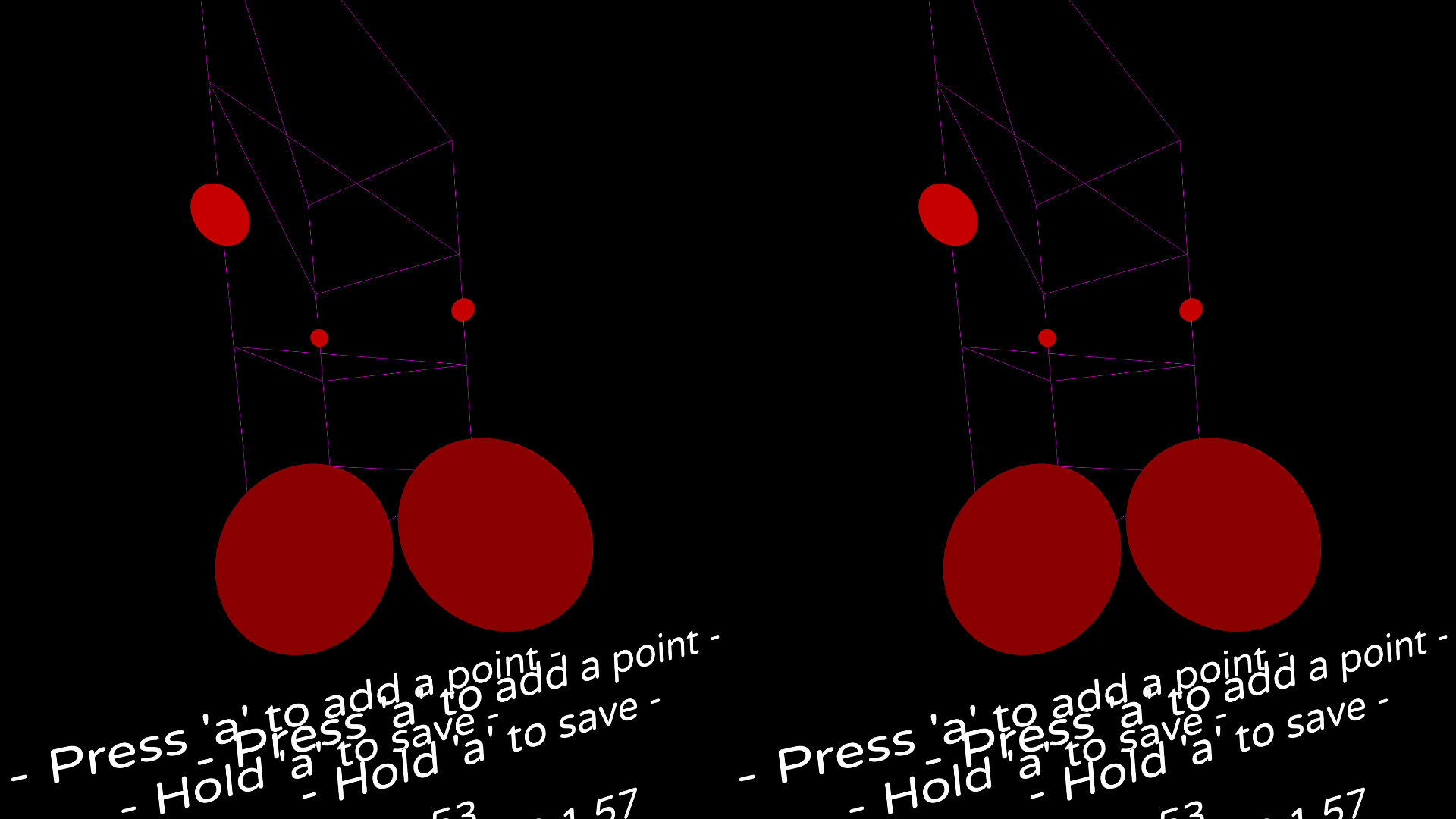
|
||||

|
||||
|
||||
@@ -1,22 +0,0 @@
|
||||
---
|
||||
weight: 50
|
||||
title: Motoc
|
||||
---
|
||||
|
||||
# Motoc
|
||||
|
||||
- [Motoc GitHub repository](https://github.com/galister/motoc)
|
||||
|
||||
Motoc is a tool for calibrating devices of different tracking technologies to work together.
|
||||
|
||||
With support for both one-shot and continuous modes, Motoc is a complete solution for all your calibration needs.
|
||||
|
||||
Example use cases:
|
||||
- Use a WiVRn HMD with lighthouse trackers
|
||||
- Use a WMR HMD with lighthouse trackers
|
||||
|
||||
Please take a look at the GitHub Readme for a comprehensive guide.
|
||||
|
||||
## Support
|
||||
|
||||
Reach out in the `monado` or `wivrn` room in Discord or Matrix.
|
||||
@@ -16,47 +16,3 @@ Please note the OpenVR implementation is incomplete and contains only what's nec
|
||||
OpenComposite is required for Steam Play games to work in VR regardless of API. Due to the number of confounding factors surrounding setup, sandboxing, and more quirks; we recommend you use Envision to setup and manage your VR.
|
||||
|
||||
Contributions to improve the OpenVR to OpenXR mapping are welcome.
|
||||
|
||||
## Rebinding Controls
|
||||
|
||||
> Changing OpenVR bindings is currently a very manual process. This will change in the future.
|
||||
|
||||
We're going to be using VRChat as an example, but this should apply to just about any OpenVR game.
|
||||
|
||||
First, we locate where the bindings are stored. For Unity games this is always in `GameName_Data/StreamingAssets/SteamVR`.
|
||||
|
||||
In the case of VRChat, it would be in `PATH_TO_STEAM/steamapps/common/VRChat/VRChat_Data/StreamingAssets/SteamVR/`
|
||||
|
||||
Create a folder next to the game's executable called `OpenComposite`. Make a copy of the bindings file for your controller and place it in the `OpenComposite` folder. Open it up and look for `controller_type`, it's typically near the bottom of the file.
|
||||
|
||||
```json
|
||||
"controller_type" : "knuckles",
|
||||
```
|
||||
|
||||
Rename the copy you've made to the value of `controller_type`.
|
||||
|
||||
In my case i've ended up with a copy of the valve index bindings named `knuckles.json` located in `PATH_TO_STEAM/steamapps/common/VRChat/OpenComposite/knuckles.json`.
|
||||
|
||||
Going back to the location of the original bindings, open up `actions.json`, which defines every possible action in the game. A popular binding is changing the microphone button to toggle gestures. We'll use this as an example.
|
||||
|
||||
in `actions.json`, we can find the name of the desired actions.
|
||||
```json
|
||||
"/actions/Global/in/Mic": "Toggle Microphone", //the one we want to replace
|
||||
"/actions/Global/in/Gesture_Toggle": "Gesture Toggle", //the one we want to replace it with
|
||||
```
|
||||
|
||||
in our copy `knuckles.json`, we can then look for `actions/Global/in/Mic` and replace it with `Gesture_Toggle` like this:
|
||||
|
||||
```json
|
||||
{
|
||||
"inputs" : {
|
||||
"click" : {
|
||||
"output" : "/actions/global/in/Gesture_Toggle"
|
||||
}
|
||||
},
|
||||
"mode" : "button",
|
||||
"path" : "/user/hand/left/input/a"
|
||||
},
|
||||
```
|
||||
|
||||
And that's it! OpenComposite will automatically pick up these files as long as they're placed and named correctly, and load them instead of the game's provided ones.
|
||||
|
||||
@@ -5,85 +5,14 @@ title: WiVRn
|
||||
|
||||
# WiVRn
|
||||
|
||||
- [WiVRn GitHub repository](https://github.com/WiVRn/WiVRn)
|
||||
- [WiVRn GitHub repository](https://github.com/Meumeu/WiVRn)
|
||||
|
||||

|
||||
|
||||
|
||||
> WiVRn wirelessly connects a standalone VR headset to a Linux computer. You can then play PCVR games on the headset while processing is done on the computer.
|
||||
> WiVRn lets you run OpenXR applications on a computer and display them on a standalone headset.
|
||||
|
||||
WiVRn is based on [Monado](/docs/fossvr/monado/) and can be used with [OpenComposite](/docs/fossvr/opencomposite/) to support a majority of titles available for SteamVR. A wide range of standalone headsets are supported.
|
||||
It's very similar in purpose to [Monado](/docs/fossvr/monado/), but for standalone VR headsets.
|
||||
|
||||
## Installing WiVRn
|
||||
Current limitations are a fixed bitrate and network protocol streaming only, please ensure your headset is on a stable network or utilize an ethernet adapter to your headset to operate in a quasi-wired mode.
|
||||
|
||||
We recommend using [Envision](/docs/fossvr/envision/) to install and launch WiVRn & OpenComposite. Envision will handle all configuration seamlessly and avoids many of the pitfalls of a manual setup.
|
||||
|
||||
Alternatively, you can use the [WiVRn Flatpak](https://flathub.org/apps/io.github.wivrn.wivrn) which includes OpenComposite as part of it. Processes in flatpak cannot take advantage of setcap, and so your performance may suffer when compared to Envision.
|
||||
|
||||
## General WiVRn Notes
|
||||
|
||||
WiVRn uses Avahi for network discovery. Ensure it is running with the following terminal command:
|
||||
```bash
|
||||
systemctl enable --now avahi-daemon
|
||||
```
|
||||
(If Avahi is not available, the IP address of the server must be entered into the client.)
|
||||
|
||||
If a firewall is installed, make sure ports 5353/UDP and 9757/UDP+TCP are open for Avahi and WiVRn itself, respectively.
|
||||
|
||||
If using Nvidia proprietary drivers, have [Monado Vulkan Layers](https://gitlab.freedesktop.org/monado/utilities/vulkan-layers) installed, otherwise games will crash with a segmentation fault.
|
||||
|
||||
For audio in WiVRn, you will need to assign applications, or the system as a whole, to output audio to the virtual output "WiVRn" which is created upon connection between the server and the headset.
|
||||
|
||||
## Wired WiVRn
|
||||
|
||||
Use WiVRn with a cable instead of Wifi. Use a 5Gbps cable & port at the very least.
|
||||
|
||||
WiVRn version: 0.19+
|
||||
|
||||
Using Envision:
|
||||
- Connect the headset via USB
|
||||
- Click the `Start WiVRn Client (Wired)` button in Envision.
|
||||
- If it's not there, an Envision update might be necessary.
|
||||
|
||||
Manual steps:
|
||||
- Connect the headset via USB
|
||||
- If WiVRn is running on the headset, close it now.
|
||||
- While in the system lobby of the headset, run the following `adb` commands on the PC:
|
||||
```bash
|
||||
adb reverse tcp:9757 tcp:9757
|
||||
adb shell am start -a android.intent.action.VIEW -d "wivrn+tcp://127.0.0.1" org.meumeu.wivrn
|
||||
```
|
||||
|
||||
## WiVRn + Lighthouse driver
|
||||
|
||||
This section covers using WiVRn with any lighthouse-tracked device: Index/Vive controllers, Vive/Tundra trackers, etc.
|
||||
|
||||
WiVRn version: 0.19+
|
||||
|
||||
Have SteamVR installed (no need to run it).
|
||||
|
||||
In Envision, set WiVRn Profile as such:
|
||||
- XR Service CMake Flags:
|
||||
- `WIVRN_FEATURE_STEAMVR_LIGHTHOUSE=ON`
|
||||
- Environment Variables:
|
||||
- `WIVRN_USE_STEAMVR_LH=1`
|
||||
- `LH_DISCOVER_WAIT_MS=6000`
|
||||
|
||||
Perform a **Clean Build** after changing the CMake flags!
|
||||
|
||||
If not using Envision, simply pass `-DWIVRN_FEATURE_STEAMVR_LIGHTHOUSE=ON` to cmake and export the env variables before starting `wivrn-server`.
|
||||
|
||||
[Motoc](/docs/fossvr/motoc/) will be used to calibrate the two tracking technologies to work together.
|
||||
|
||||
Discovery happens only on first connection, so be sure to **have all lighthouse devices powered on and in line of sight of base stations before connecting the headset!**
|
||||
|
||||
Once a device is discovered, it may be powered off and then back on later.
|
||||
|
||||
Once video appears in the headset, check `motoc monitor` to make sure your devices all show up.
|
||||
|
||||
If one or more devices are missing, try:
|
||||
- Spread the devices out more; lighthouse devices get discovered quicker if they're not piled up on each other. Simply strapping them on is good, too.
|
||||
- Increase `LH_DISCOVER_WAIT_MS`, though this delays the client on first connection.
|
||||
|
||||
To re-discover devices, restart WiVRn server.
|
||||
|
||||
At this point, your lighthouse devices will be randomly floating about somewhere. To calibrate them, follow the guide in the [Motoc README](https://github.com/galister/motoc/blob/main/README.md).
|
||||
Should you utilize [Envision](/docs/fossvr/envision/) for WiVRn setup, please ensure your APK and WiVRn server match as closely as possible. Check the WiVRn github [actions](https://github.com/Meumeu/WiVRn/actions) for an APK matching your server build to install to your headset.
|
||||
@@ -11,16 +11,8 @@ WlxOverlay-S is a tool that lets users interact with their X11 or Wayland deskto
|
||||
|
||||
It supports a vast variety of desktop environments, and comes with a fully customizable keyboard and watch.
|
||||
|
||||
WlxOverlay-S also includes a playspace mover and can act like your home environment (void) when launched as the first app in Monado/WiVRn.
|
||||
|
||||
Please take a look at the GitHub Readme for a comprehensive guide.
|
||||
|
||||
## WayVR
|
||||
|
||||
WayVR acts as a bridge between Wayland applications and WlxOverlay-S panels, allowing you to display your applications within a VR environment. Internally, WayVR utilizes Smithay to run a Wayland compositor.
|
||||
|
||||
Read more about setup/usage in the [WayVR README](https://github.com/galister/wlx-overlay-s/tree/main/contrib/wayvr).
|
||||
|
||||
## Support
|
||||
|
||||
Reach out in the `wlxoverlay` room in Discord or Matrix.
|
||||
@@ -1,115 +0,0 @@
|
||||
---
|
||||
weight: 900
|
||||
title: xrBinder
|
||||
---
|
||||
|
||||
# xrBinder
|
||||
- [xrBinder GitLab repository](https://gitlab.com/mittorn/xrBinder)
|
||||
- [xrBinder example_configs](https://gitlab.com/mittorn/xrBinder/-/tree/master/example_configs)
|
||||
|
||||
> xrBinder is an OpenXR binding layer that is designed to manage key bindings for XR applications. It acts as a bridge between input actions and various VR/AR devices, providing a way to map specific hardware inputs to in-game actions. This is particularily useful for when the default mappings of an application may not align with your preferences or specific hardware capabilities.
|
||||
|
||||
{{% hint danger %}}
|
||||
**Warning**
|
||||
|
||||
xrBinder is still considered alpha-quality and highly experimental.
|
||||
Certain bindings may not work when they are hard coded to the application, such as the [Index Controller bindings in VRChat](https://docs.vrchat.com/docs/valve-index#binding-customization-notes) for `Jump`, `Mic Toggle`, `Gesture Toggle` and `Action Menu Left / Right`.
|
||||
{{% /hint %}}
|
||||
|
||||
## Building from source
|
||||
|
||||
The project uses submodules to include dependencies such as imgui. They will need to be initialized and updated after cloning the repository.
|
||||
|
||||
```bash
|
||||
git clone https://gitlab.com/mittorn/xrBinder.git
|
||||
cd xrBinder
|
||||
git submodule update --init --recursive
|
||||
```
|
||||
|
||||
It is recommended to create a build subdirectory:
|
||||
|
||||
```bash
|
||||
mkdir build
|
||||
cd build
|
||||
cmake ..
|
||||
make
|
||||
```
|
||||
|
||||
Once building is complete, the shared object (.so file) will be located in the `<build>/XR_APILAYER_NOVENDOR_xr_binder` directory, alongside a few binaries and a `manifest.json`.
|
||||
|
||||
## Importing as an implicit layer
|
||||
|
||||
The [API Layer Interaction documentation for OpenXR](https://github.com/KhronosGroup/OpenXR-SDK-Source/blob/main/specification/loader/api_layer.adoc) states that layers can be either implicit, where they are automatically enabled, and explicit, where they must be manually enabled. We will set this up as an implicit layer for convenience.
|
||||
|
||||
This gives us a choice of directories to copy the contents of the `<build>/XR_APILAYER_NOVENDOR_xr_binder` directory to, assuming the environment variable `XR_API_LAYER_PATH` is not set:
|
||||
|
||||
```
|
||||
/usr/local/etc/openxr/1/api_layers/implicit.d
|
||||
/usr/local/share/openxr/1/api_layers/implicit.d
|
||||
/etc/openxr/1/api_layers/implicit.d
|
||||
/usr/share/openxr/1/api_layers/implicit.d
|
||||
$HOME/.local/share/openxr/1/api_layers/implicit.d
|
||||
```
|
||||
|
||||
If the directory structure does not exist, it must be manually recreated.
|
||||
|
||||
Once the files are copied over to the implicit.d directory, make sure to double-check the manifest.json so that it matches the **API Layer Manifest File Format** in the OpenXR API Layer documentation.
|
||||
|
||||
### Example manifest.json
|
||||
|
||||
```json
|
||||
{
|
||||
"file_format_version": "1.0.0",
|
||||
"api_layer": {
|
||||
"name": "XR_APILAYER_NOVENDOR_xr_binder",
|
||||
"disable_environment": "XR_APILAYER_NOVENDOR_xr_binder_DISABLE",
|
||||
"api_version": "1.0",
|
||||
"implementation_version": "1",
|
||||
"description": "Advanced layer for binding actions'",
|
||||
"library_path": "./libxrBinder_module.so"
|
||||
}
|
||||
}
|
||||
|
||||
```
|
||||
|
||||
## Configuration
|
||||
|
||||
xrBinder reads and stores its configuration in `$XDG_CONFIG_HOME/xrBinder` or `$HOME/.config/xrBinder`. If either directories do not exist, they must be manually created.
|
||||
|
||||
Copy the [example_configs directory](https://gitlab.com/mittorn/xrBinder/-/tree/master/example_configs) from the xrBinder gitlab repository and place it and its contents in the xrBinder config directory.
|
||||
|
||||
Depending on which controllers you use, pick the corresponding .ini template from the `source_templates` subdirectory and append its entire content into the `xrBinder.ini` file.
|
||||
|
||||
## Usage
|
||||
|
||||
To verify if the module was loaded, check your opencomposite logs or your system logs after you've launched your application. If xrBinder was loaded successfully, these two lines should be present as an example:
|
||||
|
||||
```
|
||||
[2024-10-10 01:49:03.230] CreateOpenXRBackend:154 - Num layers available: 1
|
||||
[2024-10-10 01:49:03.230] CreateOpenXRBackend:162 - Layer: XR_APILAYER_NOVENDOR_xr_binder
|
||||
```
|
||||
|
||||
If this is the case, we can begin using xrBinder. You may have noticed these two lines in `xrBinder.ini` which come by default:
|
||||
|
||||
```bash
|
||||
# UDP port for ipc
|
||||
serverPort = 9011
|
||||
# run ipc_server <port> and gui/cli client if set to bus mode or just client in server
|
||||
ipcMode = bus
|
||||
```
|
||||
|
||||
In this example, we are expected to run the `ipc_server` binary in the implicit.d directory we copied our files from the build into on port 9011 from the terminal.
|
||||
|
||||
```bash
|
||||
./ipc_server 9011
|
||||
```
|
||||
|
||||
With the server and the application where we want to edit our keybinds running in the Background, we can now use the xrBinder GUI by executing the `client_gui` binary.
|
||||
|
||||

|
||||
|
||||
- Type in the port to connect to (9011 in our case) and hit Connect
|
||||
- Under the "Windows" expander, click "Session". This will open a new window in the xrBinder GUI.
|
||||
- Load the data in each tab of the session window
|
||||
- Choose the action and source to dictate what action to bind the button to, then hit Apply.
|
||||
- The binding should be applied immediately. You can hit "Update data" below to refresh the list of bindings that have been applied.
|
||||
@@ -11,7 +11,7 @@ title: VR Gear & GPUs
|
||||
|
||||
| Manufacturer | Driver | VR Support | Reprojection Support | Hybrid Graphics Support | Notes |
|
||||
|--------------|---------------------------|----------------|--------------------------------|-------------------------------|----------------------------------------------------------------------------------------------|
|
||||
| Nvidia | Nvidia (Closed Source) | Excellent | Excellent | Supported | Requires an implicit [vulkan-layer](https://gitlab.freedesktop.org/monado/utilities/vulkan-layers) to not segfault: [*AUR*](https://aur.archlinux.org/packages/monado-vulkan-layers-git)・[*Fedora*](https://packages.fedoraproject.org/pkgs/monado-vulkan-layers/monado-vulkan-layers/)・[*Ubuntu*](https://gitlab.freedesktop.org/monado/utilities/vulkan-layers/-/jobs/55337949/artifacts/file/incoming/monado-vulkan-layers_0.9.0.29.git.ae43cdc-1~20240221ubuntu2204_amd64.deb)・[*Debian*](https://gitlab.freedesktop.org/monado/utilities/vulkan-layers/-/jobs/55337947/artifacts/file/incoming/monado-vulkan-layers_0.9.0.29.git.ae43cdc-1~20240221bpo11_amd64.deb) |
|
||||
| Nvidia | Nvidia (Closed Source) | Excellent | Excellent | Supported | Requires an implicit [vulkan-layer](https://gitlab.freedesktop.org/monado/utilities/vulkan-layers) to not segfault: [*AUR*](https://aur.archlinux.org/packages/monado-vulkan-layers-git)・[*jammy*](https://gitlab.freedesktop.org/monado/utilities/vulkan-layers/-/jobs/55337949/artifacts/file/incoming/monado-vulkan-layers_0.9.0.29.git.ae43cdc-1~20240221ubuntu2204_amd64.deb)・[*focal*](https://gitlab.freedesktop.org/monado/utilities/vulkan-layers/-/jobs/55337948/artifacts/file/incoming/monado-vulkan-layers_0.9.0.29.git.ae43cdc-1~20240221ubuntu2004_amd64.deb)・[*bullseye*](https://gitlab.freedesktop.org/monado/utilities/vulkan-layers/-/jobs/55337947/artifacts/file/incoming/monado-vulkan-layers_0.9.0.29.git.ae43cdc-1~20240221bpo11_amd64.deb) |
|
||||
| Nvidia | Nouveau (Open Source) | Functional | Functional | Supported | Lacks DisplayPort audio. |
|
||||
| Intel | i915 (Open Source) | Functional | Unknown | Supported | Relatively old, most likely poor support for newer GPUs.
|
||||
| Intel | Intel/Xe (Open Source) | No wired HMDs | N/A / Unable to drive wired. | Supported | Lacks direct mode implementation in driver, unable to drive wired HMDs. |
|
||||
@@ -23,7 +23,7 @@ title: VR Gear & GPUs
|
||||
- **VR Support**: Indicates how well supported the necessary Vulkan API components are.
|
||||
- **Reprojection Support**: Describes the support and quality of reprojection features for VR. Poor support indicates that the driver is not able to properly handle Vulkan realtime shaders and it will present as visual stutter. Non-robust solutions will suffer stutter under very high GPU load.
|
||||
- **PRIME/ Hybrid GPU Support**: Compatibility with systems using multiple GPUs for render offload. Monado and all clients must be run on a single select GPU due to memory tiling requirements.
|
||||
- For Nvidia proprietary drivers, the [vulkan-layer](https://gitlab.freedesktop.org/monado/utilities/vulkan-layers) **must** be installed in order to not crash.
|
||||
- For Nvidia proprietary drivers, the [vulkan-layer](https://gitlab.freedesktop.org/monado/utilities/vulkan-layers) is **required** not to crash.
|
||||
- AMD GPUs lower than RDNA generation have functional but less robust reprojection capabilities, expected to be similar to Intel.
|
||||
- Audio over displayport is known to temporarily cut out when new audio sources spring up on pipewire [without a fix to add alsa headroom](https://wiki.archlinux.org/title/PipeWire#Audio_cutting_out_when_multiple_streams_start_playing)
|
||||
- X11 configurations are discouraged but workable, please upgrade your system to Wayland if at all possible.
|
||||
@@ -41,8 +41,8 @@ A non-comprehensive table of various VR/XR devices and the drivers that support
|
||||
| HTC Vive | ✅ | ✅ | 🚧 (WiVRn PC-PC stream) |
|
||||
| HTC Vive Pro | ✅ | ✅ | 🚧 (WiVRn PC-PC stream) |
|
||||
| HTC Vive Pro Eye | ✅ (No eyechip) | ✅ (No eyechip) | 🚧 (WiVRn PC-PC stream) |
|
||||
| HTC Vive Pro 2 | ✅ (custom [driver and patches](https://github.com/CertainLach/VivePro2-Linux-Driver)) | ✅ (With two kernel patches [1](https://github.com/CertainLach/VivePro2-Linux-Driver/blob/master/kernel-patches/0002-drm-edid-parse-DRM-VESA-dsc-bpp-target.patch) [2](https://github.com/CertainLach/VivePro2-Linux-Driver/blob/master/kernel-patches/0003-drm-amd-use-fixed-dsc-bits-per-pixel-from-edid.patch), AMD GPUs only.) | -- |
|
||||
| Bigscreen Beyond | ✅ (with [kernel patch](https://gist.github.com/galister/08cddf10ac18929647d5fb6308df3e4b/raw/0f6417b6cb069f19d6c28b730499c07de06ec413/combined-bsb-6-10.patch), AMD GPUs only.) | ✅ (with [kernel patch](https://gist.github.com/galister/08cddf10ac18929647d5fb6308df3e4b/raw/0f6417b6cb069f19d6c28b730499c07de06ec413/combined-bsb-6-10.patch), AMD GPUs only.) | -- |
|
||||
| HTC Vive Pro 2 | ✅ (custom [driver and patches](https://github.com/CertainLach/VivePro2-Linux-Driver)) | ✅ (With two kernel patches [1](https://github.com/CertainLach/VivePro2-Linux-Driver/blob/master/kernel-patches/0002-drm-edid-parse-DRM-VESA-dsc-bpp-target.patch) [2](https://github.com/CertainLach/VivePro2-Linux-Driver/blob/master/kernel-patches/0003-drm-amd-use-fixed-dsc-bits-per-pixel-from-edid.patch) Doesn't work on Nvidia) | -- |
|
||||
| Bigscreen Beyond | ✅ (with [kernel patches](https://gist.githubusercontent.com/TayouVR/af8635a4b8e1d02d038be1be1d221c83/raw/3806a6ff0a03721904164277d7523d43f7ca383c/bigscreenBeyond.patch). Doesn't work on Nvidia) | ✅ (with [kernel patches](https://gist.githubusercontent.com/TayouVR/af8635a4b8e1d02d038be1be1d221c83/raw/3806a6ff0a03721904164277d7523d43f7ca383c/bigscreenBeyond.patch). Doesn't work on Nvidia) | -- |
|
||||
| Somnium VR1 | ? | ? | ? |
|
||||
| VRgineers XTAL | ? | ? | ? |
|
||||
| StarVR One | ? | ? | ? |
|
||||
@@ -66,7 +66,7 @@ A non-comprehensive table of various VR/XR devices and the drivers that support
|
||||
| HP Reverb | ✅ (Monado SteamVR plugin) | ✅ (experimental 6dof controllers) | 🚧 (WiVRn PC-PC stream) |
|
||||
| Acer OJO 500 | ✅ (Monado SteamVR plugin) | ✅ (experimental 6dof controllers) | 🚧 (WiVRn PC-PC stream) |
|
||||
| HP Reverb G2 | ✅ (Monado SteamVR plugin) | ✅ (experimental 6dof controllers) | 🚧 (WiVRn PC-PC stream) |
|
||||
| Oculus Rift CV1 | ✅ (OpenHMD SteamVR plugin) | ✅ (OpenHMD plugin based support) | 🚧 (WiVRn PC-PC stream) |
|
||||
| Oculus Rift CV1 | 🚧 (Monado SteamVR plugin) | 🚧 (ancient openhmd based support) | 🚧 (WiVRn PC-PC stream) |
|
||||
| Oculus Rift S | ✅ (Monado SteamVR plugin) | ✅ (experimental 6dof controllers) | 🚧 (WiVRn PC-PC stream) |
|
||||
| **Standalone** | | | |
|
||||
| Quest | ✅ (via [ALVR](/docs/steamvr/alvr/)) | -- | ✅ |
|
||||
@@ -74,20 +74,18 @@ A non-comprehensive table of various VR/XR devices and the drivers that support
|
||||
| Quest Pro | ✅ (via [ALVR](/docs/steamvr/alvr/)) | -- | ✅ |
|
||||
| Quest 3 | ✅ (via [ALVR](/docs/steamvr/alvr/)) | -- | ✅ |
|
||||
| Pico 4 | ✅ (via [ALVR](/docs/steamvr/alvr/)) | -- | ✅ |
|
||||
| Pico Neo 3 | ✅ (via [ALVR](/docs/steamvr/alvr/)) | -- | ❌ (Broken XR SDK) |
|
||||
| Pico Neo 3 | ✅ (via [ALVR](/docs/steamvr/alvr/)) | -- | ✅ |
|
||||
| HTC Vive Focus 3 | ✅ (via [ALVR](/docs/steamvr/alvr/)) | -- | ✅ |
|
||||
| HTC Vive XR Elite | ✅ (via [ALVR](/docs/steamvr/alvr/)) | -- | ✅ |
|
||||
| Lynx R1 | ✅ (via [ALVR](/docs/steamvr/alvr/)) | -- | ✅ |
|
||||
| Apple Vision Pro | ✅ (via [ALVR](/docs/steamvr/alvr/)) | -- | 🚧 (WIP client) |
|
||||
| **Trackers** | | | |
|
||||
| Vive/Tundra trackers | ✅ (native or spacecal) | ✅ (native or motoc) | ✅ (motoc) |
|
||||
| SlimeVR trackers | ✅ | ✅ (OSC + experimental driver) | ✅ |
|
||||
| Apple Vision Pro | ✅ (via [ALVR](/docs/steamvr/alvr/)) | -- | ❌ |
|
||||
| **Trackers** | | | |
|
||||
| Vive/Tundra trackers | ✅ | ✅ | 🚧 (WIP) |
|
||||
| SlimeVR trackers | ✅ | ✅ (OSC, driver WIP) | 🚧 (WIP) |
|
||||
| Project Babble | ✅ (oscavmgr) | ✅ (oscavmgr) | ✅ (oscavmgr) |
|
||||
| Eyetrack VR | ✅ (oscavmgr) | ✅ (oscavmgr) | ✅ (oscavmgr) |
|
||||
| Eyetrack VR | ✅ | ✅ | ✅ |
|
||||
| Mercury Handtrack | 🚧 (Monado SteamVR plugin, win only) | ✅ (survive driver only) | ❌ |
|
||||
| Ultraleap v1 | ? | ✅ (with `openxr-layer-ultraleap`) | ? |
|
||||
| Lucid VR Gloves | ? | ✅ (survive driver only) | ❌ |
|
||||
| Kinect FBT | ✅ | ✅ (experimental) | 🚧 |
|
||||
| Standable FBT | ❌ | ❌ | ❌ |
|
||||
|
||||
## Hardware note
|
||||
@@ -106,10 +104,6 @@ Pimax initialization code WIP. Distortion matrix dump work in progress.
|
||||
|
||||
Eyetrack VR and Project Babble will both be implemented through [oscavmgr](https://github.com/galister/oscavmgr) to emit proper unified flexes over OSC.
|
||||
|
||||
Tracking technologies can be mixed Monado/WiVRn by using [motoc](https://github.com/galister/motoc).
|
||||
|
||||
Having Ultraleap packages installed causes Monado to not compile.
|
||||
|
||||
## Applying a kernel patch (for Vive Pro 2, Bigscreen Beyond, Pimax)
|
||||
|
||||
### Arch
|
||||
@@ -130,35 +124,6 @@ source=(
|
||||
4. close `PKGBUILD`. (may not be necessary but i ran `updpkgsums`) -> `makepkg -s --skippgpcheck` (i didn't feel like fixing a pgp error)
|
||||
5. then section 4 of https://wiki.archlinux.org/title/Kernel/Arch_build_system#Installing and restart
|
||||
|
||||
### Fedora
|
||||
|
||||
1. Prepare the kernel
|
||||
```sh
|
||||
git clone https://src.fedoraproject.org/rpms/kernel.git
|
||||
cd kernel
|
||||
|
||||
# replace 41 with your fedora version
|
||||
git switch f41
|
||||
|
||||
# name this the 'bsb' build
|
||||
sed -i 's/# define buildid .*/%define buildid .bsb/g' kernel.spec
|
||||
```
|
||||
|
||||
2. Replace `linux-kernel-test.patch` with the actual patch file downloaded from the table above
|
||||
|
||||
3. Build RPMs:
|
||||
```sh
|
||||
fedpkg local
|
||||
```
|
||||
|
||||
4. Install kernel:
|
||||
```sh
|
||||
sudo dnf install --nogpgcheck ./x86_64/kernel-*.rpm
|
||||
```
|
||||
5. Reboot and check that using `uname -a` that the `bsb` kernel is running.
|
||||
|
||||
Official guide: [Building a Kernel from the Fedora dist-git](https://docs.fedoraproject.org/en-US/quick-docs/kernel-build-custom/#_building_a_kernel_from_the_fedora_dist_git)
|
||||
|
||||
### NixOS
|
||||
|
||||
1. download the patch(es)
|
||||
|
||||
@@ -15,22 +15,13 @@ AMD GPUs will attempt to power save in between rendering frames, for flatscreen
|
||||
|
||||
This is very important to avoid stuttering, do not skip this step if you use AMD.
|
||||
|
||||
You should add a kernel arg for `amdgpu` driven cards. Add `amdgpu.ppfeaturemask=0xffffffff` to your kernel args. [more info](https://gitlab.com/corectrl/corectrl/-/wikis/Setup#full-amd-gpu-controls)
|
||||
|
||||
### The simple way: Use CoreCtrl
|
||||
|
||||
{{% hint danger %}}
|
||||
**BE CAREFUL**
|
||||
|
||||
CoreCtrl is an **overclocking** utility. Overclocking your GPU is potentially dangerous and if done without care it could **permanently damage your hardware**.
|
||||
|
||||
If you limit yourself to setting the power profile you should be fine, but don't just crank up the sliders.
|
||||
{{% /hint %}}
|
||||
|
||||
- Install [CoreCtrl](https://gitlab.com/corectrl/corectrl)
|
||||
- Select your GPU on the top
|
||||
- Set Performance mode to Advanced
|
||||
- Set Power profile to VR
|
||||
- Set the GPU and Memory sliders to max
|
||||
|
||||
### Enable VR profile using a script
|
||||
|
||||
|
||||
@@ -5,46 +5,54 @@ weight: 50
|
||||
|
||||
# Resonite
|
||||
|
||||
{{% hint info %}}
|
||||
Resonite presents a decent base of usability for both native Linux and Proton verions, but suffers some issues under OpenComposite.
|
||||
|
||||
**Note**: The Linux-native version of Resonite, amid deprioritization of developer time to fix its numerous issues, was put on indefinite hold in August 2024. This document only covers running under Proton.
|
||||
## Broken hands
|
||||
|
||||
{{% /hint %}}
|
||||
Resonite is currently playable through OpenComposite on Valve Index controllers alone. The SteamVR runtime normally generates synthetic hand models ("skeletal input") from the user's controller activity, but as OpenComposite doesn't currently support this across all controllers, this leads to null hands being provided to Resonite.
|
||||
|
||||
{{% hint warning %}}
|
||||
Valve Index Knuckles generate their own synthetic hand data in the Monado runtime and therefore function as expected.
|
||||
|
||||
Despite the above deprecation, Steam will still download the native Linux binary by default.
|
||||
## Sync Error (native-only issue)
|
||||
|
||||
Make sure you have a compatibility tool selected (e.g. GE-Proton-RTSP) before launching Resonite.
|
||||
There is a bug that prevents cloud syncing. This only affects the native Linux client.
|
||||
|
||||
{{% /hint %}}
|
||||
Symptom: The syncing status facet on your dash reads:
|
||||
|
||||
The current recommended Proton variant is [**GE-Proton-RTSP**](https://github.com/SpookySkeletons/proton-ge-rtsp/releases).
|
||||
> **Sync Error** Check log for details
|
||||
|
||||
OpenComposite should now provide a close-to-flawless experience on most controllers and when using hand tracking.
|
||||
### Workaround
|
||||
|
||||
## Visual bugs
|
||||
```bash
|
||||
git clone "https://github.com/Yellow-Dog-Man/brotli.net"
|
||||
wget "thepatch TODO"; git apply
|
||||
cd Brotli.NET
|
||||
dotnet restore
|
||||
dotnet build Brotli.Core --configuration Release --no-restore
|
||||
cp Brotli.Core/bin/Release/netstandard2.0/Brotli.Core.dll ~/.local/share/Steam/steamapps/common/Resonite/Resonite_Data/Managed/Brotli.Core.dll
|
||||
cd ~/.local/share/Steam/steamapps/common/Resonite/
|
||||
cp Resonite_Data/Plugins/brolib_x64.so Resonite_Data/Managed/
|
||||
```
|
||||
|
||||
There are some minor visual bugs specific to running Resonite on Proton, such as textures taking longer to load and appearing black for a few seconds when close to the player.
|
||||
### Explanation
|
||||
|
||||
## Crashes
|
||||
In short, Brotli.NET mistakenly determines it's on Windows, and thus tries and fails to load the Windows library `brolib_x64.dll`. Also, the correct Linux-native library _does_ ship with Resonite, but that isn't in Brotli.NET's search path.
|
||||
|
||||
Resonite has been seen causing random SteamVR crashes on Linux before. In some situations the engine also tends to freeze. On OpenComposite, the game will rarely close out on its own without leaving any obvious trace of things going wrong — this is being investigated.
|
||||
See issue [Yellow-Dog-Man/brotli.net#3](https://github.com/Yellow-Dog-Man/brotli.net/issues/3).
|
||||
|
||||
The cause of these issues and whether they are Proton-specific isn't currently known.
|
||||
## Can't import models (native)
|
||||
|
||||
## Performance
|
||||
This bug in AssimpNet prevents importing models. This only affects the native Linux client.
|
||||
|
||||
In larger sessions Resonite is typically CPU-bound, there isn't much that can be done besides upgrading your CPU. In situations where the GPU is a bottleneck, lowering the resolution <!-- TODO link to resolution scaling --> (either in the OpenXR runtime or through OpenComposite) may help dramatically.
|
||||
AssimpNet on Linux loads the native plugin from the wrong directory.
|
||||
|
||||
## Crash on loading into a world with video players
|
||||
### Workaround
|
||||
|
||||
On GE-Proton9-10 (for example), loading into a world with e.g. a YouTube video or live stream can crash the game. Try using the latest GE-Proton-RTSP.
|
||||
```bash
|
||||
cd ~/.local/share/Steam/steamapps/common/Resonite/
|
||||
ln -s Resonite_Data/Plugins/libassimp.so .
|
||||
```
|
||||
|
||||
## Controls busted after switching to desktop
|
||||
## Z-fighting on facets and UI
|
||||
|
||||
Resonite allows a VR player to take a break and switch to desktop mode by pressing the F8 key.
|
||||
|
||||
Because controller hot-swapping is not yet implemented in Monado & OpenComposite, turning off a controller will freeze its state, including buttons pressed and analog stick input. Resonite will continue processing VR inputs even after switching to desktop.
|
||||
|
||||
The end result is that desktop controls can act strangely. For example, if you were holding the grab sensor as you turned off the VR controller, picking up items or inspector windows stops working with the mouse.
|
||||
## Mirrors look messed up in VR
|
||||
@@ -33,10 +33,9 @@ It's generally **highly recommended** to opt for the more expensive but higher q
|
||||
|
||||
## Selecting your variant
|
||||
|
||||
There are currently three ways to use SlimeVR:
|
||||
There are currently two ways to use SlimeVR:
|
||||
|
||||
- Via SteamVR driver
|
||||
- Via SolarXR driver for Monado (experimental)
|
||||
- Directly via VRChat OSC (Open Sound Control)
|
||||
|
||||
## First method: SteamVR driver
|
||||
@@ -53,25 +52,7 @@ $HOME/.steam/steam/steamapps/common/SteamVR/bin/linux64/vrpathreg.sh adddriver $
|
||||
|
||||
Now the only thing you have to do is restart the SlimeVR server.
|
||||
|
||||
## Second method: SolarXR driver for Monado (experimental)
|
||||
|
||||
This is a native approach to using Slime trackers within the open-source stack without relying on SteamVR, offering results comparable to those provided by the native SteamVR driver.
|
||||
|
||||
To use this method, you need to compile SlimeVR yourself from this fork:
|
||||
`https://github.com/rcelyte/SlimeVR-Server.git`, branch `solarxr-ipc`. Build instructions can be found [here](https://github.com/rcelyte/SlimeVR-Server/blob/solarxr-ipc/CONTRIBUTING.md).
|
||||
|
||||
For Monado, you need compile this fork:
|
||||
`https://gitlab.freedesktop.org/rcelyte/monado.git`, branch `solarxr-integration`. You can easily build Monado from this specific branch via [Envision](../fossvr/envision/), by modifying "XR Service Repo" and "XR Service Branch" in your build profile accordingly.
|
||||
|
||||
**Important**: Make sure to launch SlimeVR first before launching Monado/Envision.
|
||||
|
||||
**Important note #1**: Do not stop the SlimeVR server during operation, as driver and tracker hot-plugging are not yet supported.
|
||||
|
||||
**Important note #2**: SlimeVR will not detect your HMD until you launch a game that supports trackers. For now, body calibration options will be available in-game.
|
||||
|
||||
After launching the game, you should see your trackers being detected. At this point, you can calibrate and use them.
|
||||
|
||||
## Third method: VRChat OSC
|
||||
## Second method: VRChat OSC
|
||||
|
||||
**This method is only available in VRChat.**
|
||||
|
||||
|
||||
@@ -5,7 +5,7 @@ title: SteamVR
|
||||
|
||||
# SteamVR
|
||||
|
||||
- [Quick start guide](/docs/steamvr/quick-start/)
|
||||
- [Quick start guide](/docs/steamvr/quick-start)
|
||||
|
||||
The de facto standard for anything PCVR, SteamVR runs on Linux.
|
||||
|
||||
|
||||
@@ -1,66 +0,0 @@
|
||||
---
|
||||
weight: 200
|
||||
title: Using Mod Managers
|
||||
---
|
||||
|
||||
# Using Third-Party Mod Managers with Steam Games
|
||||
|
||||
This is a guide on how to install and integrate mod managers (like Vortex, MO2, etc.) for games running in Proton.
|
||||
|
||||
**Note:** Most of this stuff will break if you use Flatpak for any of the involved programs.
|
||||
|
||||

|
||||
|
||||
## Pre-Requisites
|
||||
- https://github.com/Matoking/protontricks
|
||||
- https://github.com/tralph3/Steam-Metadata-Editor
|
||||
- Launch your game at least once before!
|
||||
|
||||
## Procedure
|
||||
|
||||
1. Download your mod manager installer (Vortex, MO2, etc.)
|
||||
2. Run the installer with `Protontricks Launcher`, select your game prefix when prompted
|
||||
3. Finish the installer and note the installation path
|
||||
4. Symlink mod manager's installation path inside prefix into the game's install path. For example:
|
||||
```
|
||||
ln -s "/home/faith/.local/share/Steam/steamapps/compatdata/611670/pfx/drive_c/Program Files/Black Tree Gaming Ltd/Vo
|
||||
rtex/" "/home/faith/.local/share/Steam/steamapps/common/SkyrimVR/Vortex"
|
||||
```
|
||||
5. **Close Steam!** Then open Steam Metadata Editor
|
||||
6. Find your game in the list, then click `Edit launch menu`
|
||||
7. Click `Add New Entry`
|
||||
8. In Description, enter the display name (e.g., `Vortex Mod Manager`)
|
||||
9. Click on the `...` button in the Executable field
|
||||
10. File picker will appear, which should be inside the game's install directory. If it's not, try again, restart your computer, or perform some ritual because it sometimes doesn't work properly.
|
||||
11. Choose the mod manager executable (e.g., `Vortex/Vortex.exe`)
|
||||
12. Make sure a relative path appears in the Executable field, as above! It won't work otherwise. If you see a full path `/home/faith/.local/share/steam/.../`, try deleting the entry and restarting the metadata editor.
|
||||
13. The working directory should fill in automatically
|
||||
14. Close the modal window
|
||||
15. Click `Save` button
|
||||
16. Enjoy
|
||||
|
||||
## Important notes
|
||||
|
||||
* Steam might occasionally remove the custom launch entry, just follow the guide again from Step 5.
|
||||
* You have to install mod managers and dependencies for each game separately.
|
||||
* You can't use the Nexus Mods button `Mod Manager Download` via browser, you have to download and adds mods manually.
|
||||
|
||||
# Redirecting game executable from custom launchers
|
||||
|
||||
It is possible to "redirect" any executable that Steam runs and launch any other executable you specify instead. This can be useful for launching Script Extender loader without having to replace any files.
|
||||
|
||||
You need to set game's launch options to the following:
|
||||
|
||||
```
|
||||
bash -c 'exec "${@/OriginalGame.exe/CustomLoader.exe}"' -- %command%
|
||||
```
|
||||
|
||||
replacing `OriginalGame.exe` and `CustomLoader.exe` with game's executable name and your custom launcher respectively.
|
||||
|
||||
Here's an example of full Fallout 4 VR launch options:
|
||||
|
||||
```
|
||||
WINEDLLOVERRIDES="WinHTTP.dll=n,b;x3daudio1_7.dll=n,b" bash -c 'exec "${@/Fallout4VR.exe/f4sevr_loader.exe}"' -- %command%
|
||||
```
|
||||
|
||||
Put any environment variables before `bash`, put any launch arguments for the game after `%command%`.
|
||||
@@ -44,9 +44,9 @@ sudo setcap CAP_SYS_NICE=eip ~/.local/share/Steam/steamapps/common/SteamVR/bin/l
|
||||
|
||||
**Bigscreen Beyond** requires a patched kernel: [Bigscreen Beyond Kernel Patch](https://gist.githubusercontent.com/TayouVR/af8635a4b8e1d02d038be1be1d221c83/raw/3806a6ff0a03721904164277d7523d43f7ca383c/bigscreenBeyond.patch)
|
||||
|
||||
For any of the above headsets with {{< icon name="nvidia" >}} Nvidia, you will get a smoother experience with Monado + OpenComposite (use Envision for easy setup), albeit this combo does not work with all VR titles.
|
||||
If you use any of the above headsets with {{< icon name="nvidia" >}} Nvidia , you may get a smoother experience with Monado + OpenComposite (use Envision for easy setup), albeit this combo does not work with all VR titles.
|
||||
|
||||
For many games, the "Legacy Reprojection" option in the per-app video settings may provide a smoother experience.
|
||||
For many games, you might want experiment with "Legacy Reprojection" in the per-app video settings.
|
||||
|
||||
**Quest 1/2/3/Pro, Pico 3/4, Vive Focus 3/XR Elite**:
|
||||
|
||||
@@ -73,21 +73,21 @@ Extra steps when using with ALVR:
|
||||
- Under `Installation` tab, register the ALVR driver
|
||||
- Under `Settings`, `Steamvr Launcher` section, set `Driver launch action` to `No action`.
|
||||
|
||||
Note: Cloud sync can get stuck and prevent SteamVR from launching. I recommend disabling cloud sync for SteamVR.
|
||||
None: Cloud sync can get stuck and prevent SteamVR from launching. I recommend disabling cloud sync for SteamVR.
|
||||
|
||||
If Steam is installed in a non-standard location, change the variable on the top of the script.
|
||||
If you've installed Steam in a non-standard location, change the variable on the top of the script.
|
||||
|
||||
To use the script, simply launch it from a terminal. It will ask for sudo password in case your SteamVR has been freshly installed or updated and it needs to `setcap` the compositor.
|
||||
|
||||
ALVR-only: In case a SteamVR error appears; Ctrl-C the script, open ALVR dashboard and launch SteamVR from there once. You then don't have to open ALVR until there's a SteamVR update.
|
||||
ALVR-only: If you get a SteamVR error after this, Ctrl-C the script, open ALVR dashboard and launch SteamVR from there once. You then don't have to open ALVR until there's a SteamVR update.
|
||||
|
||||
When restarting SteamVR, simply exit it using your overlay and it'll be restarted for you. To really exit SteamVR, first Ctrl-C the script.
|
||||
If you need to restart SteamVR, simply exit it using your overlay and it'll be restarted for you. To really exit SteamVR, first Ctrl-C the script.
|
||||
|
||||
## Optional: Disable SteamVR dashboard
|
||||
|
||||
The SteamVR dashboard has some major issues with high CPU usage, occasional freezing and sometimes going completely unresponsive.
|
||||
Since the SteamVR dashboard has some major issues with high CPU usage, occasional freezing and sometimes going completely unresponsive.
|
||||
|
||||
Many choose to disable SteamVR dashboard and instead use something like WlxOverlay-S for desktop & game library access.
|
||||
Many choose to disable SteamVR dashboard and use something like WlxOverlay-S instead for desktop + game library access.
|
||||
|
||||
To do this, simply remove the execute permission from `vrwebhelper`:
|
||||
|
||||
|
||||
@@ -13,7 +13,7 @@ Current recommended Proton: [Proton-GE-RTSP](https://github.com/SpookySkeletons/
|
||||
|
||||
As opposed to the default setting, this Proton version enables more stable and feature rich video playback. Featuring a number of fixes and most prominently playback of livestreamed content, typically real time streaming protocol found at live events and often utilized by the VRCDN.
|
||||
|
||||
As of the GE-Proton9-10-rtsp14 release, video content should be working correctly. Please report any notable stability bugs to LVRA general chat or by creating an issue on GitHub.
|
||||
As of the GE9-1-rtsp4 release, video content should be crash-free, please report any notable stability bugs to LVRA general chat or related issue tabs.
|
||||
|
||||
This tar file can be extracted to a ~/.steam/steam/compatibilitytools.d/ (create if it does not already exist) folder and steam restarted to set the game proton version to rtsp.
|
||||
|
||||
@@ -23,9 +23,9 @@ If you utilize pipewire as your audio server, VRChat has a tendancy to drop mult
|
||||
|
||||
Similar tuning of pulseaudio can fix the issue if encountered there.
|
||||
|
||||
Should the game prompt to exit the game upon an anticheat failure, simply try to load the game again until it works. [See EAC section](eac/)
|
||||
Should the game prompt to exit the game upon an anticheat failure, simply try to load the game again until it works. [See EAC section](eac)
|
||||
|
||||
Given a [few caveats](video_players/) most video players will work.
|
||||
Given a [few caveats](video_players) most video players will work.
|
||||
|
||||
VRChat drags quite a tangle of privacy concerns.
|
||||
Please consider your opsec in relation to all VR API input including poses, all voice communication, unsandboxed code execution, the EAC anticheat system which occasionally probes system proc info and much more, and the game maintaining a memory buffered audio video recording of the window contents tied to the report system.
|
||||
@@ -24,8 +24,7 @@ First, take a look at this page from [the official VRChat docs](https://creators
|
||||
|
||||
vrc-get is a native FOSS package manager written in Rust. Its GUI counterpart was formerly known as vrc-get-gui, but has been rebranded as ALCOM (***Al***ternative Creator ***Com***panion).
|
||||
|
||||
1. Download the [AppImage from the latest "gui" release\*](https://github.com/vrc-get/vrc-get/releases). Pick the file named `alcom-<some version>-x86_64.AppImage`.
|
||||
- \*Some users say the v0.16.0 and v1.0.0 releases only show a blank white GUI. If you're affected by this bug, downgrade to [v0.1.15](https://github.com/vrc-get/vrc-get/releases/tag/gui-v0.1.15) AppImage for the time being.
|
||||
1. Download the [AppImage from the latest "gui" release](https://github.com/vrc-get/vrc-get/releases). Pick the file named `alcom-<some version>-x86_64.AppImage`.
|
||||
1. Run the AppImage.
|
||||
1. In the settings tab, under Unity Hub Path, point it to your UnityHub.AppImage.
|
||||
1. Create a new project and open it.
|
||||
@@ -58,28 +57,13 @@ exec flatpak run com.unity.UnityHub "$@"
|
||||
|
||||
-->
|
||||
|
||||
## World & Avatar SDK
|
||||
|
||||
The VRChat Worlds SDK fails to build the assetbundle and Build and Test doesn't work for either SDK.
|
||||
|
||||
> ⚠️ **WARNING** \
|
||||
> This modifies the VRChat SDK using [Harmony](https://github.com/pardeike/Harmony) to properly work on Linux. \
|
||||
> This is directly against the VRChat Terms of Service.
|
||||
|
||||
Patches for both the Worlds and Avatars SDK are available: https://github.com/BefuddledLabs/LinuxVRChatSDKPatch ([VCC](https://befuddledlabs.github.io/LinuxVRChatSDKPatch/))
|
||||
|
||||
## Troubleshooting
|
||||
|
||||
### Unable to activate Unity license
|
||||
### Worlds: AssetBundle was not built
|
||||
|
||||
If you are using a Fedora or RHEL-based distribution, this may be caused by an OpenSSL configuration option.
|
||||
This error is caused by VRCSDK build incorrectly expecting a mixed-case AssetBundle filename, while Unity outputs a lowercase filename, which fails a file existence check and causes the SDK to abort the build.
|
||||
|
||||
To verify that this is the problem, check your `~/.config/unity3d/Unity/Unity.Licensing.Client.log`.
|
||||
If you see the text `Interop+Crypto+OpenSslCryptographicException: error:03000098:digital envelope routines::invalid digest`, running the following command as root will re-enable SHA-1 cryptography and resolve the issue:
|
||||
|
||||
`update-crypto-policies --set DEFAULT:SHA1`
|
||||
|
||||
For more information, see the RHEL documentation on [security hardening](https://docs.redhat.com/en/documentation/red_hat_enterprise_linux/9/html/security_hardening/using-the-system-wide-cryptographic-policies_security-hardening#proc_re-enabling-sha-1_using-the-system-wide-cryptographic-policies).
|
||||
To fix this, import `WorldSDKPatcher.unitypackage`: https://github.com/thegu5/VRCSDKonLinux/releases
|
||||
|
||||
### Shaders fail to include some .cginc files
|
||||
|
||||
@@ -90,11 +74,11 @@ This can happen with Poiyomi. It's caused by case-sensitivity. You may need to e
|
||||
Unity may open undocked panel windows (such as color pickers and unitypackage import dialogs) partially offscreen.
|
||||
|
||||
Some workarounds:
|
||||
- For KDE, hold the Meta (AKA Super, AKA WinKey) key and click anywhere in the window to drag it back onscreen.
|
||||
- For KDE, hold the Meta key and click anywhere in the window to drag it back onscreen.
|
||||
- Alt-Tab to the specific window, then press Meta-Right to snap the window to the right side of the screen.
|
||||
- For KDE, press ALT+F3 -> More Actions -> Move.
|
||||
|
||||
### Can't drag-and-drop files from external programs
|
||||
### Drag-and-drop does not work
|
||||
|
||||
Rather than using Assets -> Import New Asset or Import Package, it's normally possible to drag-and-drop a unitypackage or other asset from a file browser directly into Unity's Project pane, where it will be copied to the Assets folder.
|
||||
|
||||
@@ -108,20 +92,6 @@ As a workaround, launch your file browser in Xwayland mode. Unity will accept th
|
||||
WAYLAND_DISPLAY="" dolphin
|
||||
```
|
||||
|
||||
### When Unity is opened via ALCOM, it crashes when dragging a hierarchy object
|
||||
|
||||
{{% hint info %}}
|
||||
|
||||
**Note**: If you are on Nvidia, see the [Crashing frequently with Nvidia](#crashing-frequently-with-nvidia) section first.
|
||||
|
||||
{{% /hint %}}
|
||||
|
||||
An ALCOM-launched instance of Unity can crash after trying to drag-and-drop an item (within Unity, ie. not external programs).
|
||||
|
||||
This [issue #1346](https://github.com/vrc-get/vrc-get/issues/1346) was fixed by ALCOM v0.1.14, so just update.
|
||||
|
||||
Analysis: ALCOM has a different environment than the rest of your system, mostly by virtue of being an AppImage. This means the Unity subprocess that it spawns was implicitly inheriting its crummy vars. Unfun fact: This environment inheritance causes several other problems (such as ignoring the user's GTK theme for menubars and context menus, especially on a KDE system), but I'm not sure the cleanest way to unset those vars yet. A wrapper script around the Unity binary?
|
||||
|
||||
### VRCFury builds lock up the editor
|
||||
|
||||
Maybe due to the windows offscreen issue mentioned above, when starting build or play mode, the VRCFury progress window may initially be invisible, or pop underneath, which gives the *appearance* that the build isn't doing anything and has locked up. Use the "Alt-tab to the specific window then Meta-Right" trick to get the VRCFury progress window to appear onscreen again. That window may also be solid black, but this doesn't necessarily mean the build has frozen.
|
||||
@@ -138,12 +108,12 @@ This seems to happen consistently if the projects are stored on an EXFAT partiti
|
||||
|
||||
### Crashing frequently with Nvidia
|
||||
|
||||
On some systems running Nvidia graphics, the Unity Editor may crash frequently from common actions like importing a unitypackage or dragging a file.
|
||||
On some systems running Nvidia graphis, the Unity Editor may crash frequently from common actions like importing a unitypackage, or dragging a file.
|
||||
|
||||
If you launch projects from ALCOM (v0.1.13 or newer): Open ALCOM, go to the "Default Unity Command-line Arguments" setting on the Settings page. Click "Edit", "Customize", "Reset", "+", then type in `-force-vulkan-layers` into the new box, then click "Save".
|
||||
To fix this, open Unity Hub and click the `...` icon to the right of your project. Then click "Add command line arguments", and add the argument `-force-vulkan-layers`.
|
||||
|
||||
If you launch projects from Unity Hub: Open Unity Hub, click the `...` icon to the right of your project, then click "Add command line arguments", and add the argument `-force-vulkan-layers`.
|
||||
Note that this change will only work when launching from Unity Hub, and will not apply when launching from ALCOM
|
||||
|
||||
Alternatively, downgrading the Nvidia driver to version 545 may also fix the problem.
|
||||
Alternatively, downgrading the Nvidia driver to version 545 may also fix the problem
|
||||
|
||||
<!-- This fix is mentioned in https://discussions.unity.com/t/unity-editor-crashes-frequently-on-linux-vulkan-after-updating-gpu-drivers/941387/10, and appears to be a new issue as of driver version 550 -->
|
||||
@@ -9,7 +9,7 @@ AVPro based video players have been notoriously buggy on Linux, knowing to have
|
||||
|
||||
We recommend using [Proton-GE-RTSP](https://github.com/SpookySkeletons/proton-ge-rtsp/releases) as it contains extra fixes for Wine's Windows Media Foundation implementation that AVPro uses. This will allow you to play regular videos, MPEG-TS and HLS streams, as well as RTSP streams. Sometimes RTSP streams will require 1 or more manual resyncs to start.
|
||||
|
||||
AVPro on GE-RTSP is currently expected to be stable, if you encounter game stability issues or other around video playback please report them as soon as possible at the [VRChat proton git issue](https://github.com/ValveSoftware/Proton/issues/1199) or our [community instant messaging](/docs/community/).
|
||||
AVPro on GE is currently expected to be stable, with one excpetion of seeking in the video not currently being implemented, if you encounter game stability issues or other around video playback please report them as soon as possible at the [VRChat proton git issue](https://github.com/ValveSoftware/Proton/issues/1199) or our [community instant messaging](/docs/community/).
|
||||
|
||||
## Stream from video player to ffplay/MPV
|
||||
|
||||
|
||||
24
hugo.toml
24
hugo.toml
@@ -8,16 +8,16 @@ enableGitInfo = true
|
||||
disableKinds = ['taxonomy']
|
||||
|
||||
[params]
|
||||
BookTheme = 'auto'
|
||||
# enable in single pages if they get too long
|
||||
BookToC = false
|
||||
BookLogo = '/logo.webp'
|
||||
BookSection = 'docs'
|
||||
BookRepo = 'https://gitlab.com/lvra/lvra.gitlab.io'
|
||||
BookCommitPath = '-/commit'
|
||||
BookEditPath = '-/edit/main'
|
||||
BookDateFormat = 'Jan 2, 2006'
|
||||
BookSearch = true
|
||||
BookComments = false
|
||||
BookTheme = 'auto'
|
||||
# enable in single pages if they get too long
|
||||
BookToC = false
|
||||
BookLogo = '/logo.png'
|
||||
BookSection = 'docs'
|
||||
BookRepo = 'https://gitlab.com/lvra/lvra.gitlab.io'
|
||||
BookCommitPath = '-/commit'
|
||||
BookEditPath = '-/edit/main'
|
||||
BookDateFormat = 'Jan 2, 2006'
|
||||
BookSearch = true
|
||||
BookComments = false
|
||||
[markup.goldmark.renderer]
|
||||
unsafe = true
|
||||
unsafe = true
|
||||
|
||||
@@ -1,7 +1,7 @@
|
||||
<hr style="margin: 48px 0">
|
||||
<p>
|
||||
© <a target="_blank" href="https://gitlab.com/LVRA/lvra.gitlab.io/-/project_members">The <em>Linux VR Adventures</em> community contributors</a> —
|
||||
This work is licensed under <a target="_blank" href="https://creativecommons.org/licenses/by-sa/4.0/">Attribution-ShareAlike 4.0 International</a>.
|
||||
This work is licensed under <a target="_blank" href="http://creativecommons.org/licenses/by-sa/4.0/">Attribution-ShareAlike 4.0 International</a>.
|
||||
</p>
|
||||
|
||||
<p>Made with <a target="_blank" href="https://gohugo.io/">Hugo</a> and the <a target="_blank" href="https://github.com/alex-shpak/hugo-book">Hugo Book Theme</a>.
|
||||
|
||||
@@ -3,9 +3,4 @@
|
||||
max-width: 100%;
|
||||
height: auto;
|
||||
}
|
||||
main aside nav h2 a img.book-icon {
|
||||
filter: unset;
|
||||
height: 2em;
|
||||
width: 2em;
|
||||
}
|
||||
</style>
|
||||
|
||||

Binary file not shown.
|
Before Width: | Height: | Size: 15 KiB |

Binary file not shown.
|
Before Width: | Height: | Size: 182 KiB |

Binary file not shown.
|
Before Width: | Height: | Size: 52 KiB |

Binary file not shown.
|
Before Width: | Height: | Size: 22 KiB |
BIN
static/logo.png
Normal file
BIN
static/logo.png
Normal file

Binary file not shown.
|
After Width: | Height: | Size: 587 KiB |
BIN
static/logo.webp
BIN
static/logo.webp

Binary file not shown.
|
Before Width: | Height: | Size: 18 KiB |
33
test_links.py
Normal file
33
test_links.py
Normal file
@@ -0,0 +1,33 @@
|
||||
#!/usr/bin/env python3
|
||||
from pathlib import Path
|
||||
import re
|
||||
from typing import List
|
||||
from os.path import exists
|
||||
|
||||
|
||||
def get_all_markdown_files():
|
||||
return Path("content").rglob("*.md")
|
||||
|
||||
|
||||
def find_links(f: str) -> List[str]:
|
||||
with open(f, "r") as fd:
|
||||
content = fd.read()
|
||||
return [
|
||||
link.lstrip("]").strip("()") for link in re.findall(r"\]\(\/[\w\/]+\)", content)
|
||||
]
|
||||
|
||||
|
||||
def verify_link_exists(link: str) -> bool:
|
||||
return exists(f"content{link}/_index.md") or exists(f'content{link.rstrip("/")}.md')
|
||||
|
||||
|
||||
md_files = get_all_markdown_files()
|
||||
|
||||
res = 0
|
||||
for f in md_files:
|
||||
for link in find_links(f):
|
||||
if not verify_link_exists(link):
|
||||
print(f"E: {f}: {link} does not exist")
|
||||
res = 1
|
||||
|
||||
exit(res)
|
||||
Submodule themes/hugo-book updated: 7c78a39c53...3f1bcccbfb
Reference in New Issue
Block a user